

Before you start
- You need an owner, admin or chatter account. A chatter sees only the conversations of their assigned creators.
- Hugo plans these messages himself, mostly through the creator’s AI Follow-ups. See AI Follow-ups: let Hugo write first. You cannot write or schedule a message here yourself.
See what Hugo plans to send
Open the conversation in Inbox. Look at the strip over the message box, the one with a calendar icon. The strip shows only when Hugo has something planned for this fan. Each chip in the strip is one message that Hugo sends by himself later. A chip shows:- The kind of message, in the table that follows.
- When it goes out, for example “in ~42m” or “in ~3h”. The time is approximate. “any moment” means it is due now.
- The words it sends, when Hugo has already written them. Otherwise, for example on an Unopened PPV reminder, the chip shows what the message is for, and Hugo writes the words when it goes out. The line is cut short: point at it to read all of it.
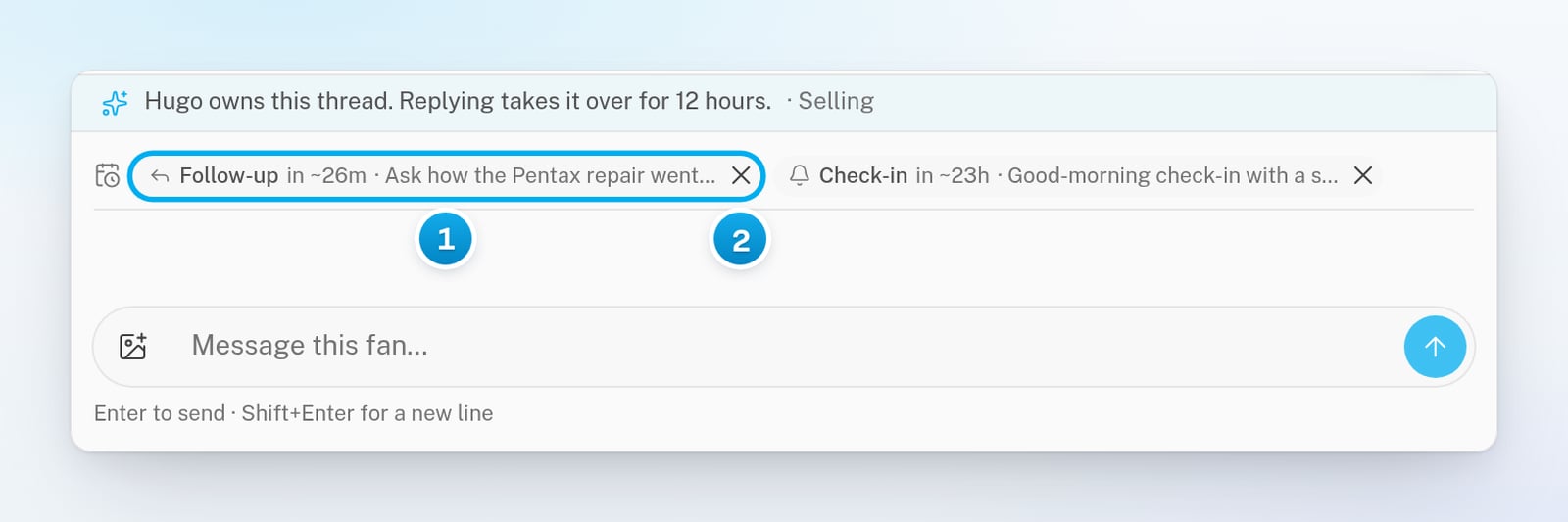
1 A message Hugo plans to send · 2 The cross cancels it
Cancel a message before it goes out
1
Check what the cross does
Point at the cross at the end of the chip.The tooltip says what happens. “Cancel now — it also stands down by itself if he replies first” means that the message is cancelled anyway if the fan writes first. “Cancel — this will not send” shows when a reply from the fan does not stop the message.
2
Cancel the message
Click the cross.The chip disappears. The message does not go out. There is no confirmation, and you cannot undo it.
When planned messages stop by themselves
You do not always need to cancel. A planned message also stops when:- The fan writes first. Most planned messages stand down when he replies.
- Someone on your team sends a message from the inbox. This cancels everything Hugo had planned for the conversation. It also takes the conversation over for 12 hours.
- Too much time passes. While a person has the conversation, or while something stops Hugo, planned messages do not go out. A message that waits too long expires, instead of going out late.
If something goes wrong
"Too late — that one already went out"
"Too late — that one already went out"
The message was already on its way before your click reached OnlyX. It appears in the conversation as it goes out. After OnlyFans delivers it, you have 24 hours to unsend it. See Copy, quote, hide, tag or unsend a message.
"Too late — it already expired" or "Too late — it already cancelled"
"Too late — it already expired" or "Too late — it already cancelled"
The message had already stopped by itself, so there was nothing to cancel. Nothing goes out.
"Could not cancel it"
"Could not cancel it"
The cancel did not reach OnlyX, so the message is still planned. Click the cross again.
I don't see the strip
I don't see the strip
Hugo has nothing planned for this fan right now. The strip shows only when there is at least one planned message.
Hugo sends too many follow-ups
Hugo sends too many follow-ups
The creator’s AI Follow-ups tab sets how often Hugo writes to quiet fans. An owner or admin can change it there. See AI Follow-ups: let Hugo write first.