

Before you start
- You need an owner, admin or chatter account in OnlyX. Content VAs have no Inbox.
- Chatters see the Inbox first when they sign in.
A chatter sees the inbox of their assigned creators only. Owners and admins can change a chatter’s creators in Settings > Members.
Open the Inbox
In OnlyX, click Inbox in the sidebar. On a phone, use Inbox in the tab bar at the bottom of the screen.The three parts of the Inbox
On a wide screen, the Inbox has three parts side by side:- The list of conversations, with the heading Master Inbox. The controls at the top find conversations by creator, state, name or kind of fan. See Find conversations: search, filters and sort.
- The open conversation: the fan’s messages and yours, with the message box at the bottom. At the top are the fan’s name, his creator and the buttons that decide who answers him.
- The fan panel: who the fan is and what he has bought. It has two tabs, Overview and Activity. It opens on Overview each time you open another conversation.
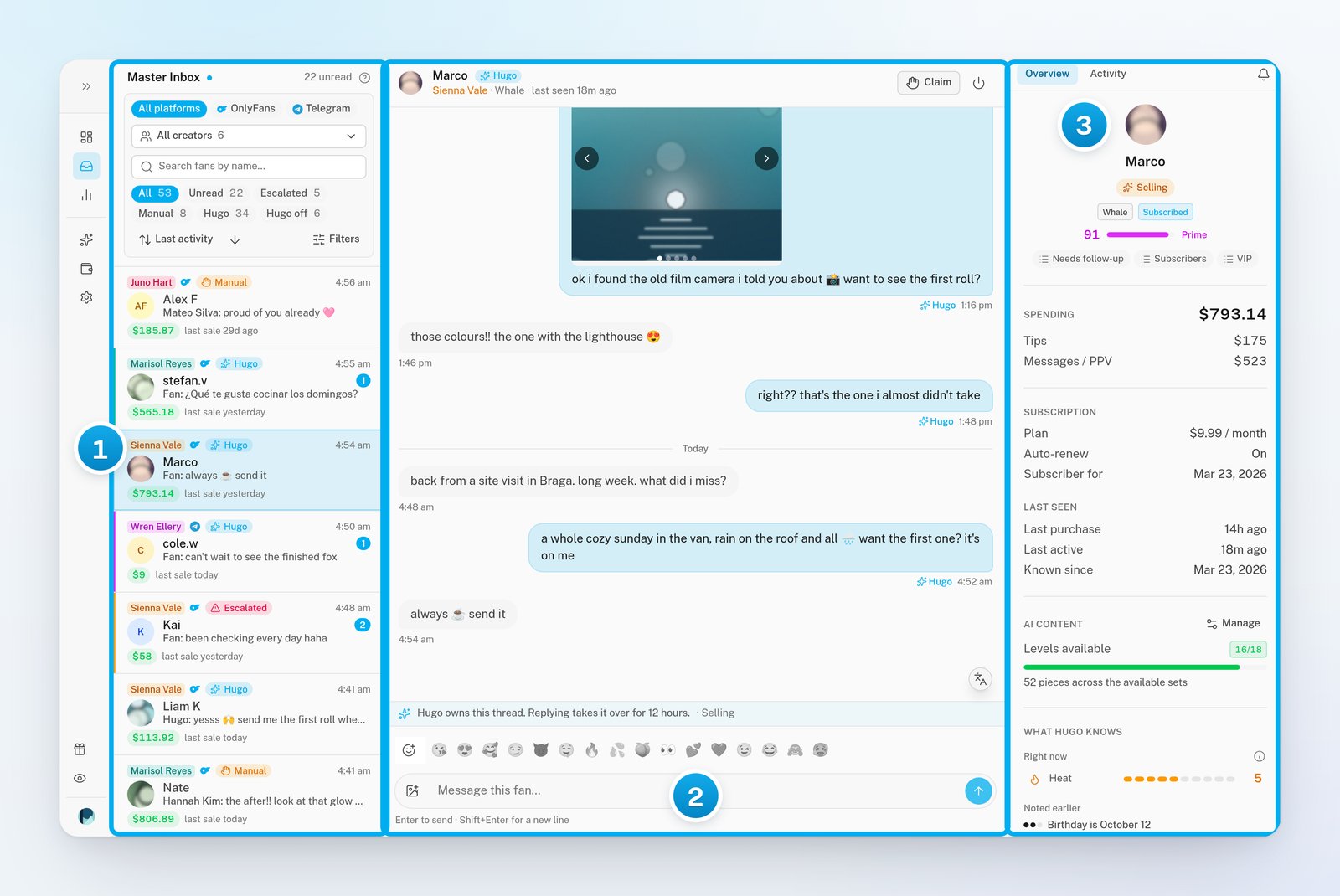
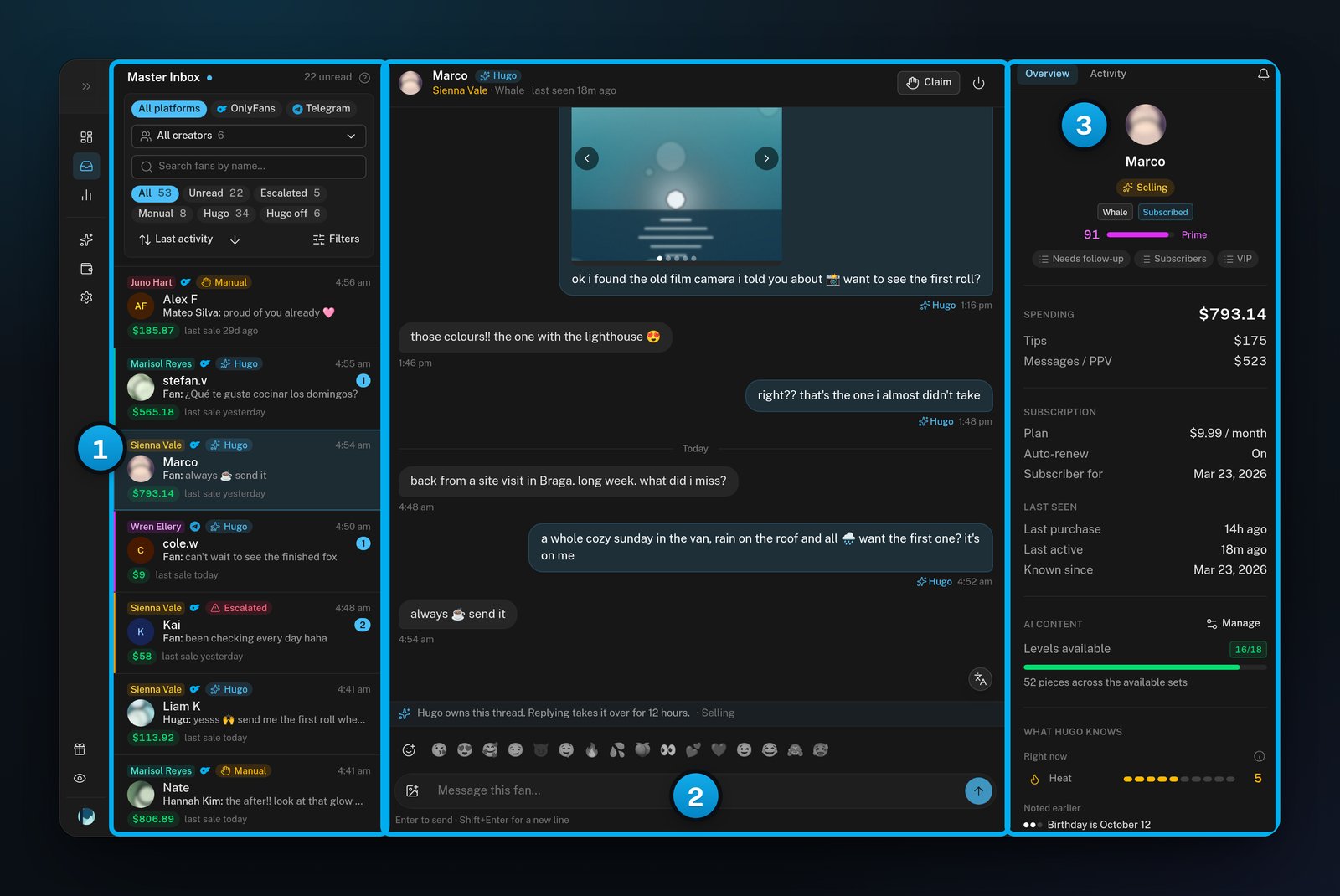
1 The list of conversations · 2 The open conversation · 3 The fan panel
On a laptop or a phone
Read a row in the list
Each row is one fan and one creator. The newest conversations are at the top.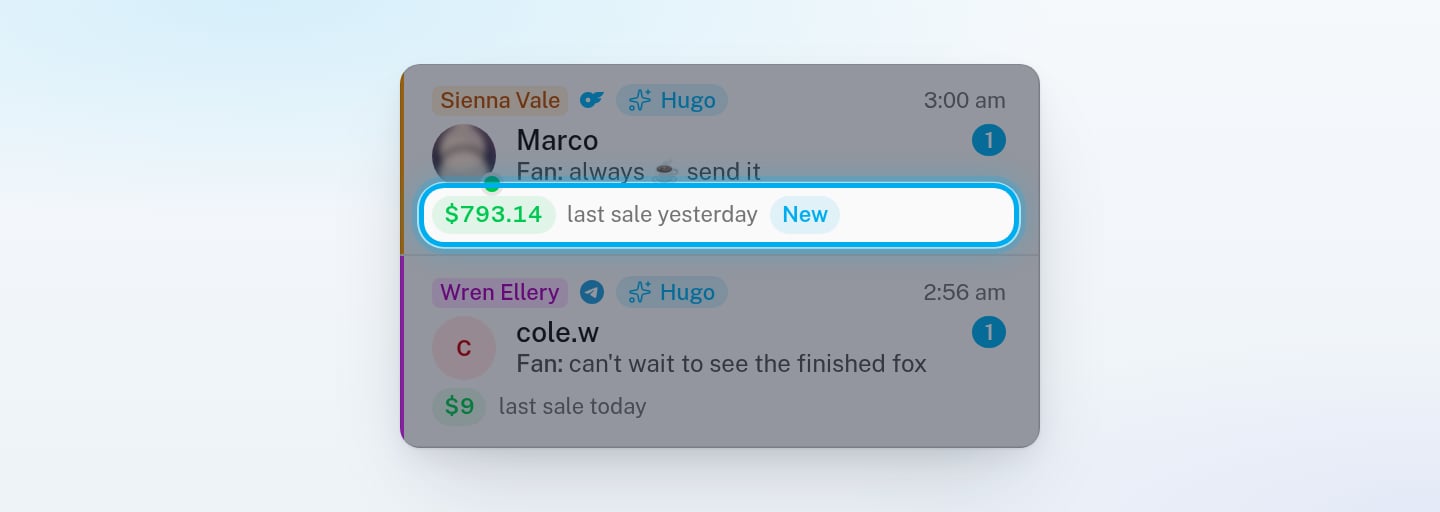
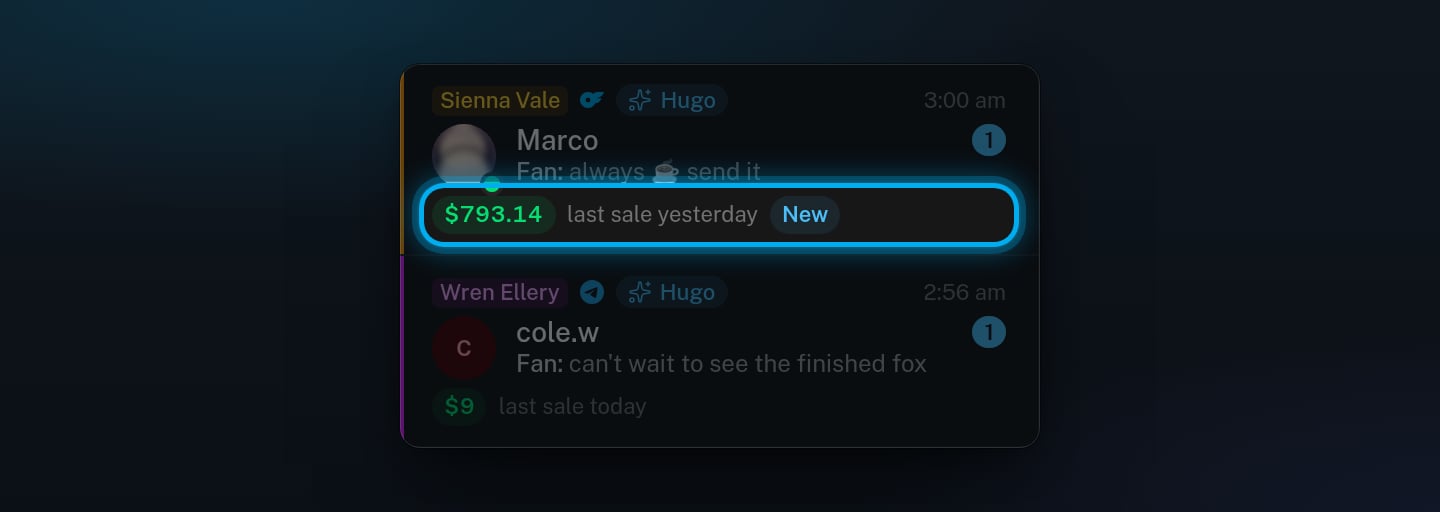
The ringed line: total spend, last purchase, and New for a fan who subscribed in the last 30 days
The conversation that you have open has a light tint and a thin ring.
How the list updates
The list updates by itself. When a fan writes, his conversation moves to the top and flashes for a moment. While your mouse moves over the list, OnlyX waits up to 3 seconds before it moves rows. So a row does not jump away from your click. The dot next to Master Inbox shows the live connection. If it turns amber, the connection is coming back, and the list reloads by itself when it does. The list shows 40 conversations first. Scroll down to load more.Open a conversation
Click a row. The conversation opens with the newest 50 messages. To read older messages, scroll up in the conversation.Opening a conversation marks it read. For an OnlyFans creator, this is in OnlyX only: the fan does not see a read receipt. For a Telegram creator, OnlyX also marks his messages read on Telegram, so he sees that they were read.
The row menu
Point at a row to show its menu button, a column of three dots. On a phone, the button is always there. The menu has:- Mark as read or Mark as unread;
- Turn Hugo off or Turn Hugo on, only for owners and admins, and only when no person holds the conversation;
- Mute fan or Unmute fan, only for owners and admins;
- Copy link, which copies a link to this conversation. Owners, admins and the chatters assigned to this creator can open it.
If something goes wrong
I don't see some creators' conversations
I don't see some creators' conversations
Chatters see only the creators assigned to them. Ask an owner or admin to assign the creator to you in Settings > Members.
The list shows "These conversations did not load."
The list shows "These conversations did not load."
Click Try again. If the list still does not load, check your internet connection, then reload the page.
A message says "Could not open that conversation"
A message says "Could not open that conversation"
Click the conversation in the list again. If it still does not open, reload the page.
The fan panel is missing
The fan panel is missing
Your window is narrower than 1280 pixels. Click the panel icon at the end of the conversation’s header to open the fan panel.