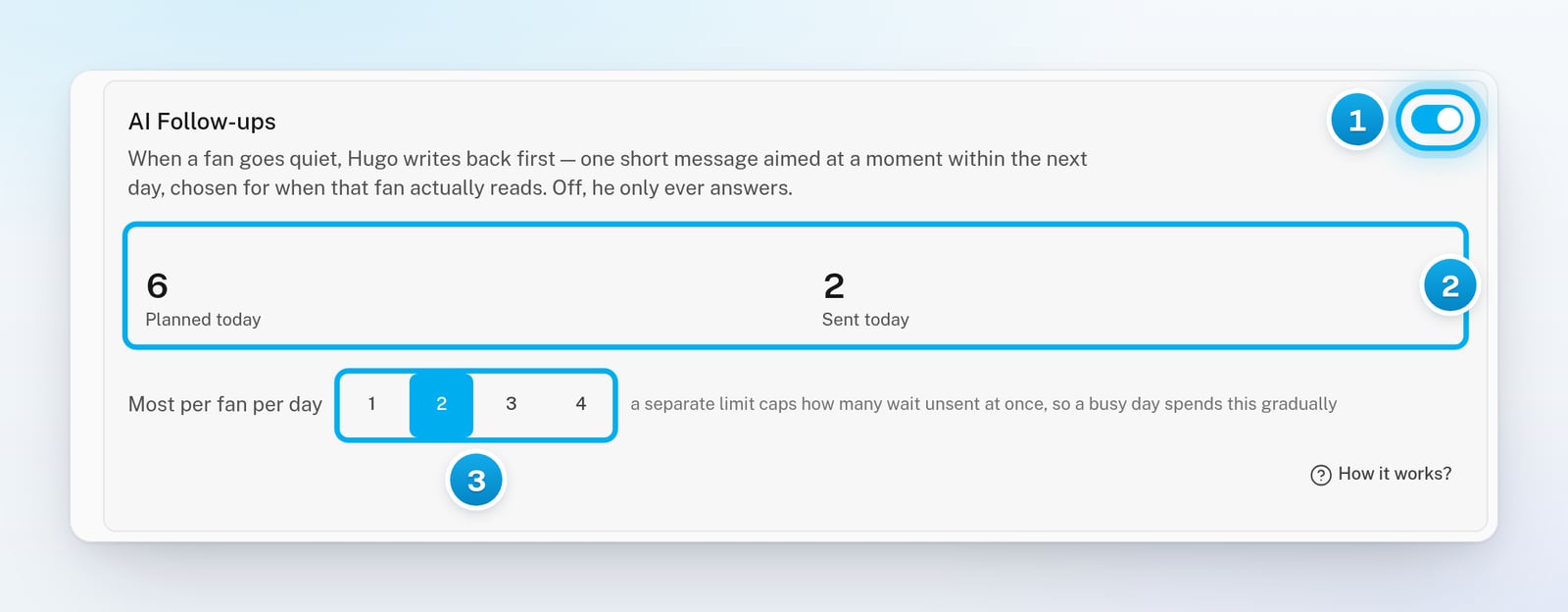
AI Follow-ups are on by default for every creator, with at most 2 follow-ups per fan per day. Hugo may write first when:
he answered the fan in a conversation he holds, and the fan has gone quiet; or
a fan who subscribed in the last two weeks has never written. Hugo may send him a short hello, at most twice.
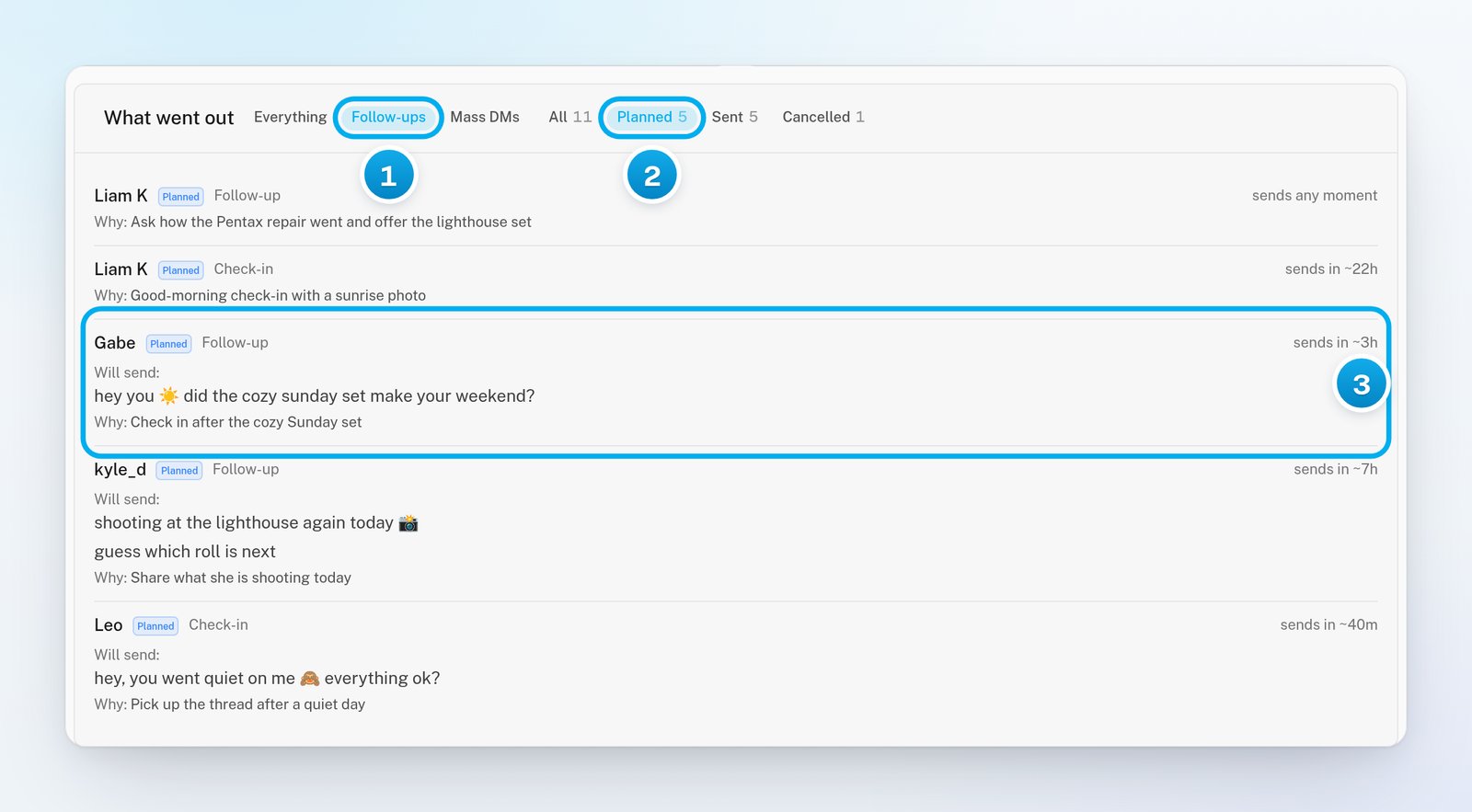
Hugo aims each follow-up at a time when that fan is likely to read it, within the next day. Fans who were online most recently go first.Hugo never plans a follow-up in a conversation that is Manual, Escalated or Hugo off. A follow-up also stands down by itself:
when the fan writes first, it shows as cancelled with “he replied first”;
when someone on your team replies in the conversation, it shows as cancelled with “a manual send covered it”.
In OnlyX, click Creators. Then click the creator, and click AI Follow-ups.The AI Follow-ups card opens. Next to it, OnlyFans creators also have the AI Mass DMs card.
2
Turn on the switch
In the AI Follow-ups card, turn on the switch.The message “AI Follow-ups are on” appears.
3
Choose the daily limit
Next to Most per fan per day, click 1, 2, 3 or 4.This is the most AI follow-ups one fan can get in one day. Hugo also nudges a fan shortly after a paid message the fan has not opened yet. Those nudges are not AI Follow-ups: they go out even when AI Follow-ups are off.A separate limit caps how many can wait unsent at once. So on a busy day, the follow-ups go out gradually.
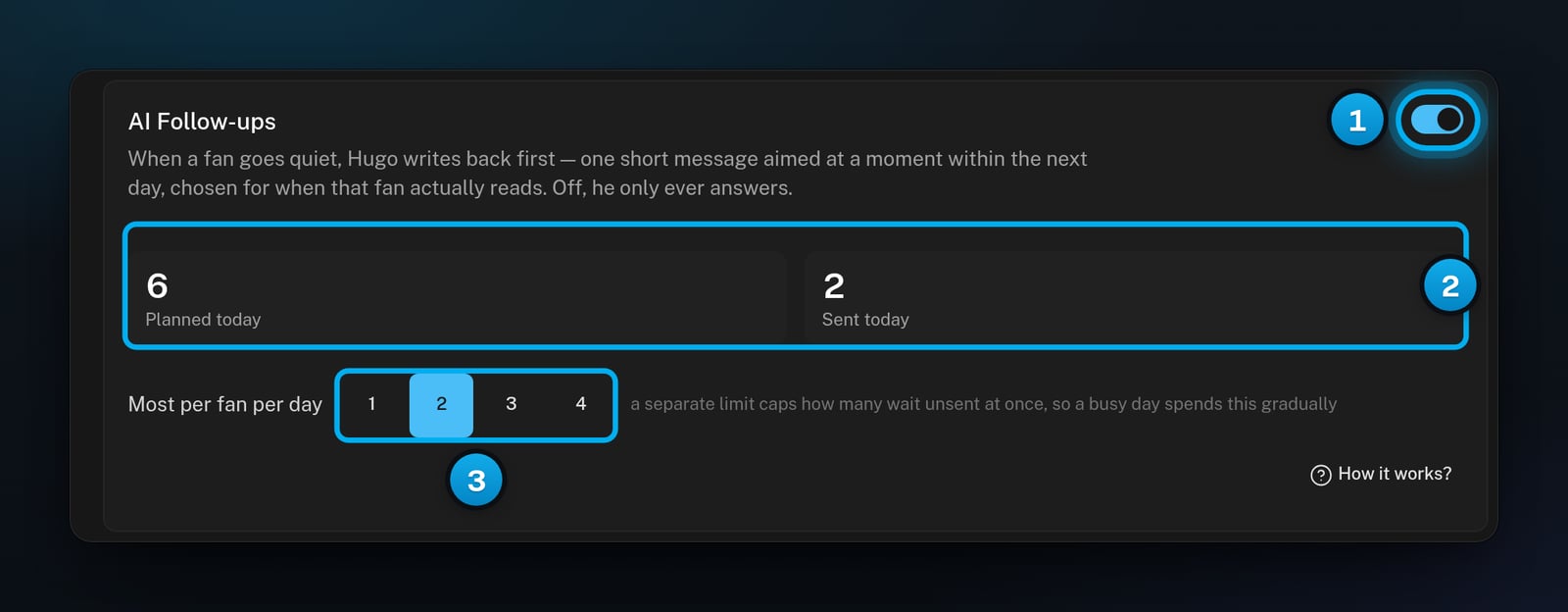
1 The switch · 2 What Hugo planned and sent today · 3 The daily limit per fan
4
Check the counters
Look at Planned today and Sent today in the card.They count the follow-ups of the creator’s own day, in the time zone of her AI Persona.
To read the rules in the app, click How it works? at the bottom of the card.
Open the fan’s conversation. The planned follow-up shows as a chip next to the message box. Click the cancel icon on the chip. For the details, read See and cancel Hugo’s scheduled follow-ups.
Turn off the switch in the AI Follow-ups card. Hugo plans no new follow-ups to quiet fans for this creator. Follow-ups that are already planned still go out, unless you stop them one by one in their conversations.Hugo can still nudge a fan shortly after a paid message the fan has not opened. That shows as an Unopened PPV chip in the conversation, which you can cancel.
I turned on the switch, but it says "AI Follow-ups are off"
Hugo is off for this creator. OnlyX saves your choice, but follow-ups go out only while Hugo is on. Turn Hugo on from the creator’s Overview. See Turn Hugo on for a creator.
Fans get fewer follow-ups than the daily limit
Most per fan per day is a maximum, not a target. Hugo writes only to the fans listed under Who gets a follow-up. A separate limit also caps how many follow-ups can wait unsent at once.
A row says "sent, not confirmed"
OnlyX has no proof that this follow-up reached the fan. It may have been refused or stopped before it went out. On a computer, point at the small icon next to it to see why. On a phone, the reason is on the row.Check the conversation before you send it again.
"Could not load the list. The switch above still works."
Content VAs cannot see the history, because it shows messages from the fan inbox. Owners, admins and chatters can. If you have one of these roles, reopen the tab.
"Could not change that" or "Could not change the daily limit"
OnlyX did not save the change. Only owners and admins can change AI Follow-ups. Reload the page and try again.