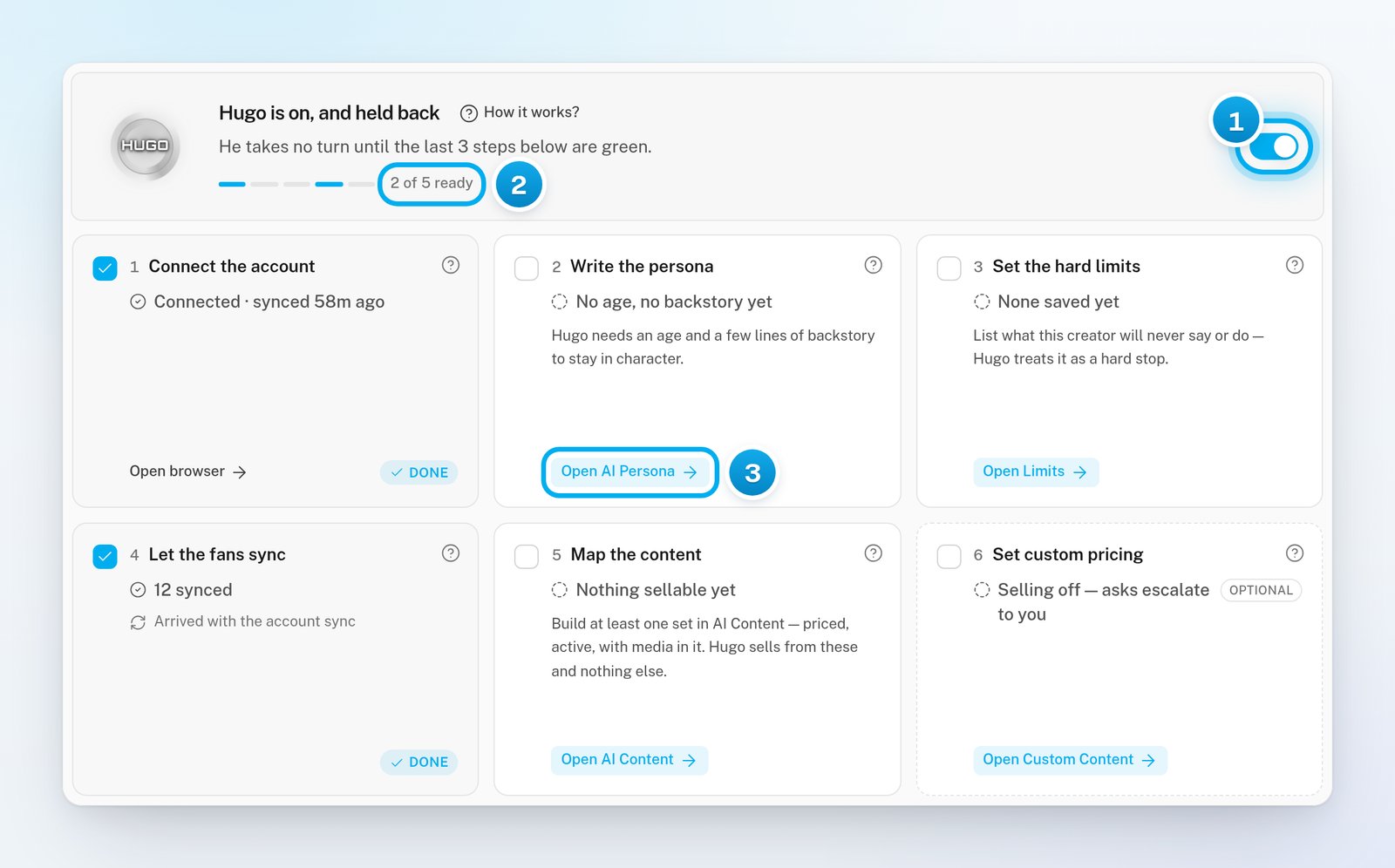
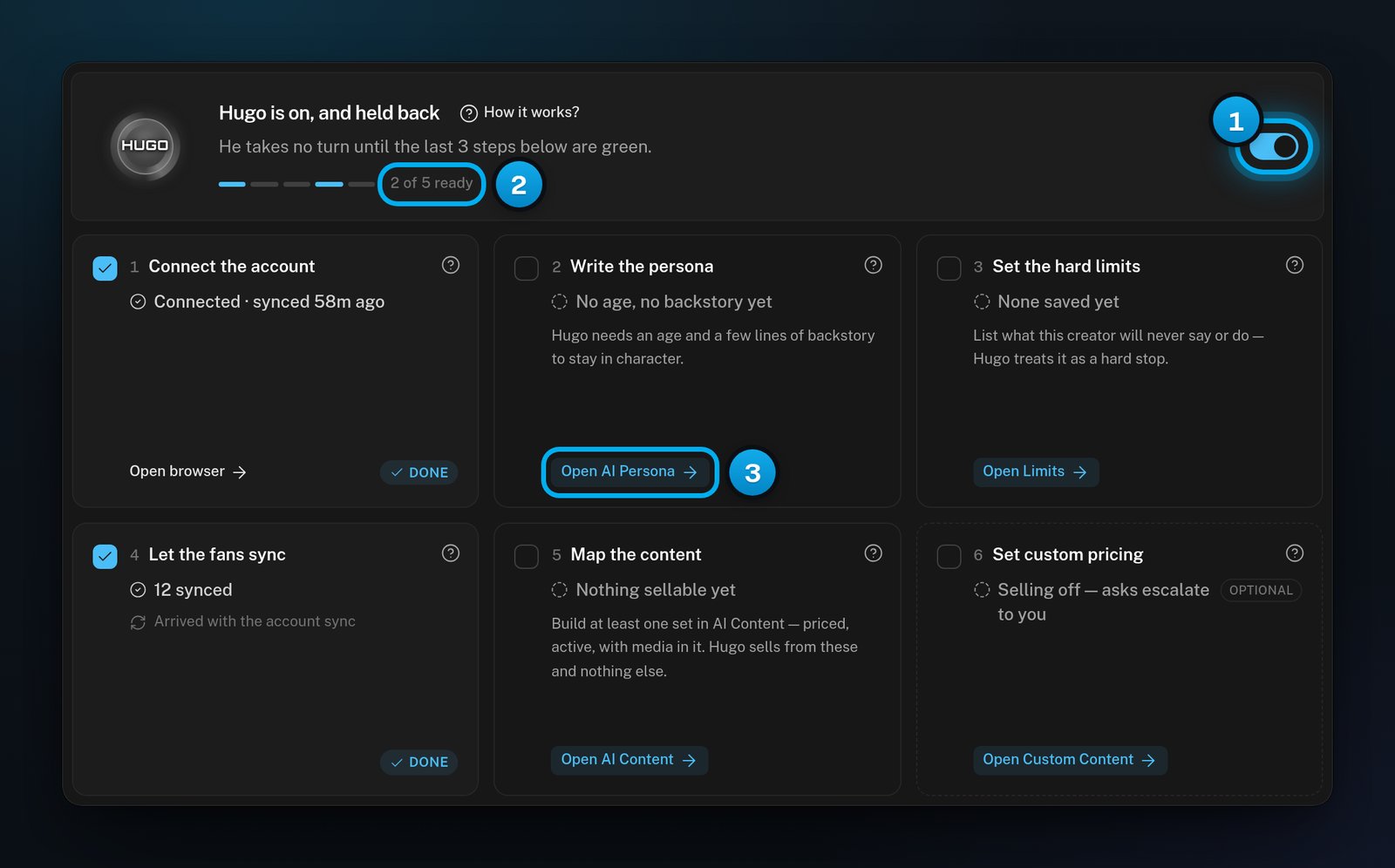
The checklist has five required steps and one optional step. Each card says what is missing in a few words, for example “No age, no backstory yet” or “None saved yet”.
Step
It turns green when
Its button
1 Connect the account
Her OnlyFans account is connected.
Opens the sign-in window, for example Sign in or Reconnect
2 Write the persona
The persona has an age and a backstory.
Open AI Persona
3 Set the hard limits
At least one hard limit is saved.
Open Limits
4 Let the fans sync
At least one fan has synced from her account.
No button: fans arrive with the account sync
5 Map the content
At least one level in AI Content is not paused, has a price above $0 and holds media.
Open AI Content
6 Set custom pricing (Optional)
A custom photo price or a per-minute video price is set.
Open Custom Content
Hugo starts answering fans when steps 1 to 4 are green. He can sell only after Map the content is green, because he sells only what you map in AI Content.
Until step 5 is green, the heading still reads Hugo is on, and held back, even though Hugo answers fans. The optional step never counts toward the progress. For what it means today, see Custom Content: prices, menu and orders.
In OnlyX, click Creators. Then click the creator.The creator opens on Overview.
2
Find the first open step
In the Hugo card, look for the first step card without a Done mark. Its status line says what is missing, and the grey text under it says what to do.
1 The Hugo switch · 2 Required steps done · 3 The button to the tab that fixes the step
3
Open the tab that fixes it
On the step card, click its button, for example Open AI Persona.The tab that fixes the step opens. For the connection step, the sign-in window opens on the Creators page.
4
Finish the step and save
Complete the missing part and save it. On AI Persona, click Save. On AI Content, click Save level.For help with each tab, see:
Click Overview. If you changed AI Content, reload the page first.The step shows Done, and the count under the heading goes up, for example “3 of 5 ready”.
To learn what a step is for, click the question mark on its card. Its name is How it works? when you point at it.
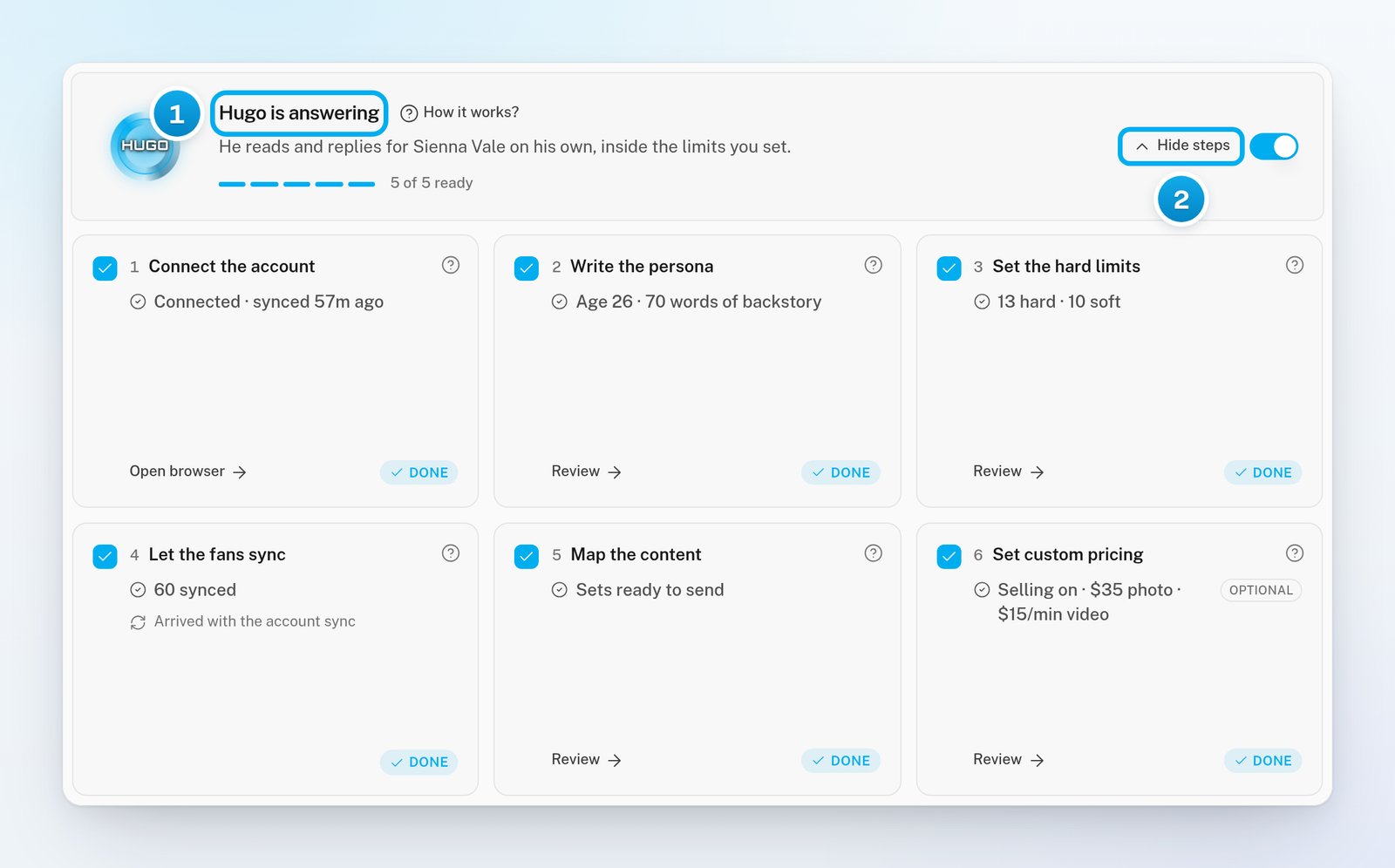
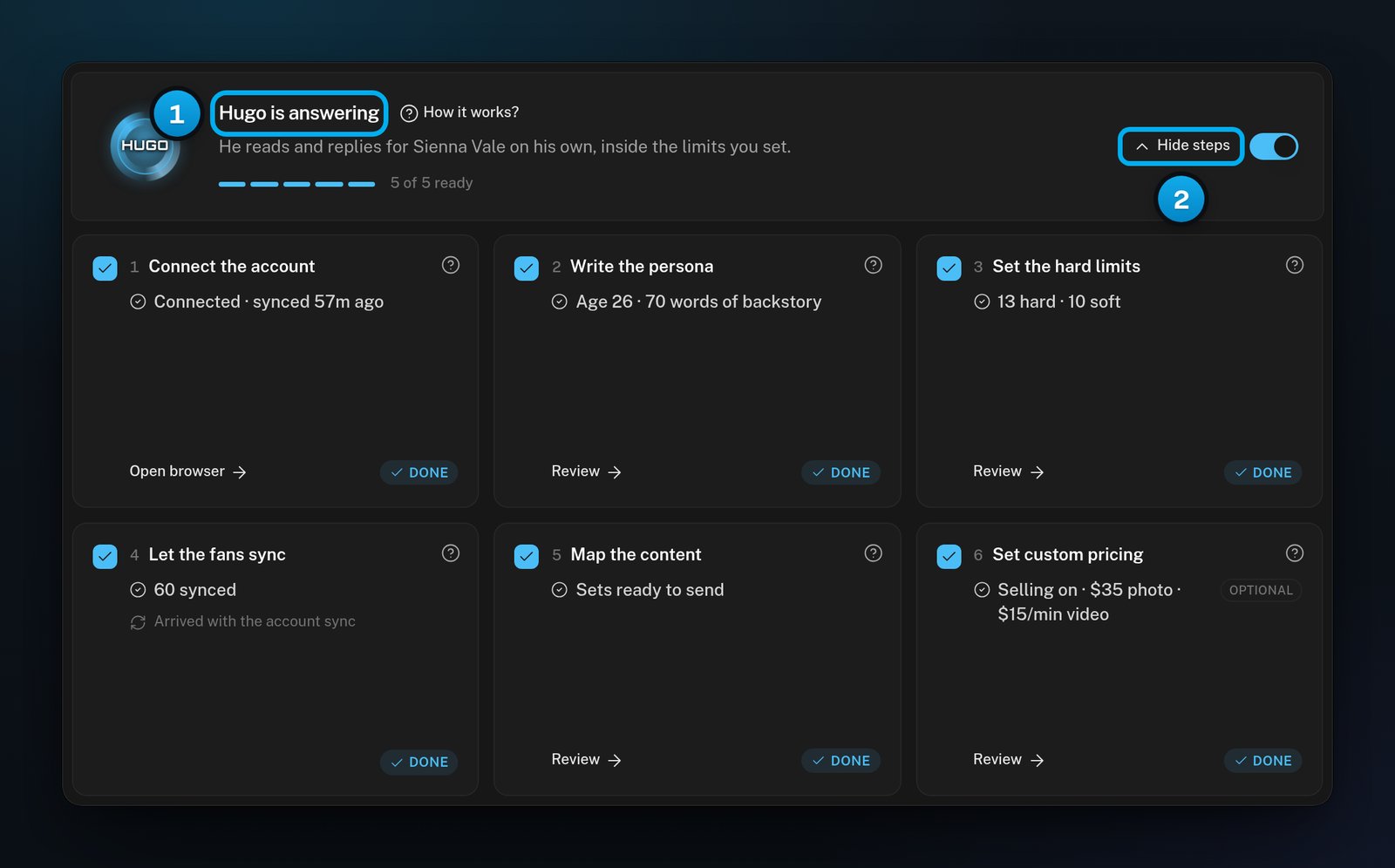
When the required steps are green, an owner or admin turns on the switch in the Hugo card. The heading changes to Hugo is answering. For the details, see Turn Hugo on for a creator.When every required step is green, you can fold the step cards away with Hide steps. Click Show steps to see them again. OnlyX remembers this for each creator, in this browser.
1 Every required step is done, so Hugo is answering · 2 Fold the steps away
A required step is still open. Look for the step cards without Done. Is Map the content the only open step? Then Hugo already answers fans, but he has nothing to sell until you map content.
I don't see the Hugo switch
Only owners and admins can turn Hugo on or off. Content VAs and chatters see the checklist without the switch. Ask an owner or admin.
"Write the persona" is still open after I saved
The step needs both an age and a backstory. Its status names what is missing, for example “No backstory yet”. Fill in the missing field on AI Persona, then click Save.
"Set the hard limits" says "None saved yet"
The recommended limits on a new persona are ticked, but they are not saved yet. Open AI Persona, go to Limits, and click Save. See Set hard limits and soft boundaries.
"Let the fans sync" says "Waits on the connection"
Fans arrive only through the account sync, so this step waits for step 1. Connect the account first. See Reconnect a signed-out creator.
"Map the content" says "Nothing sellable yet"
No level in AI Content can be sold yet. A level counts when it is not paused and has a price above $0. It must also hold at least one piece of media. See Fix “Nothing sellable yet” and other level warnings.