

Before you start
- You need an owner or admin account to see the Dashboard and Analytics, and to change the reporting timezone.
Net and Gross
Both come from OnlyFans’ own earnings records. Point at Net or Gross to read these definitions in the app.
The switch is in three places. It changes these figures:
- on the Dashboard, next to Overview: the Earnings card, Top creators and the creator tiles;
- at the top of Revenue overview in Analytics: the tiles, the charts and the By creator table;
- on a creator’s Tracking Links tab: what each link earned.
- Earnings today is always net, on the Dashboard and in the Today report.
- Payment status in Revenue overview is always net.
- Top creators is always ranked by net, even when it shows gross amounts.
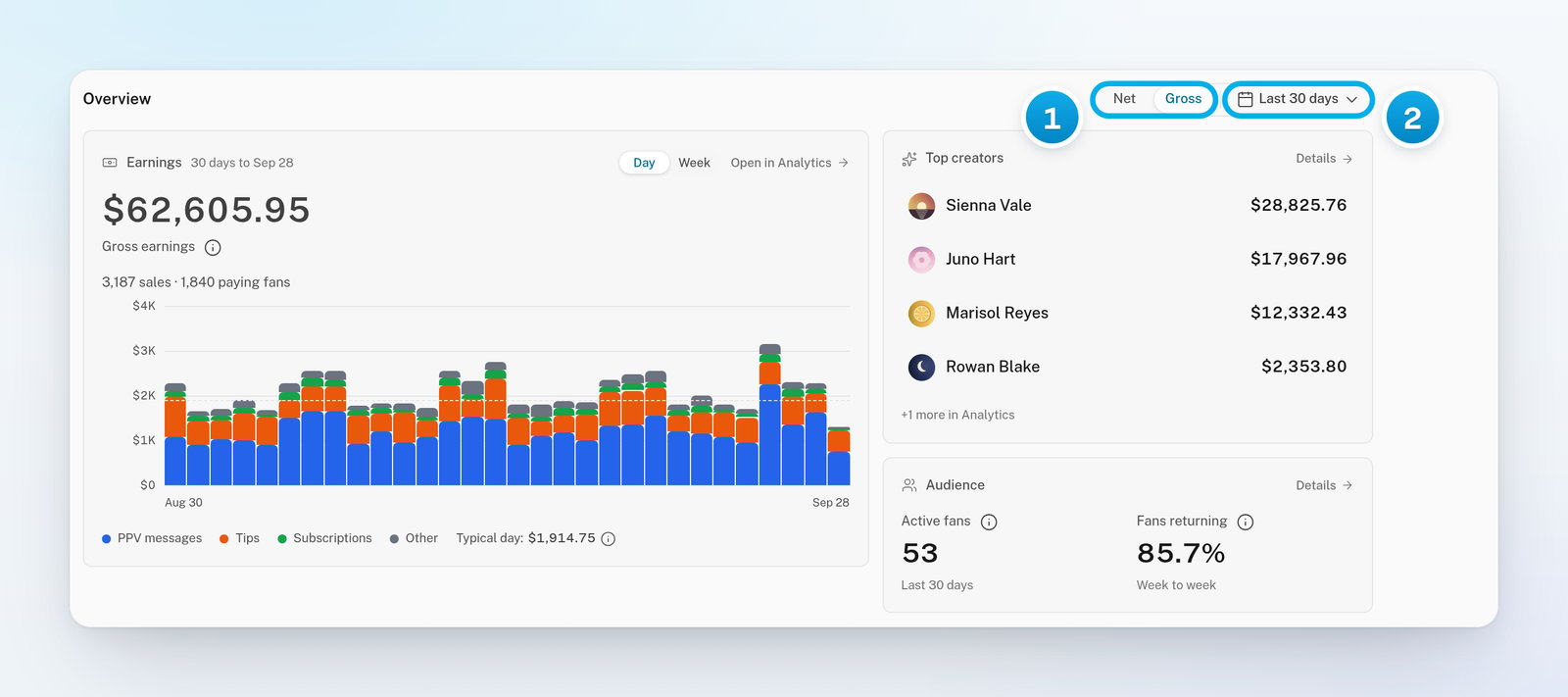
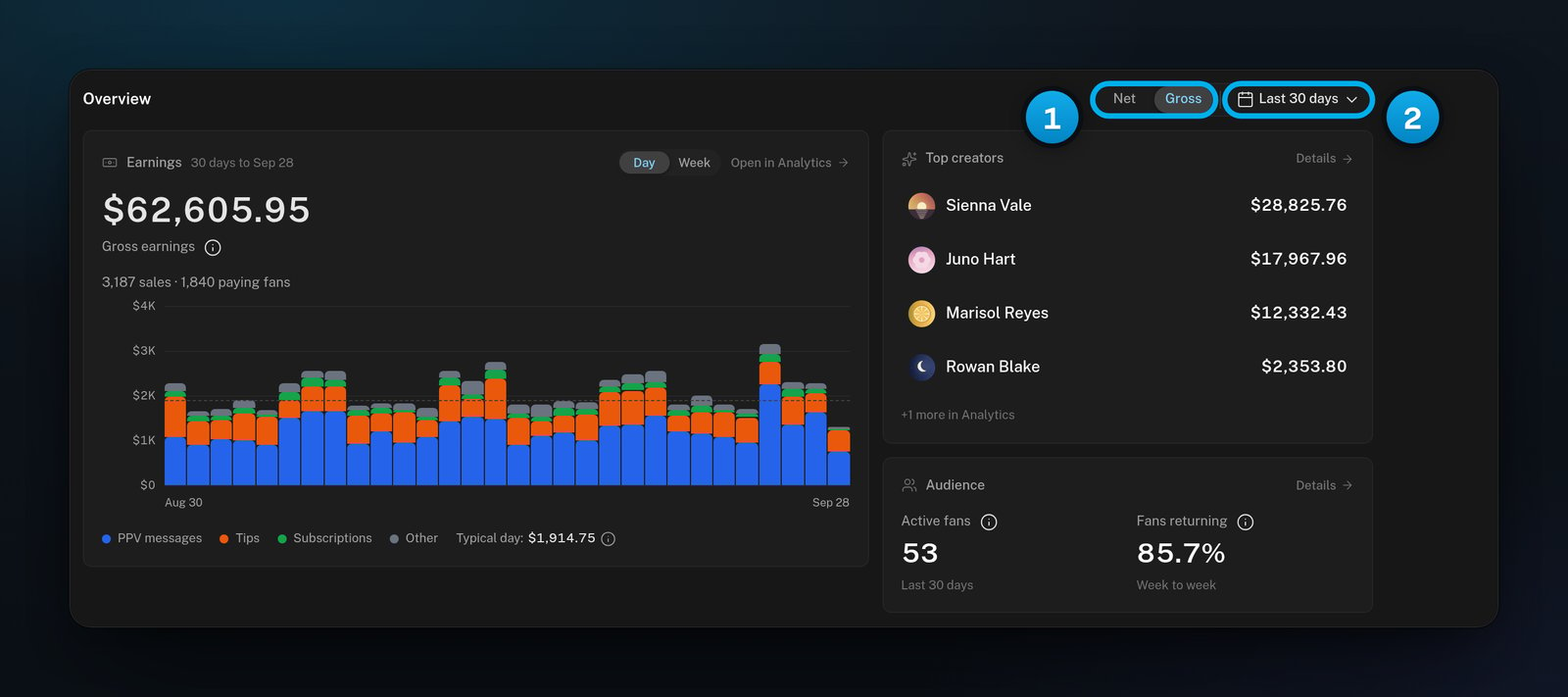
1 The unit for the money figures · 2 The period they cover
Your choice stays in this browser
OnlyX saves your choice in this browser for a year. It is one choice for the Dashboard, Analytics and the Tracking Links tab: switch in one place, and the others follow. It is not a workspace setting. A teammate, or you on another computer or browser, can see the other unit on the same report. When you share a figure, say if it is net or gross.Switch between Net and Gross
1
Go to a report with the switch
On the Dashboard, go to the Overview heading. Or, in Analytics, click Revenue overview.
2
Choose the unit
Click Net or Gross.The money figures change at once. The other places use the same unit from now on, in this browser.
Choose a period
The period button shows Last 30 days until you change it. The period applies to the money cards on the Dashboard and to every report in Analytics except Today.1
Open the period panel
Click the period button. It has a calendar icon.A panel opens. It has two columns of ready-made periods and a calendar.
2
Pick a ready-made period
In the first column, click Today or Yesterday. You can also click Last 7 days, Last 14 days, Last 30 days, Last 60 days, Last 90 days or Last 180 days.In the second column, click This month, or one of the seven months before it, such as “August 2026”.The period applies at once, and the panel closes.
3
Pick your own dates instead
For your own dates, click the first day in the calendar. Then click the last day.The line under the calendar shows the dates and the number of days, for example “Aug 30 – Sep 28” and “30 days”.
4
Apply your dates
Click Apply.The button now shows your dates, for example “Aug 1 – Aug 14”. If your dates match a ready-made period, it shows that period’s name instead, such as Last 30 days.
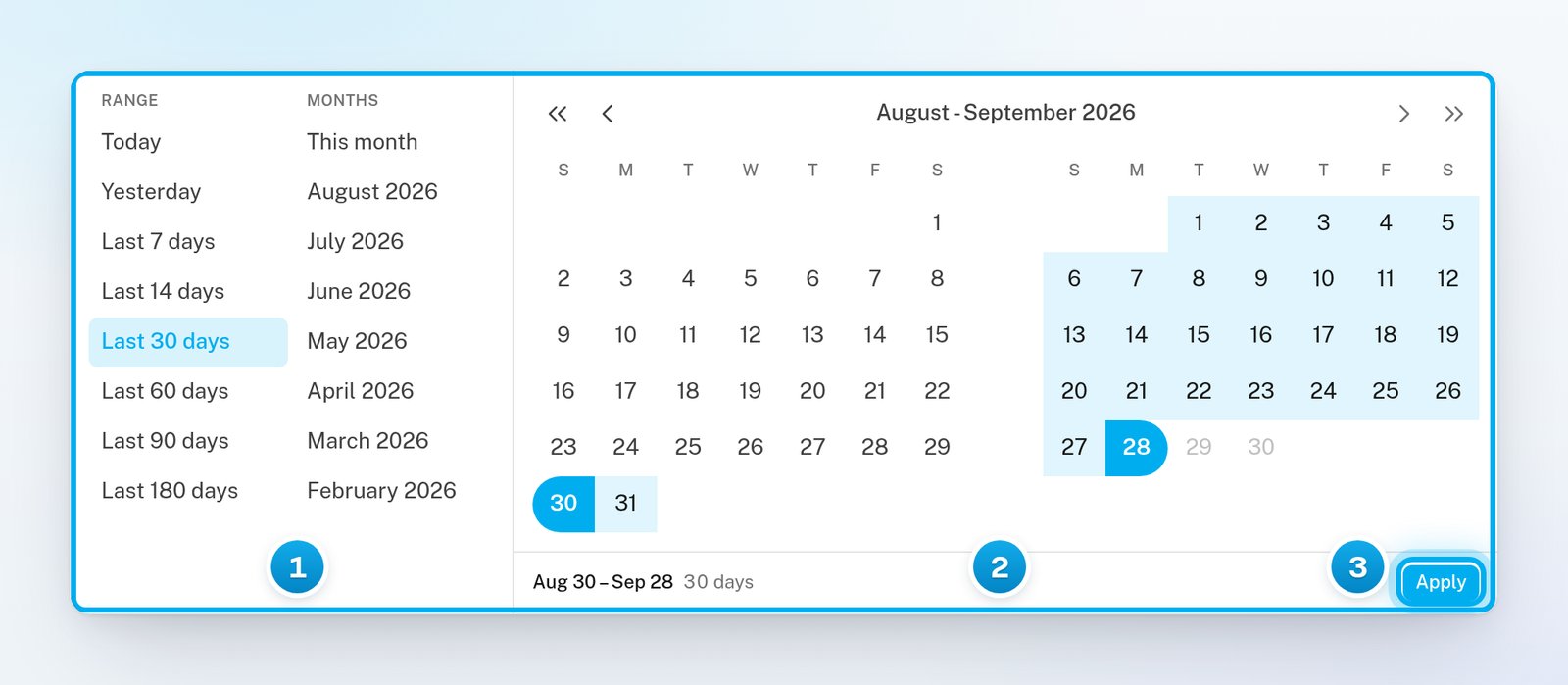
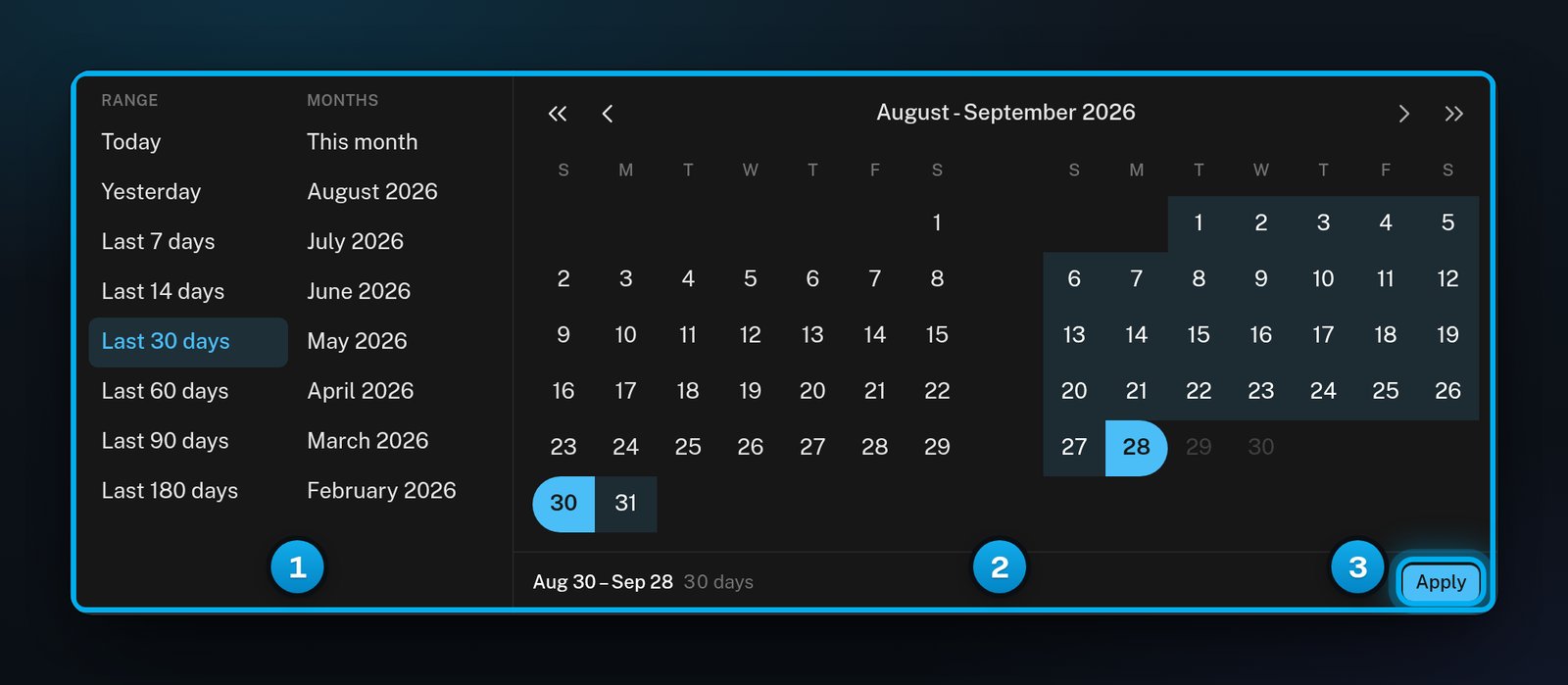
1 Ready-made periods · 2 Pick your own first and last day · 3 Apply your own dates
How periods work
- Last 30 days is today plus the 29 days before it. This month runs from the 1st to today.
- In the Fans report, only New fans seen follows the period. The other parts of that report have their own windows.
- A period can be 366 days at most. The calendar offers no days after today, and nothing before 1 January 2020.
- On a phone, the calendar shows one month at a time.
- Analytics keeps the period in the page address, so it stays when you reload the page or open a bookmark. It also stays when you move between reports.
- The Dashboard does not keep it. When you reload the Dashboard, the period goes back to the last 30 days.
- Two Dashboard links open Revenue overview with the same period: Open in Analytics on the Earnings card, and Details on Top creators.
- On the Dashboard’s Earnings card, Day and Week only group the bars. They do not change the period.
The reporting timezone
Your workspace has one reporting timezone. Every report and every export uses it, for everyone on your team. It decides where each day starts and ends:- Each report day runs from midnight to midnight in this timezone, also on days when the clocks change.
- “Today” and “yesterday at this time” in the Today report use it too.
- CSV exports name it in a column called
reportTimezone.
Set the reporting timezone
Only owners and admins can change the reporting timezone. Other team members see it in My Workspace, without a Save button.1
Open your workspace settings
In OnlyX, click Settings. Then click My Workspace.
2
Choose the timezone
Under Reporting timezone, open the list. Select the timezone your team reports in, for example America/New_York.The list has every timezone name your browser knows, and UTC.
3
Save the timezone
Click Save.A message says “Workspace timezone saved”. Reports that are open in other tabs update by themselves.
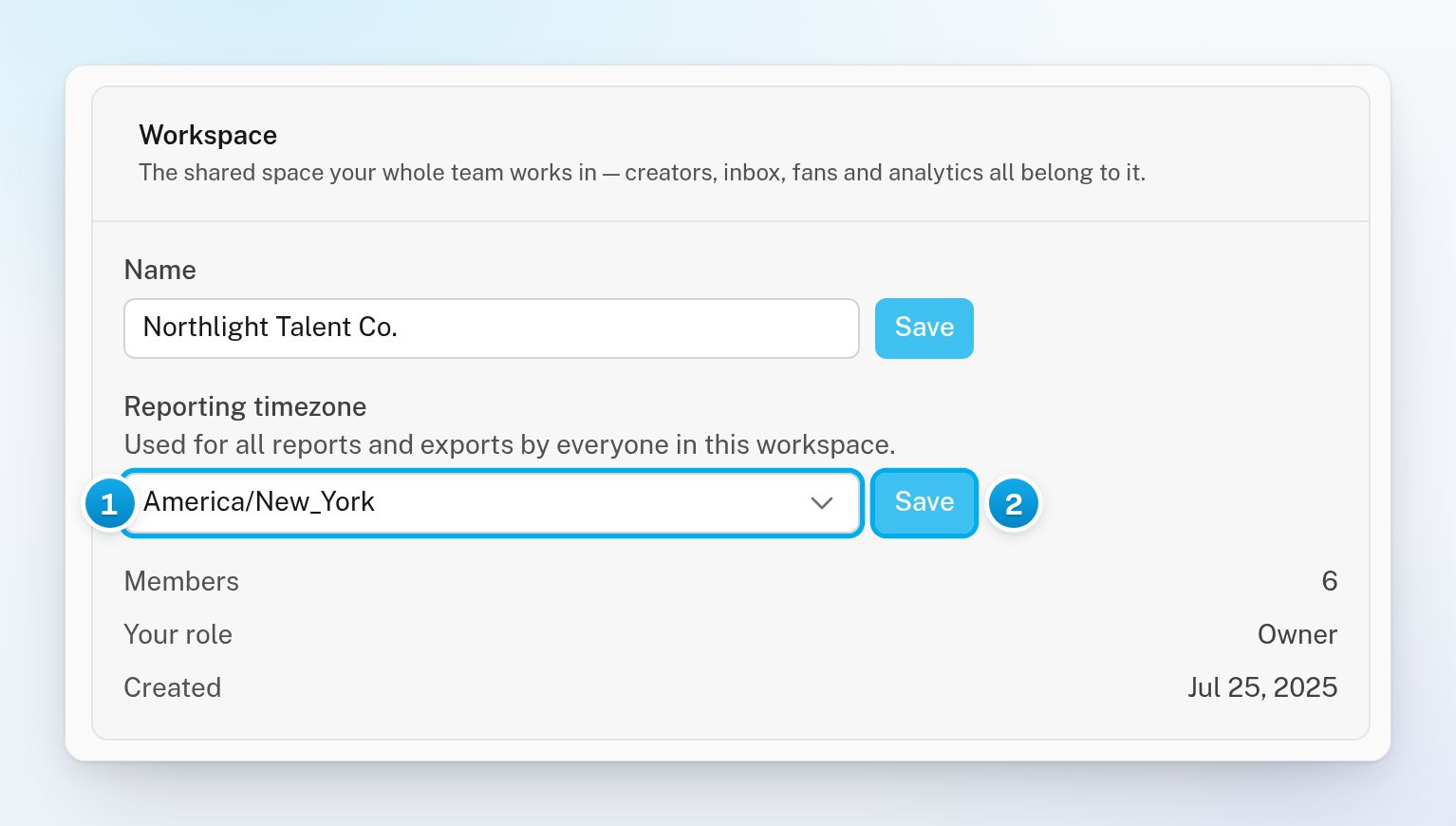
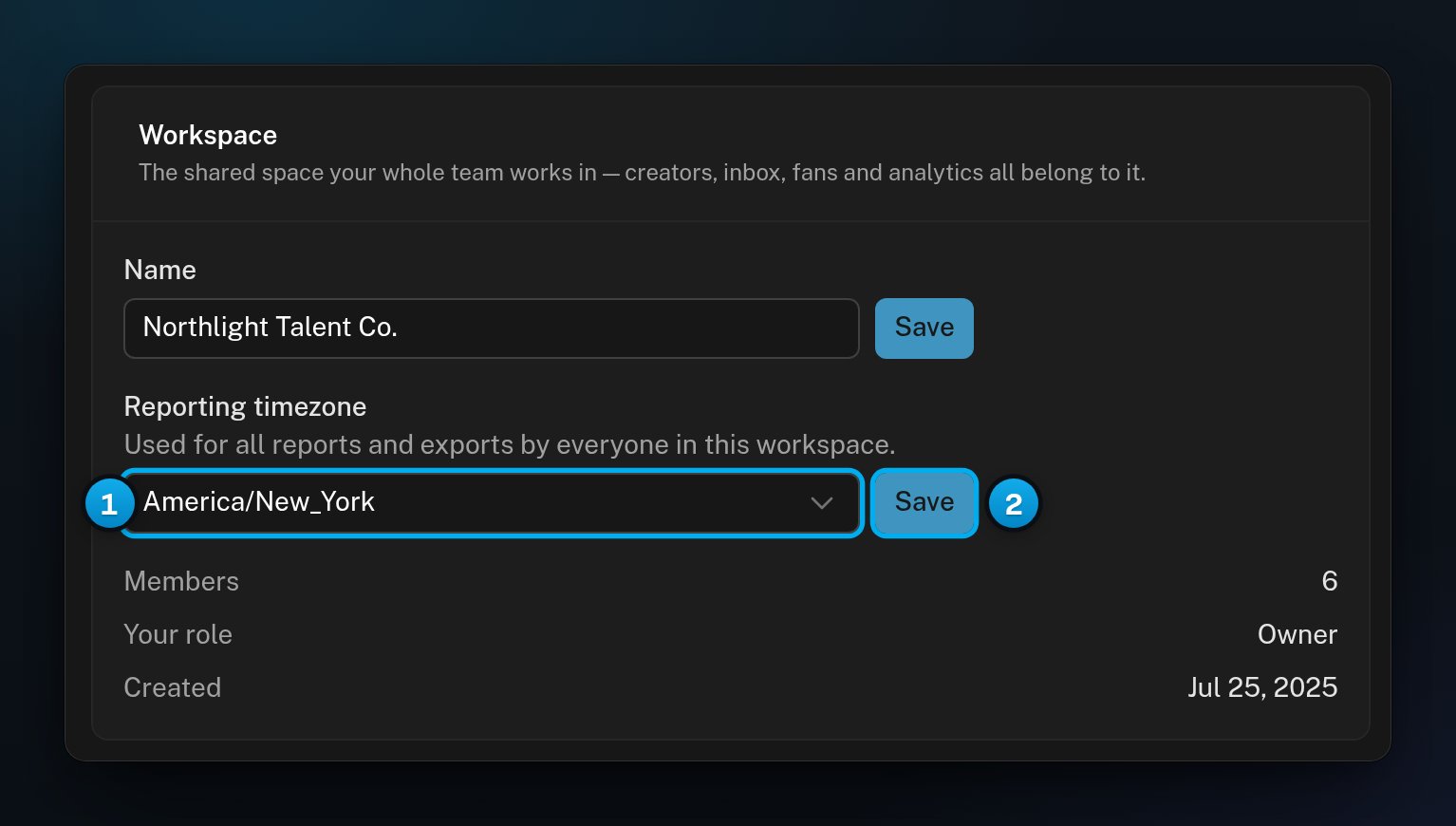
1 The workspace's reporting timezone · 2 Save a change
A new timezone changes the numbers for past days too. A sale made near midnight can move to the day before or the day after.
If something goes wrong
A teammate sees a different total on the same report
A teammate sees a different total on the same report
Check the unit first. Net or gross is saved in each browser, so your teammate may be on the other one. Then check that you both chose the same creators and the same period.
Apply stays grey
Apply stays grey
Pick both the first and the last day. If the line under the calendar says “longest window is 366 days — the series is one point per day”, pick a shorter period.
My period went back to Last 30 days
My period went back to Last 30 days
The Dashboard does not keep a period after you reload the page. Analytics keeps it in the page address.
I can't change the reporting timezone
I can't change the reporting timezone
Only owners and admins can change it. Ask one of them.
A message says "Could not save reporting timezone"
A message says "Could not save reporting timezone"
OnlyX did not save the change. Reload the page, select the timezone again, and click Save again.
A page cannot load the reporting timezone
A page cannot load the reporting timezone
The Dashboard says “Could not load the reporting timezone”. Analytics says “Could not load the workspace reporting timezone”. OnlyX then does not calculate any figures, so it never shows numbers for the wrong days. Reload the page.