

Before you start
- You need an owner or admin account. Chatters and content VAs do not have a Dashboard. A chatter starts in the Inbox, and a content VA starts on Creators.
Open the Dashboard
In OnlyX, click Dashboard in the sidebar. It is also the first page you see after you sign in. On a phone, tap Dashboard in the tab bar. The page has four parts, from the top:- The welcome block, with the date, your time and your city.
- Today and Waiting on you. On a wide screen they sit side by side.
- Overview, with the Earnings, Top creators and Audience cards.
- Creators, with up to five creator tiles.
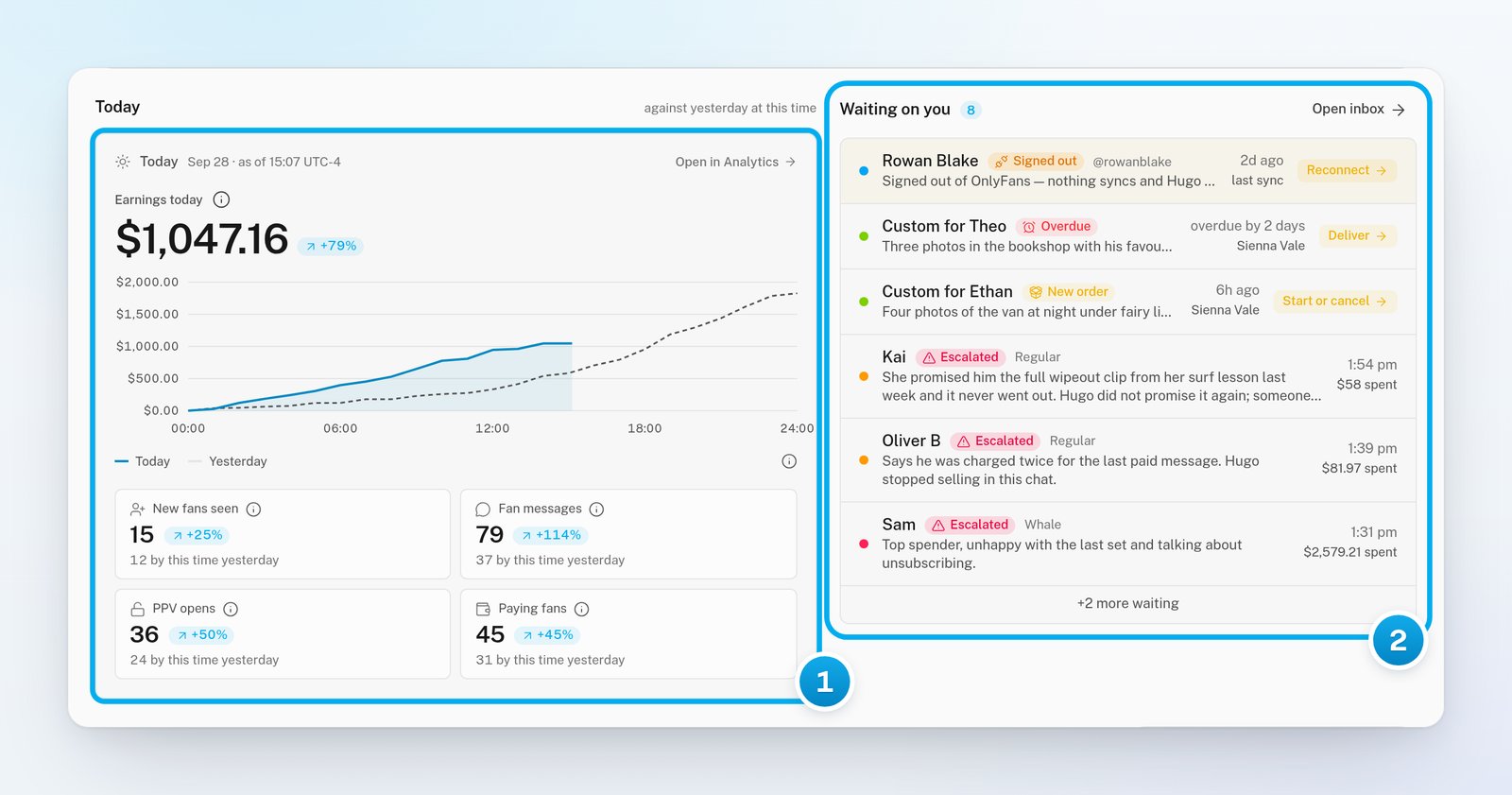
1 Today so far, against yesterday at this time · 2 The work that needs a person
The welcome block
The welcome block greets you by your first name. It shows the date, your local time and your city. On a wide screen, it also shows the weather now and a three-day forecast. Under the greeting, a line of news changes every 9 seconds. It covers OnlyFans, TikTok, Instagram, Reddit, YouTube, the creator business and crypto. Click a headline to read it in a new tab. The greeting and the clock use your computer’s clock, not the workspace’s reporting timezone. If the city is wrong, click it. Your browser then asks if OnlyX may use your exact location. To switch between °C and °F, click the temperature.Today
The Today card compares today so far with yesterday at the same time. It shows Earnings today and a chart of the day’s running total. Yesterday’s total is the dashed line. Four tiles follow: New fans seen, Fan messages, PPV opens and Paying fans. Each tile also says how many there were “by this time yesterday”. Earnings today is always net, and the card always counts all your creators. The period and the Net or Gross switch do not change it. While the tab is open in front of you, the card reads new figures once a minute. For each number, see Today: how today compares with yesterday.Waiting on you
Waiting on you lists the work that only a person can do:- creators whose account is not connected;
- confirming your own email address;
- custom orders that a fan paid for;
- conversations that Hugo escalated.
Overview
Next to the Overview heading is one control bar. It has the Net and Gross switch and the period button. These two controls change the Earnings card, Top creators and the creator tiles. They do not change Today or Audience.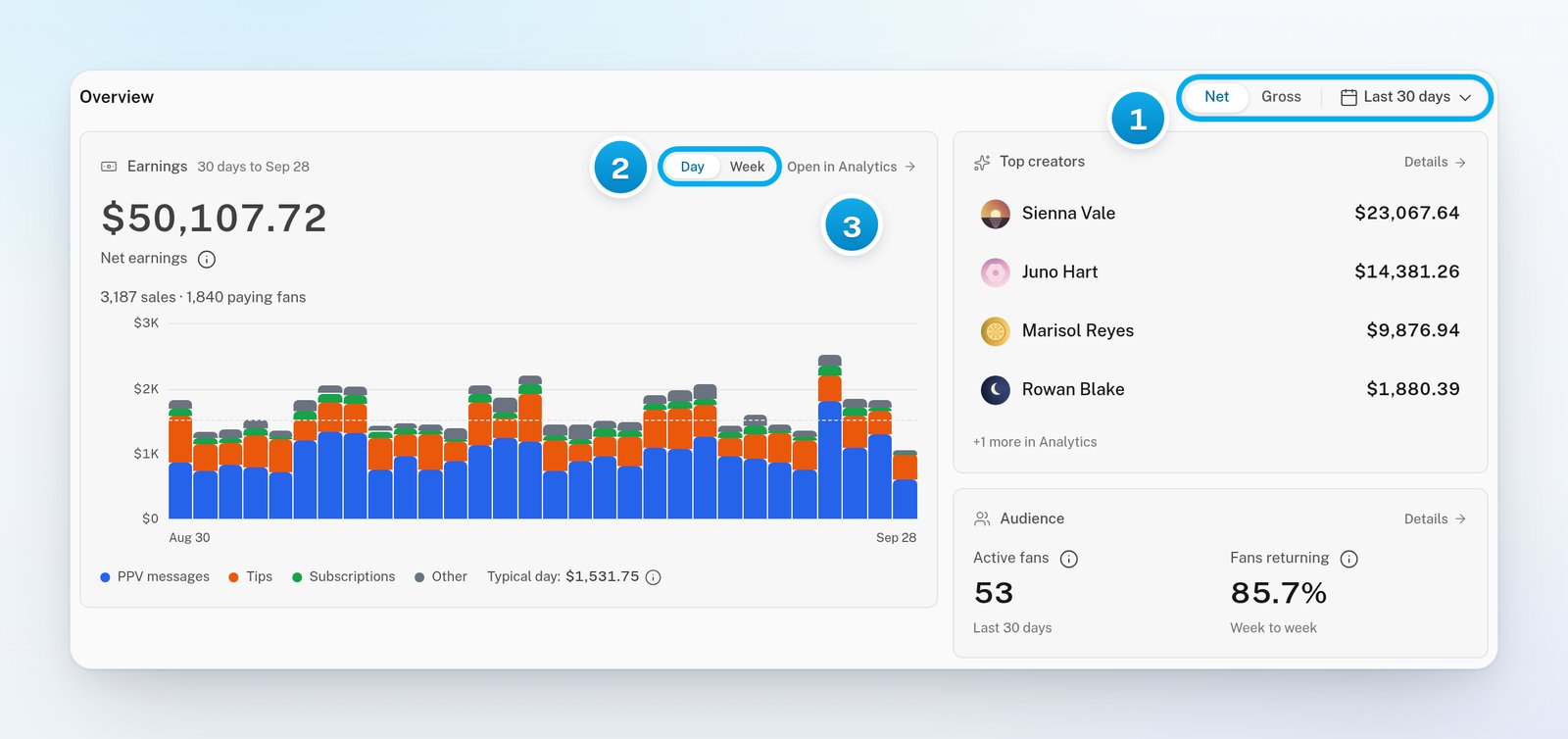
1 Unit and period for the money cards · 2 Bars by day or by week · 3 The full report
On the Earnings card, each bar is one day, split by sale type, such as PPV messages, tips and subscriptions. Click Week to group the bars by seven days. A short group, if there is one, is always the oldest bar.
The dashed Typical day line (or Typical week) is the median of the complete days or weeks. Today, and a group that is not complete, are left out of it.
Creators
The Creators section has up to five creator tiles. The period is next to the heading. Each tile shows:- Net earnings or Gross earnings for the period, then the number of paying fans and sales;
- the creator’s name and @handle;
- Hugo on or Hugo off, or a connection problem, such as Signed out;
- how long ago OnlyX last synced her account.
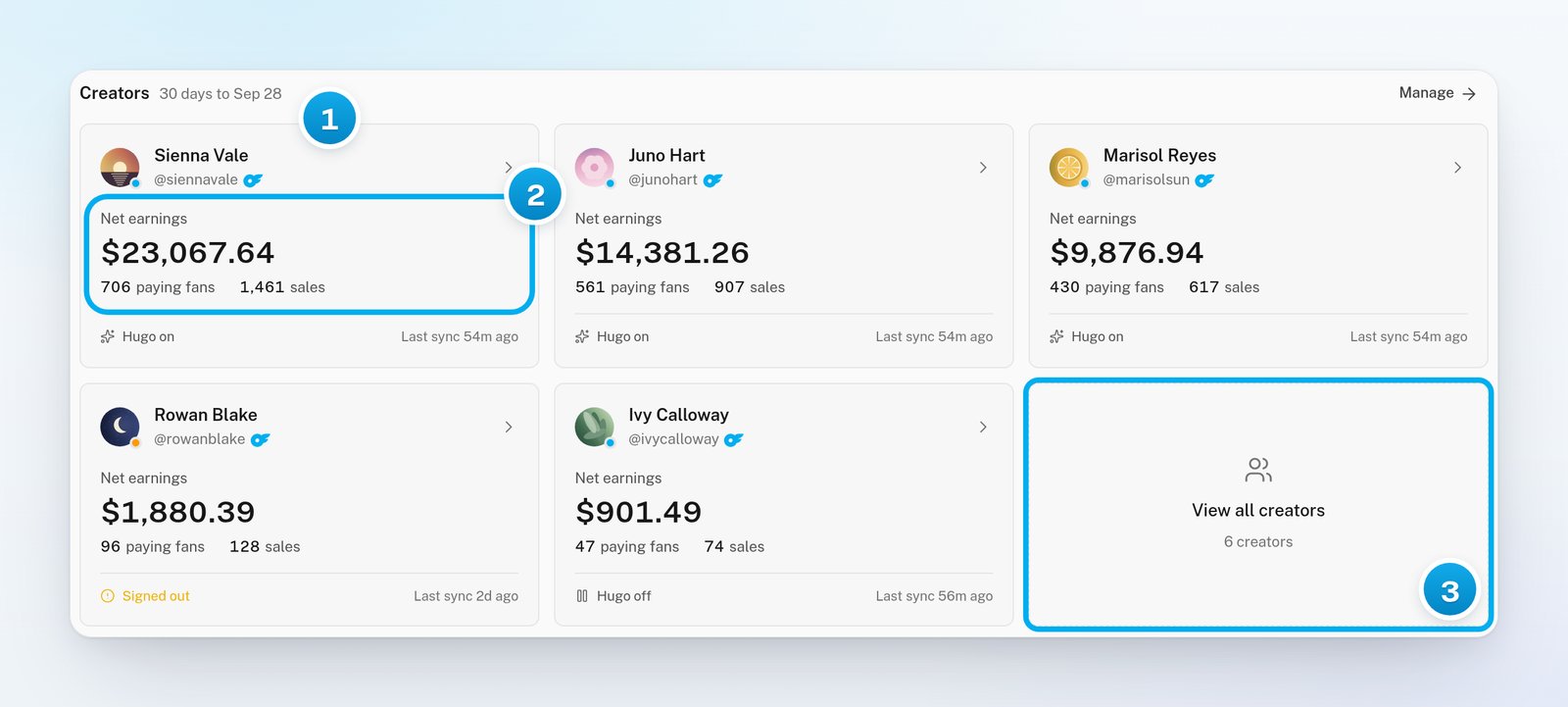
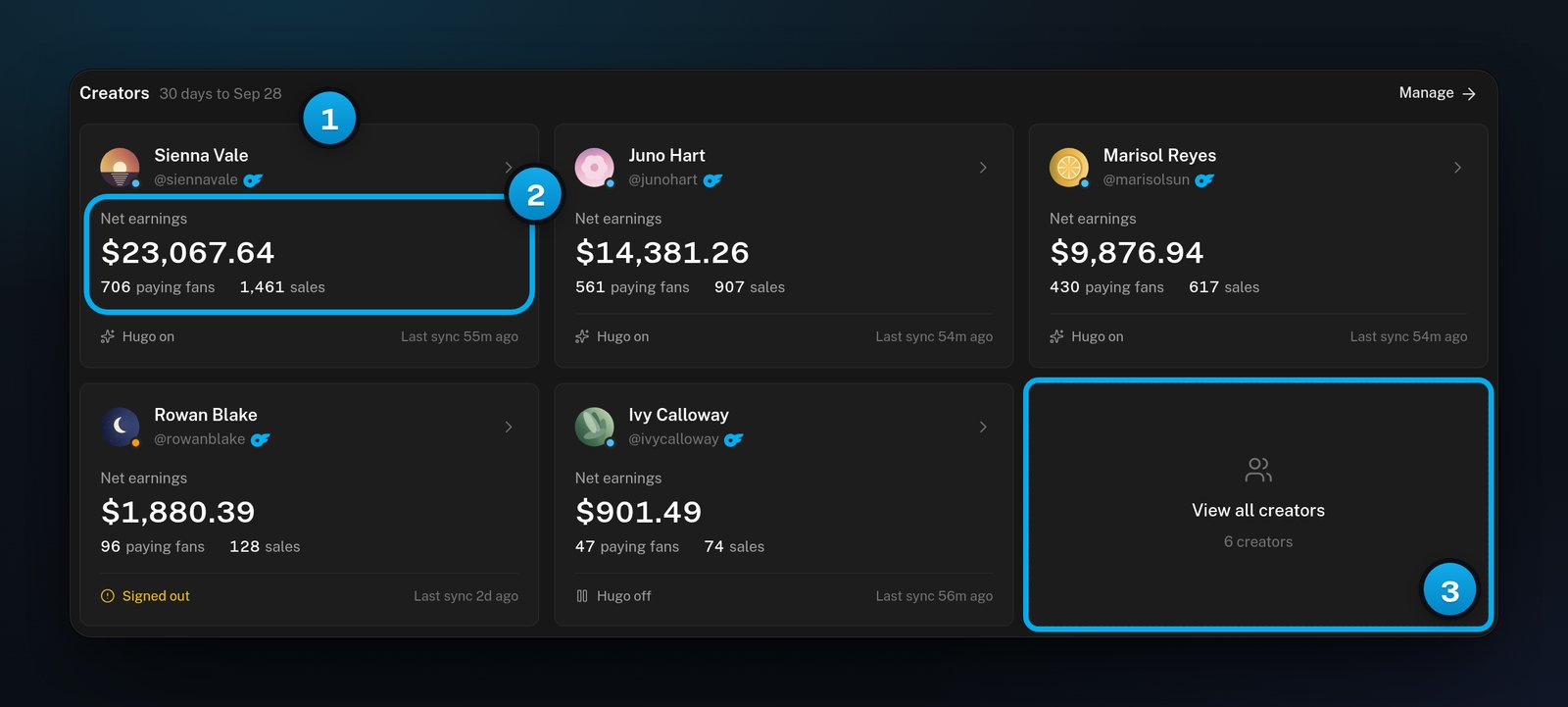
1 The period the tiles cover · 2 A creator's earnings in that period · 3 The rest of your creators
The Dashboard’s money comes from OnlyFans’ own earnings records, so Telegram creators’ sales are not in it. A Telegram creator’s tile shows a dash and Earnings unavailable. Her sales are on the Earnings tab of her creator page.
Change the period and the unit
1
Choose Net or Gross
On the Dashboard, go to the Overview heading. Click Net or Gross.The Earnings card, Top creators and the creator tiles change unit. Analytics uses the same choice in this browser.
2
Open the period panel
Click the period button next to the switch. It shows Last 30 days until you change it.A panel opens with ready-made periods and a calendar.
3
Pick a period
Click a ready-made period, such as Last 7 days or This month. It applies at once.For your own dates, click a start day and an end day in the calendar. Then click Apply.
4
Optional: Group the bars by week
On the Earnings card, click Week. To go back, click Day.
Open a report from a card
Each card opens its full report from the small link in the card’s header. The rest of the card does not open the report, so you can use its chart and buttons.
In Top creators, click a creator’s name to open her page. To see the sales behind one bar of the Earnings card, click the bar. On the Today chart, click an hour to see what was counted up to that hour. For more, see Open the records behind a number and export CSV.
If something goes wrong
The Today card says "No OnlyFans connection — revenue is not wired up, not zero."
The Today card says "No OnlyFans connection — revenue is not wired up, not zero."
None of your creators is an OnlyFans creator whose earnings OnlyX reads. This happens when all your creators are on Telegram. Fan messages and New fans seen still count. The money is on each creator’s Earnings tab.
Top creators says "No connected creator earned in this window."
Top creators says "No connected creator earned in this window."
None of your creators is an OnlyFans creator whose earnings OnlyX reads. This happens when all your creators are on Telegram, because Telegram creators never appear in this list.
The page says "Could not load the reporting timezone"
The page says "Could not load the reporting timezone"
OnlyX does not draw any money figures when it cannot read your workspace’s reporting timezone. Reload the page.
My period went back to Last 30 days
My period went back to Last 30 days
The Dashboard does not keep a period after you reload the page. Pick it again. In Analytics, the period stays, because it is saved in the page address.
Nothing opens when I click a card
Nothing opens when I click a card
Only the link in the card’s header opens the report: Open in Analytics or Details. A creator tile is the exception: click anywhere on it.