

The sidebar on a computer
The sidebar is on every page. It has three parts:
Click the OnlyX name at the top of the sidebar to go back to your first page. For owners and admins, that is the Dashboard. To make more room, click Collapse sidebar. The sidebar then shows only icons, and Expand sidebar opens it again.
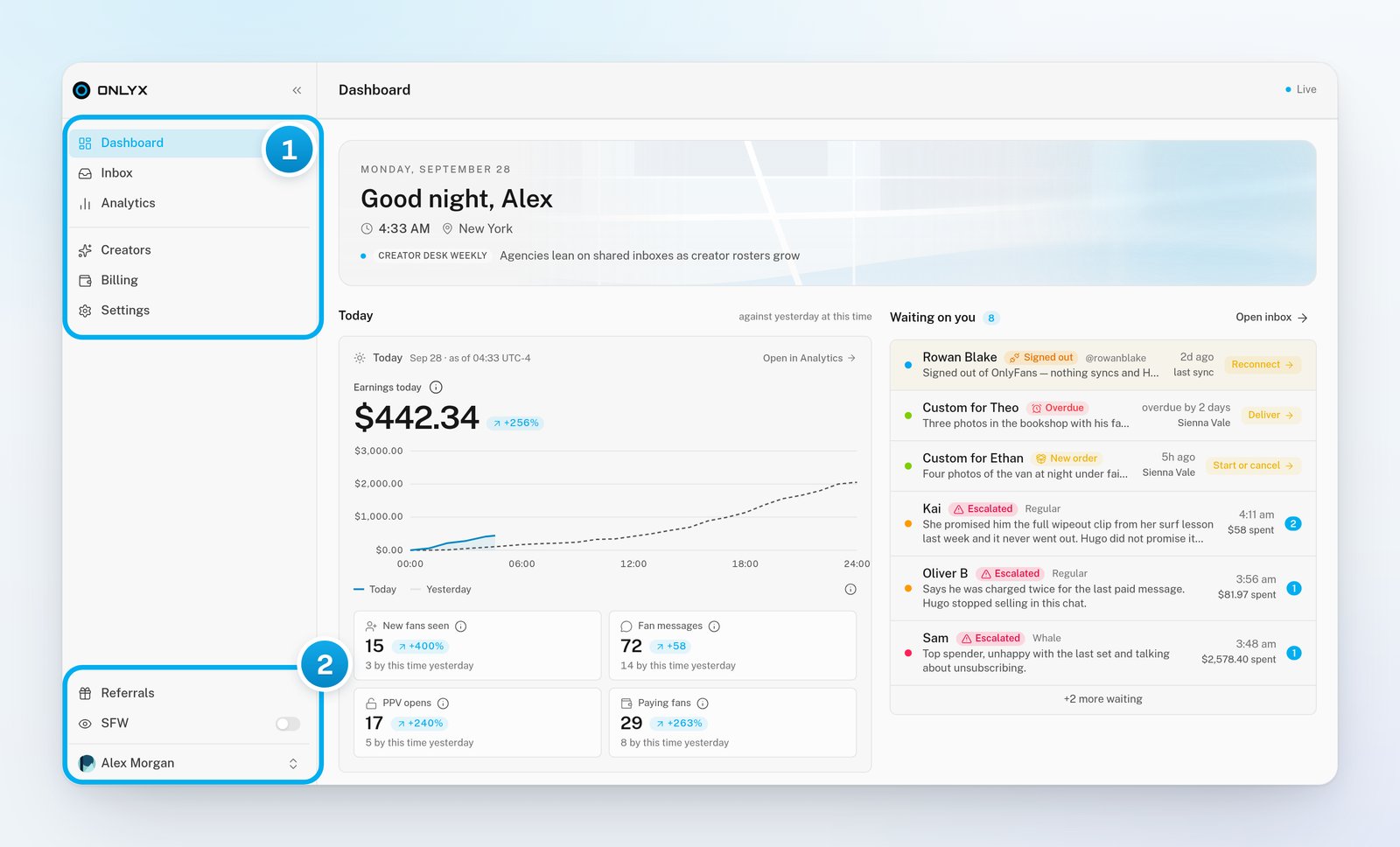
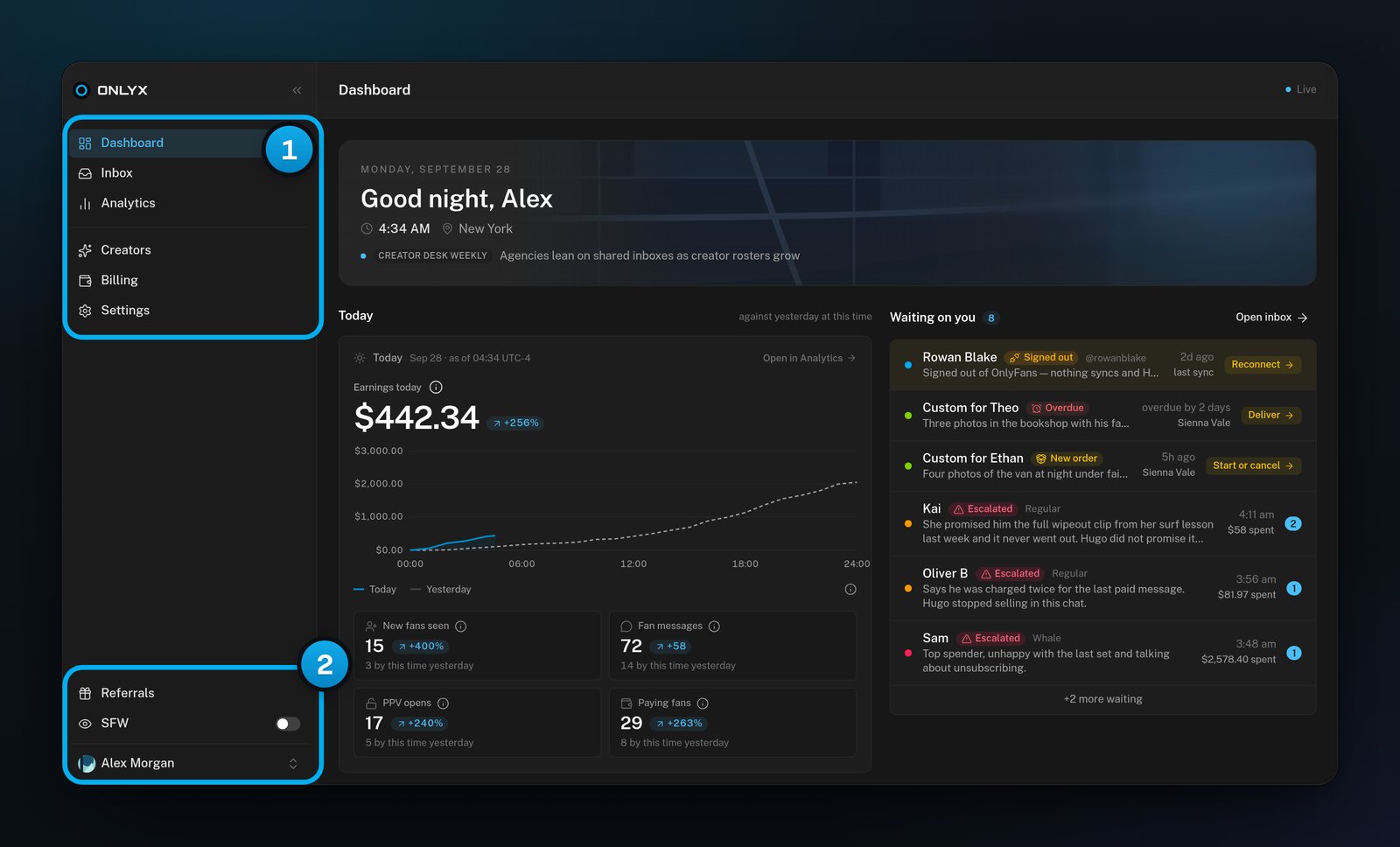
1 Your pages · 2 Referrals, the SFW switch and your account menu
What you see depends on your role
OnlyX shows each person only the pages their role may open. So two people on your team can see a different sidebar:
Chatters and content VAs also see only the creators assigned to them. To learn more, see What each team role can see and do.
On a phone
On a phone, a tab bar at the bottom of the screen takes the place of the sidebar. It holds Dashboard, Inbox, Analytics and More, as far as your role allows. More opens a sheet with the rest: Creators, Billing, Settings, Referrals, the SFW switch and your account menu. More lights up while you are on one of these pages. The tab bar hides while a conversation is open in the inbox. Go back to the conversation list to see it again.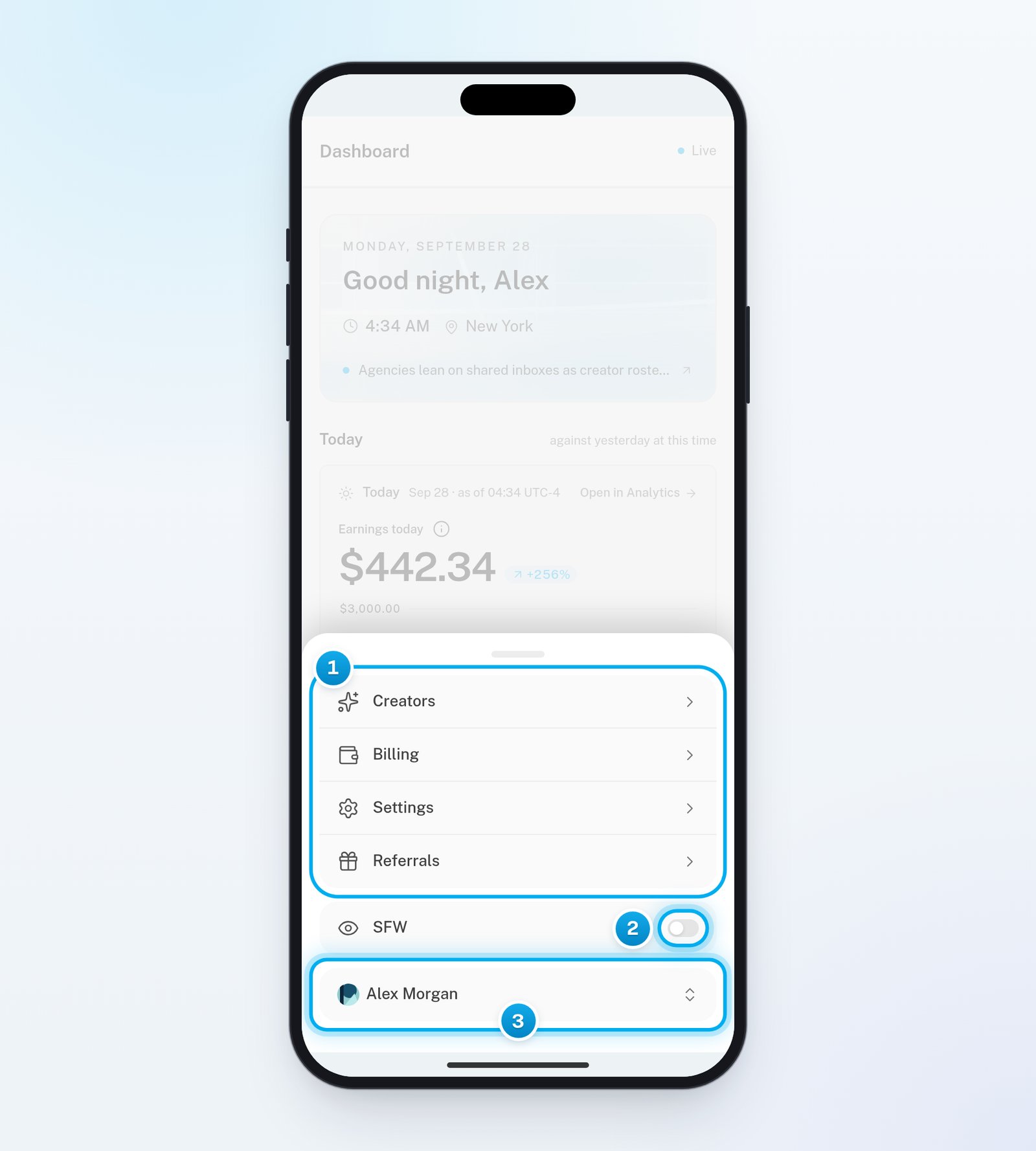
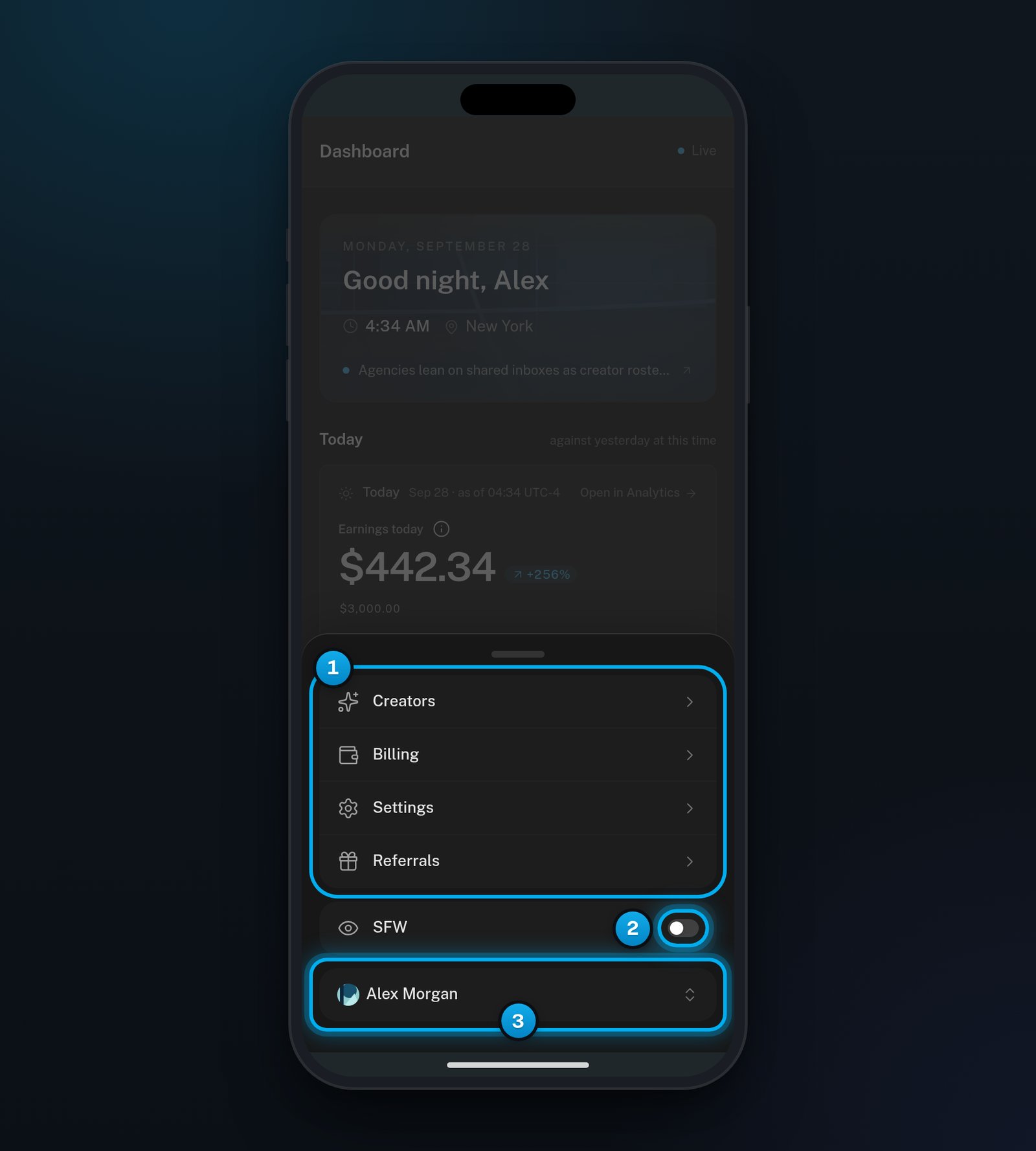
1 The pages that do not fit in the tab bar · 2 Blur photos and video · 3 Your account menu
Move between creators
On a creator’s page, her tabs are in two groups:- Hugo’s tabs: Overview, AI Persona, AI Content, Custom Content, AI Follow-ups, AI Rules and AI Sexting.
- Her platform’s tabs. For OnlyFans: Earnings, Fans, Vault, Tracking Links and Welcome message. For Telegram: Payments, Media, Earnings and Fans.
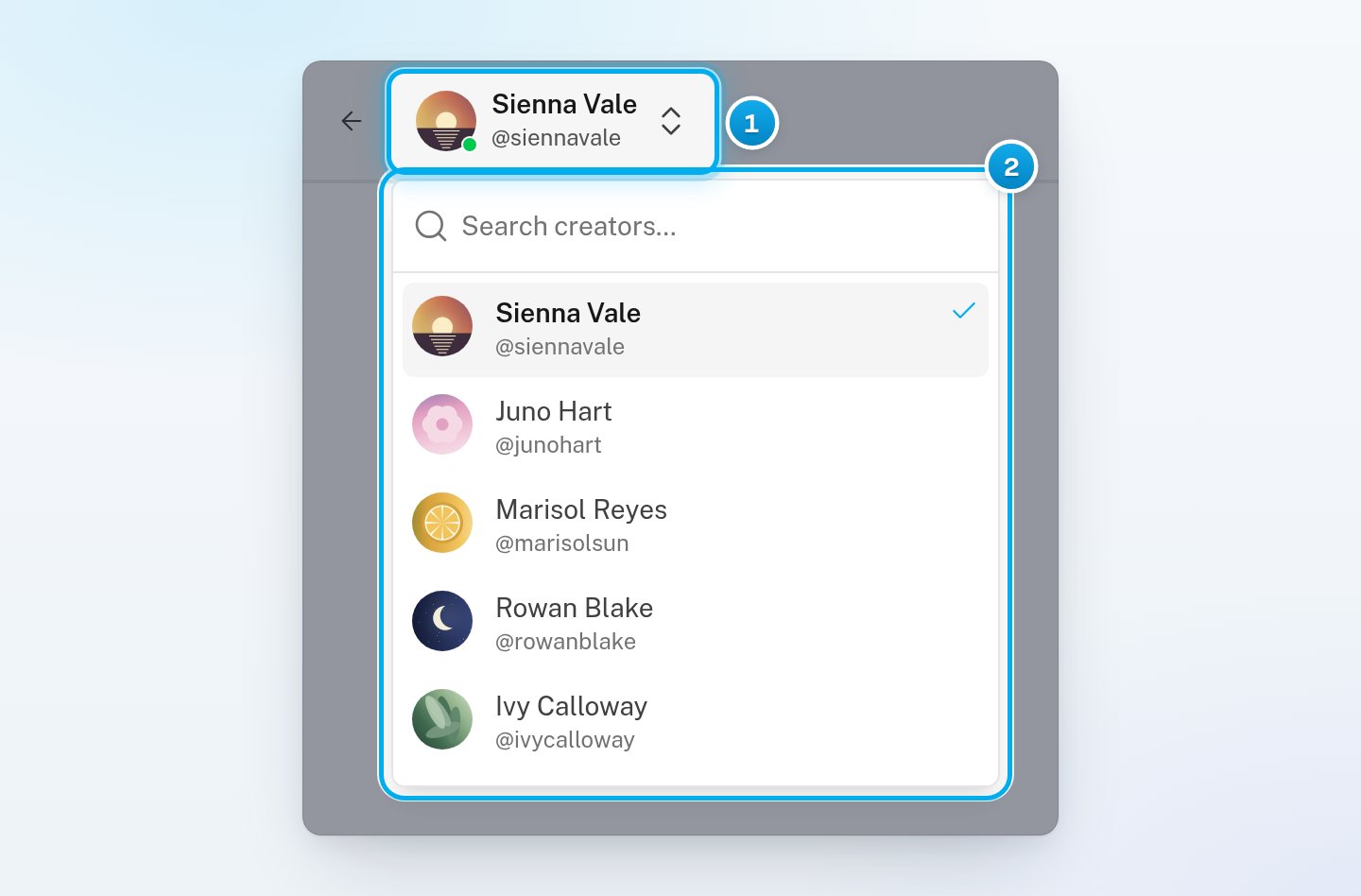
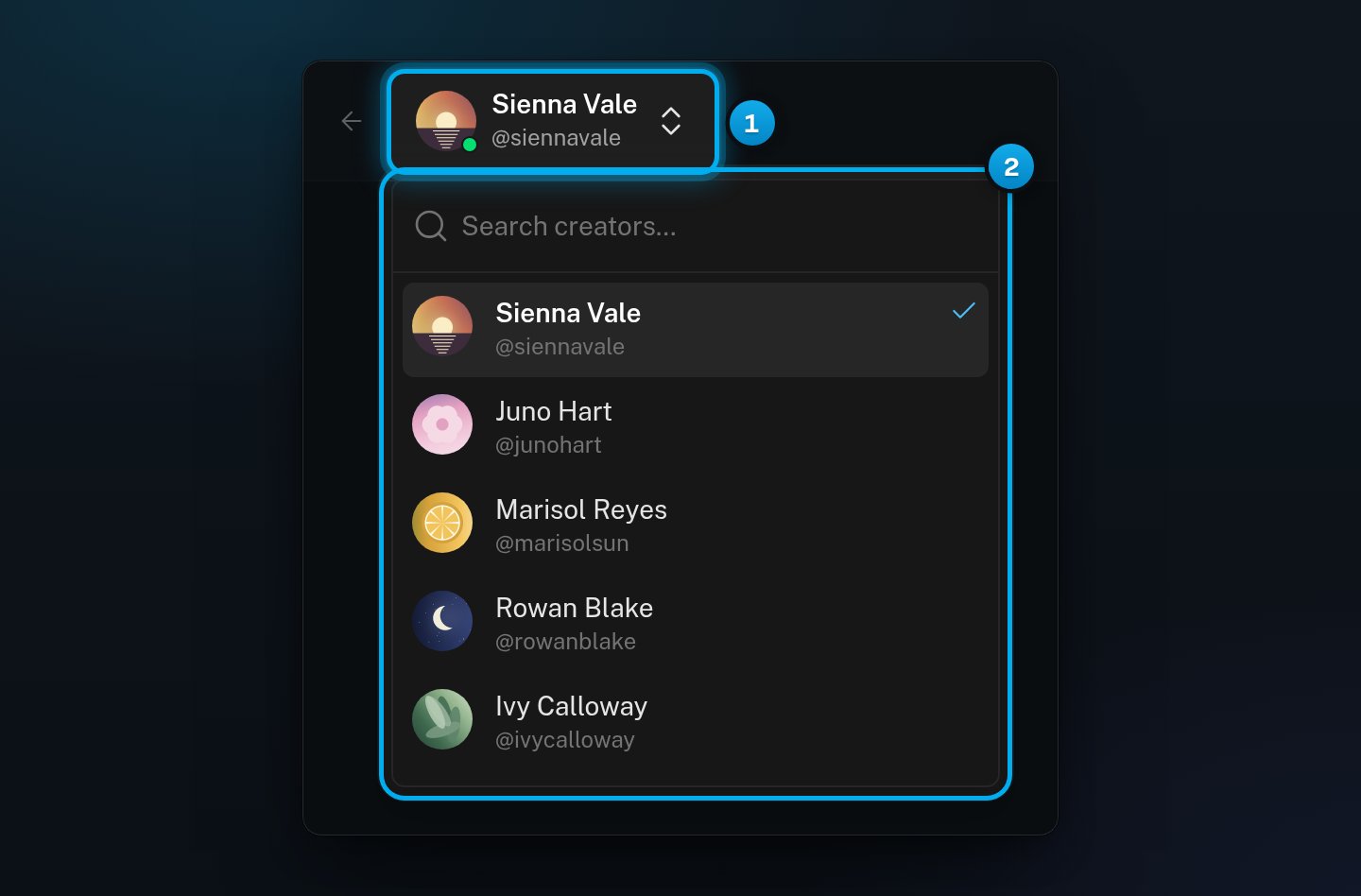
1 Click her name to switch · 2 Search and pick another creator
Blur photos and video
Click SFW at the bottom of the sidebar. On a phone, SFW is under More. Photos and video then blur until you point at them with the mouse. Names, messages and figures stay readable. You find the same setting in Settings > Appearance, as Blur media. It works only in the browser where you turn it on. On another computer or phone, turn it on there too.Change the theme
Click your account menu, then Theme. Select System, Light or Dark. You can also choose the theme in Settings > Appearance. The theme also applies only to the browser where you choose it.Switch workspace, or log out
Your account menu is at the bottom of the sidebar, and on a phone under More. It lists every workspace you belong to, with a tick next to the one you are in.- To switch, click another workspace. OnlyX opens again in that workspace.
- To start a second agency, click New workspace. Enter a Name, then click Create workspace. You are the owner of the new workspace. See Work in several workspaces.
- To log out, click Log out.
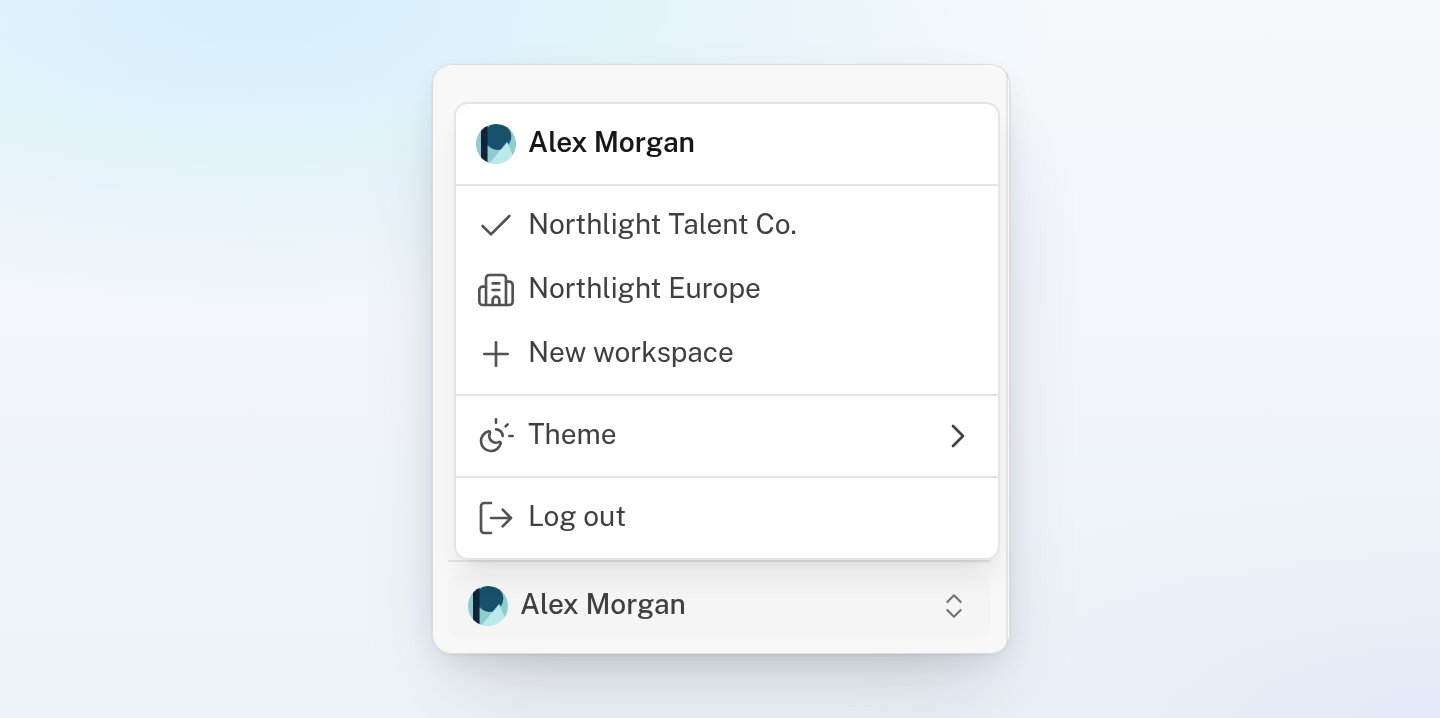
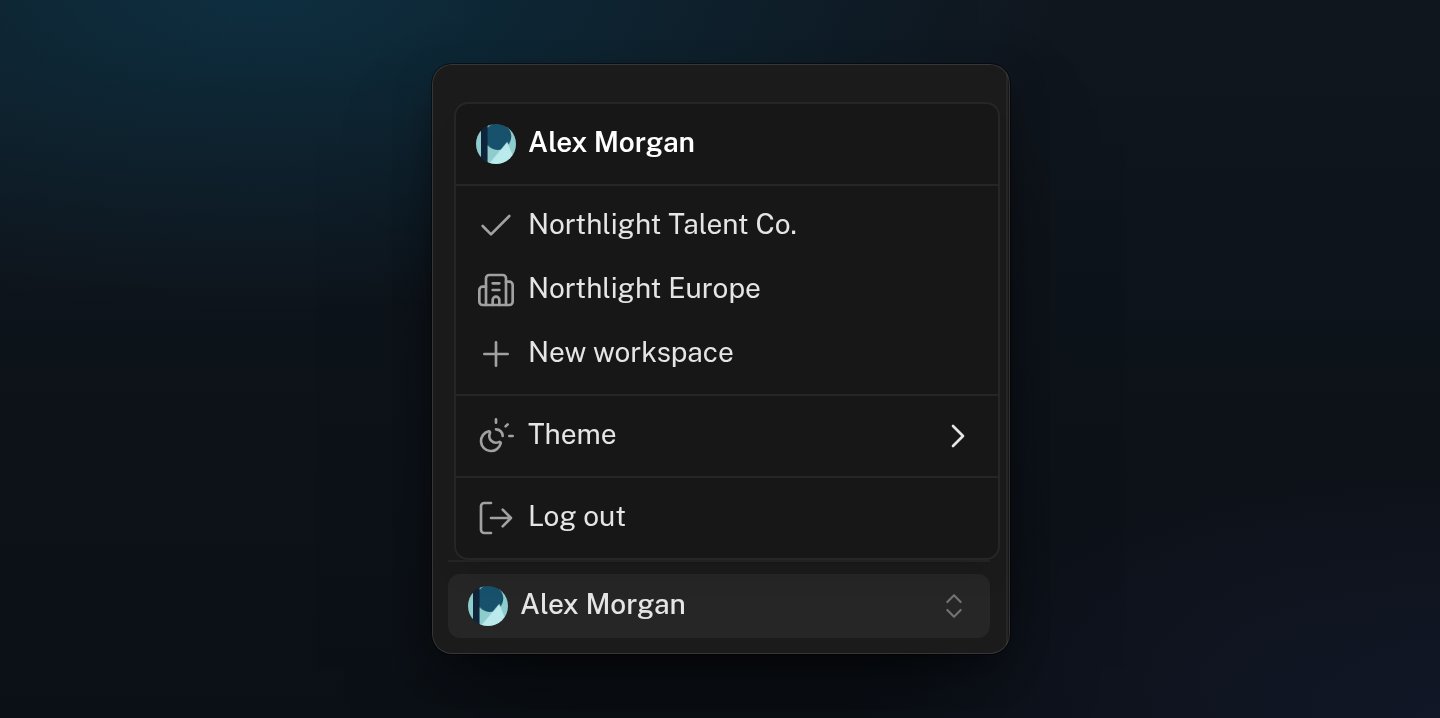
The account menu: your workspaces, New workspace, Theme and Log out.
If something goes wrong
I do not see Billing, Analytics or the Dashboard
I do not see Billing, Analytics or the Dashboard
Your role does not include these pages. Ask an owner or admin if you need them.
Photos and videos are blurred
Photos and videos are blurred
SFW is on in this browser. Click SFW at the bottom of the sidebar to turn it off.
I cannot find the creator switcher
I cannot find the creator switcher
The creator’s name works as a switcher only when you can see more than one creator.