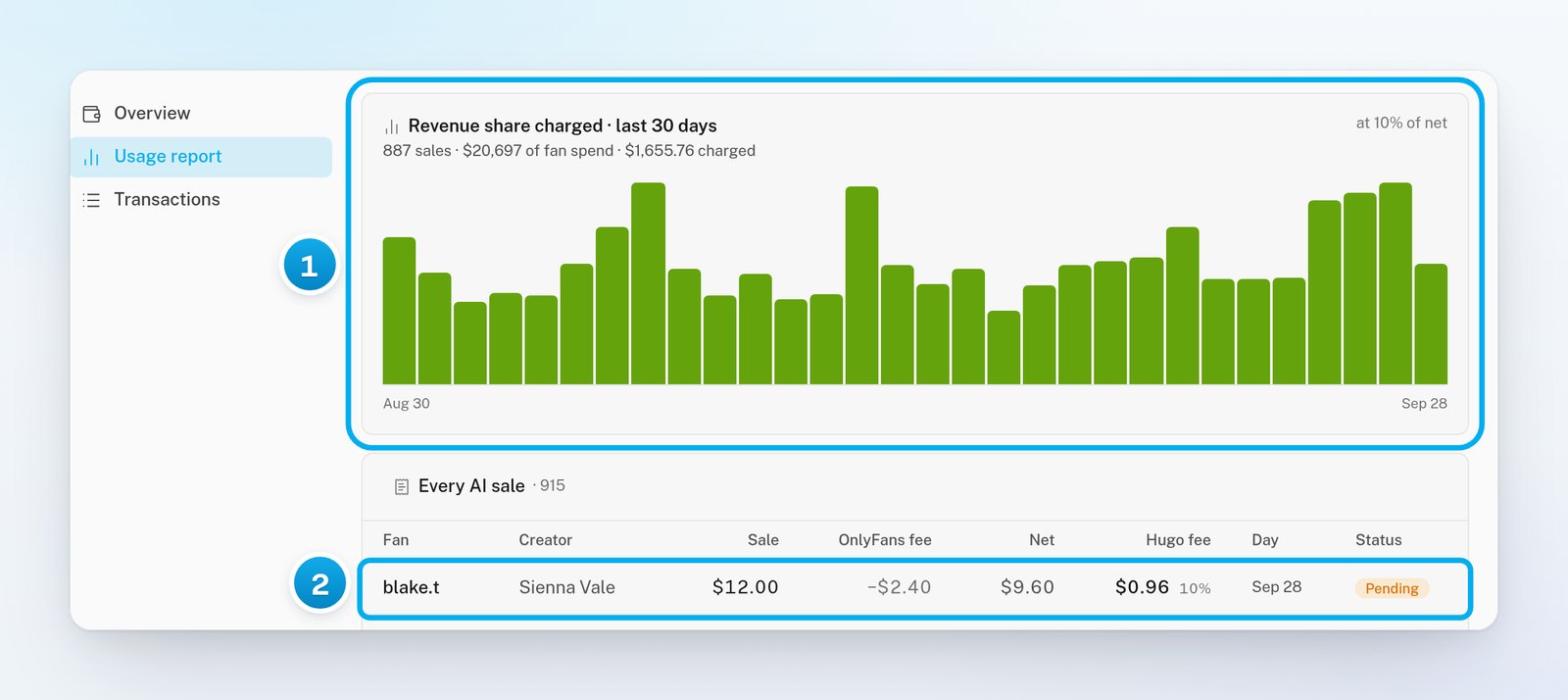
In OnlyX, click Billing. Then click the Usage report tab. On a phone, tap More, then Billing, then Usage report.The tab opens with a chart of the last 30 days.
2
Read the chart
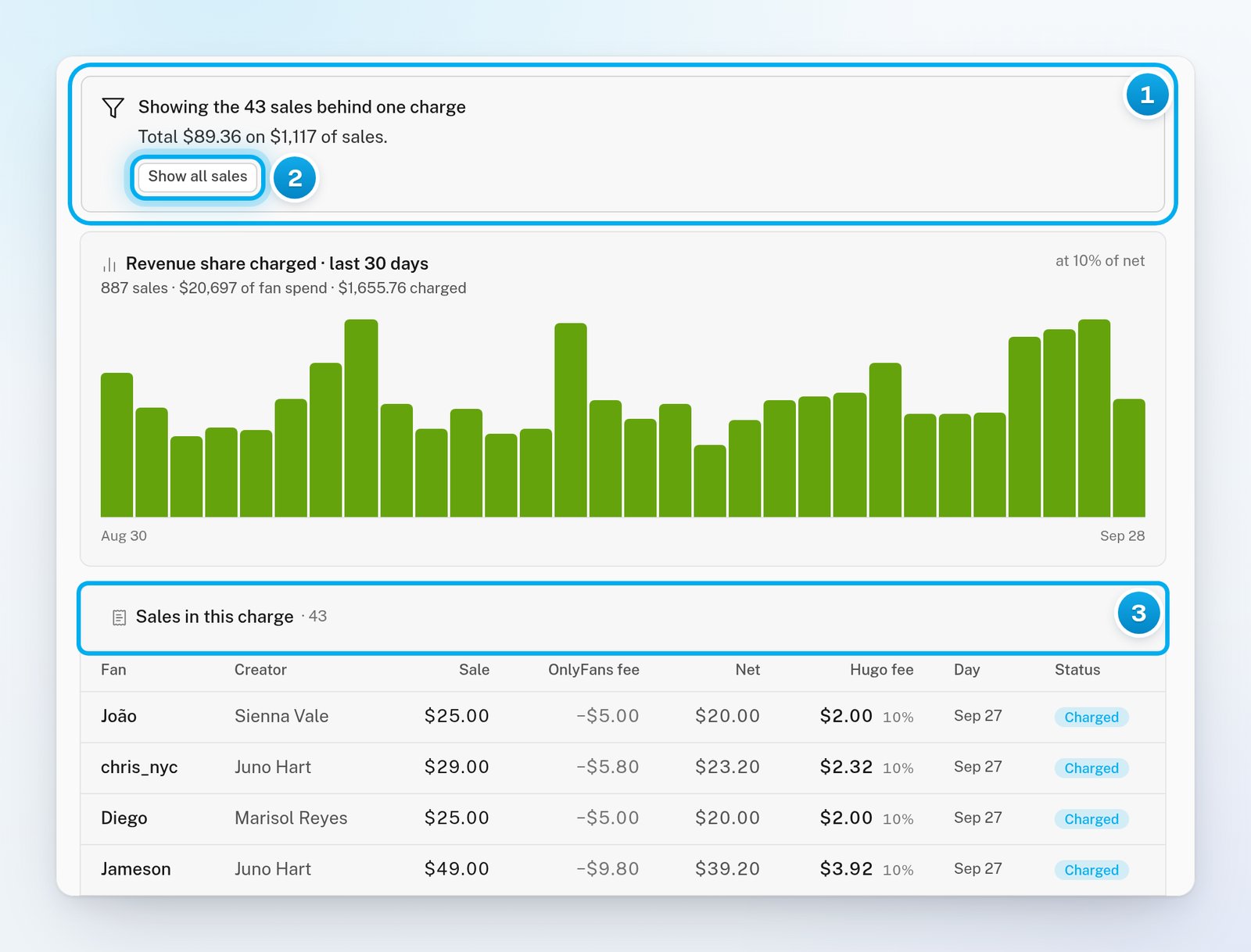
The chart Revenue share charged · last 30 days has one bar for each UTC day. Point at a bar to see that day’s fees and number of sales. On a phone, tap the bar, and tap it again to clear it.The line under the title gives the totals for the 30 days, for example “84 sales · 2,100offanspend⋅168 charged”. Today’s bar grows during the day. Its fees are charged after midnight UTC.
3
Read the list of sales
Scroll to Every AI sale. Each row is one PPV that Hugo sent and a fan unlocked, newest first, 50 to a page.To open the conversation, click the fan’s name.
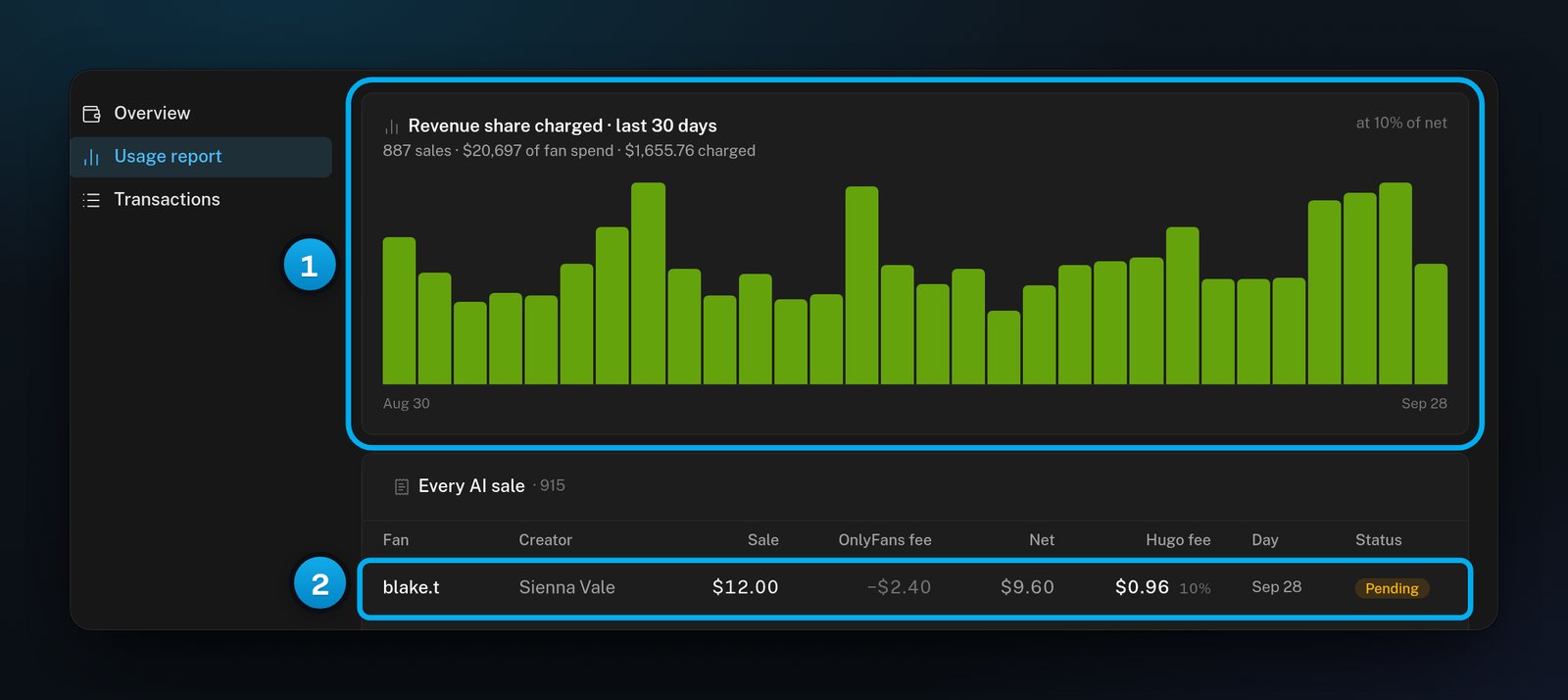
1 Fees per day · 2 One sale, with its Hugo fee and status
What each column shows:
Column
What it shows
Fan
The fan’s name, or your own label for him if you set one. Click it to open the conversation.
Creator
The creator who made the sale.
Sale
The price the fan paid for the PPV.
OnlyFans fee
OnlyFans’ 20% cut, shown as a minus amount.
Net
The sale minus the OnlyFans fee.
Hugo fee
Your OnlyX fee for this sale, with its rate next to it, for example “$2.00 10%”.
Day
The UTC day the sale was filed under.
Status
Pending: not charged yet. Charged: taken in a daily charge. Refunded: the fan charged back, so you do not pay this fee.
For a Telegram creator, the OnlyFans fee column holds the payment processor’s real fee on that sale, not 20%.
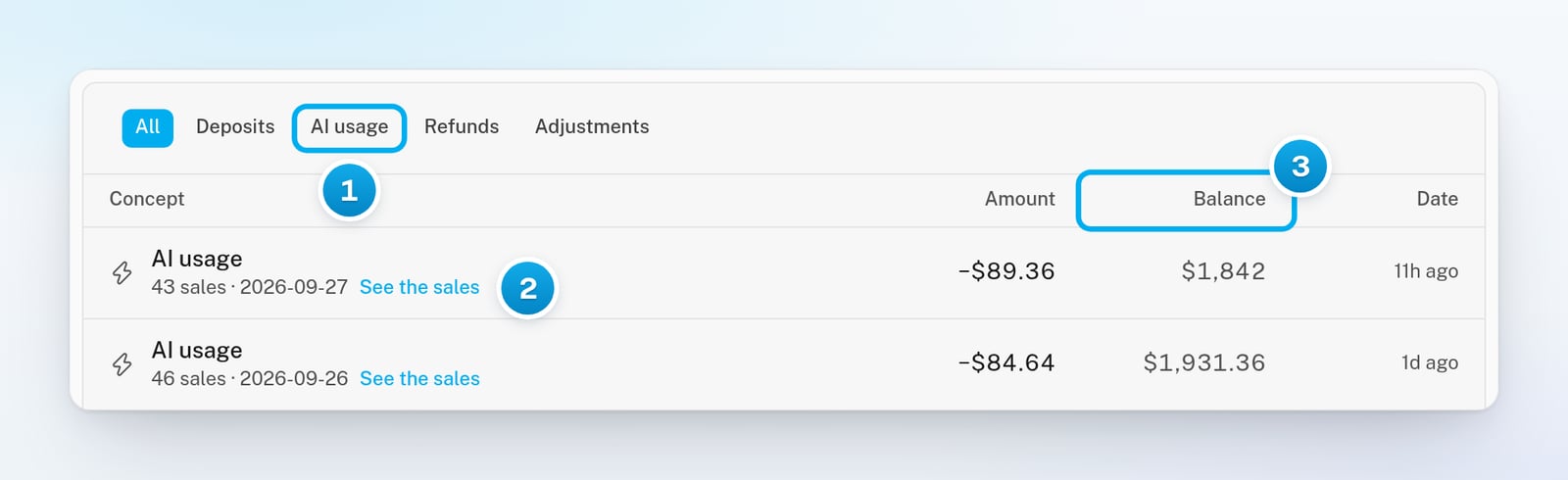
On the Billing page, click the Transactions tab.You see every change to your balance, newest first.
2
Optional: Show only the daily charges
At the top of the list, click AI usage.Each AI usage row shows the number of sales and their UTC day, for example “43 sales · 2026-09-27”.
3
Open the sales in one charge
In the row of the charge, click See the sales.
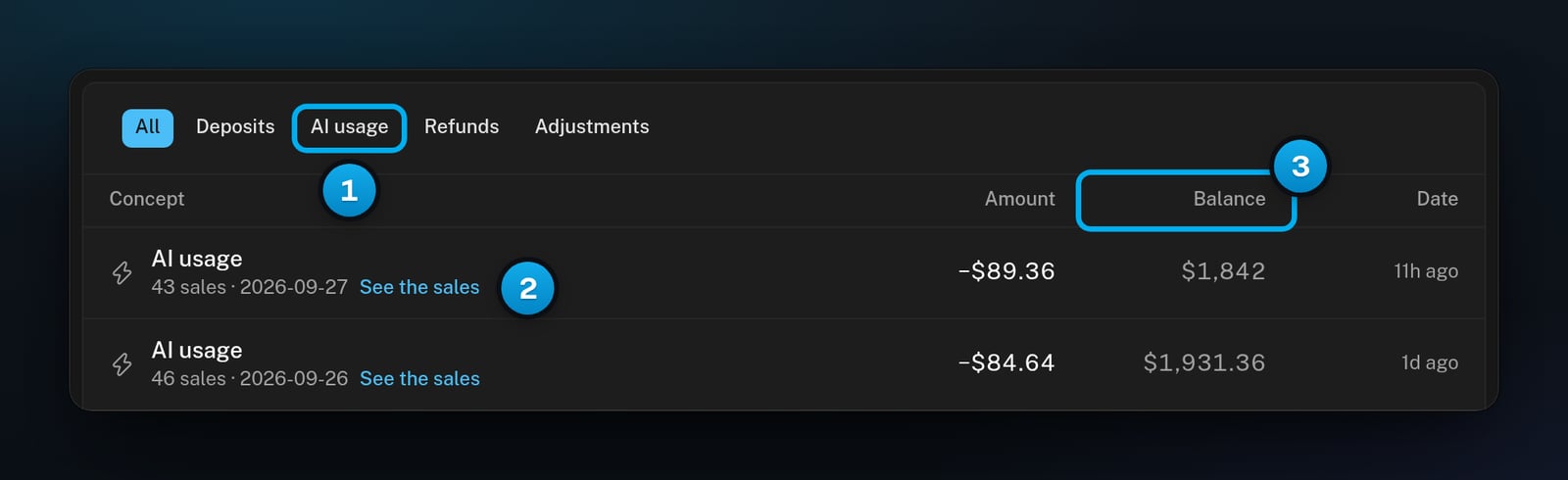
1 Show only the daily charges · 2 See the sales · 3 Your credits after each entry
The Usage report tab opens with only the sales in that charge. The note at the top reads, for example, “Showing the 43 sales behind one charge”, with their total.
4
Go back to all sales
In the note at the top, click Show all sales.
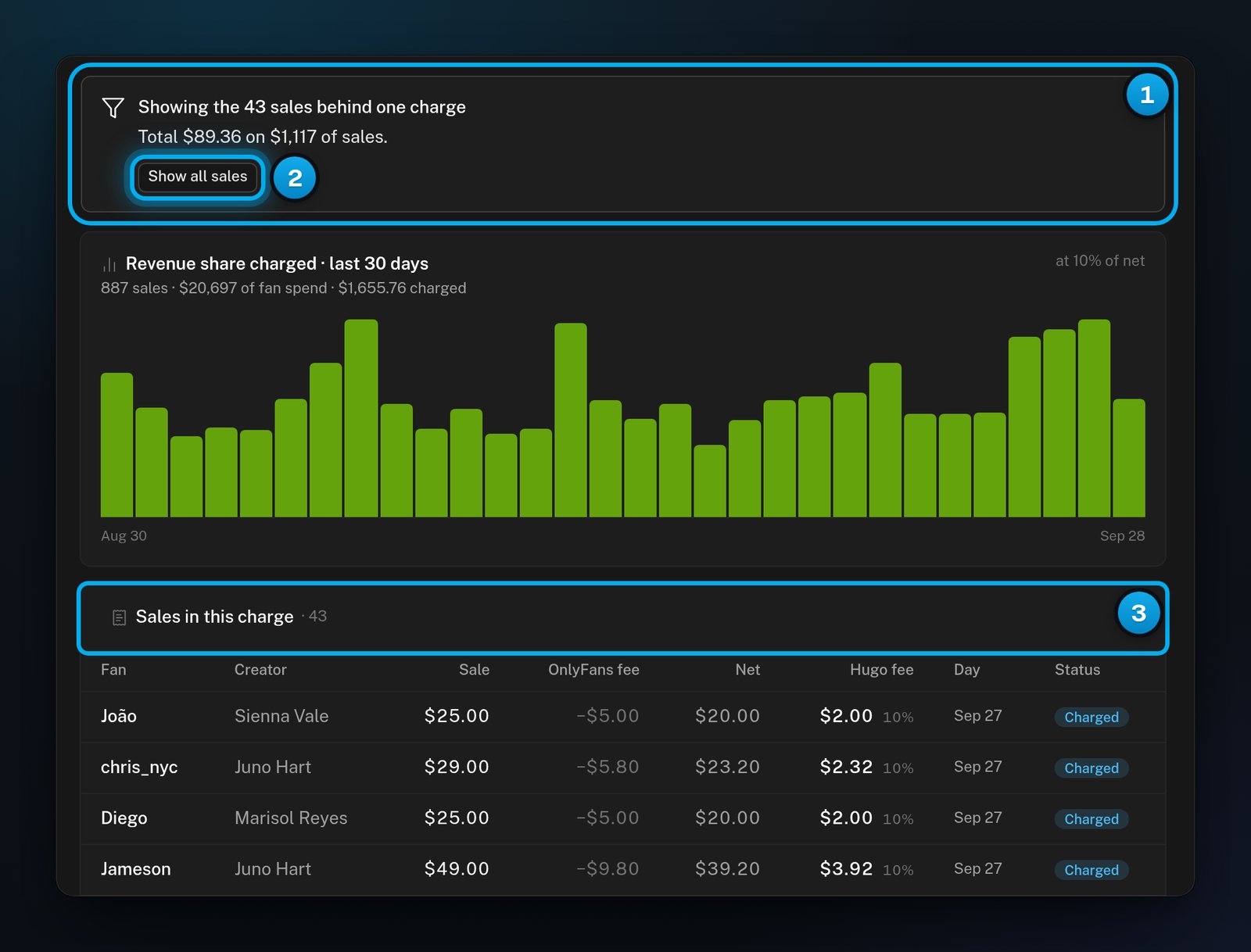
1 The sales in one charge · 2 Show all sales · 3 The list holds only those sales
The filtered view is part of the page address. You can reload it or share the link with another owner or admin. When you switch to another tab, the filter goes away.
A deposit you made. The line under it shows the coin, the network and what arrived, for example “USDT · TRON — received 200of200”.
AI usage
One daily charge: all of Hugo’s fees for one UTC day, taken a few minutes after that day ends.
Sale refunded
A fan charged back a sale that Hugo made, and the fee came back: “Share returned to your balance after an OnlyFans chargeback”.
Welcome credits
The $10 that every new workspace starts with.
Adjustment
Any other change to your balance, for example referral rewards that you moved into it, or a correction by OnlyX. A correction shows the explanation OnlyX wrote.
Money in has a plus sign (+), and money out has a minus sign (−). The Balance column shows your Credits right after each entry. It never includes Pending usage. The Date column shows how long ago the entry was, and a calendar date after 30 days.
No fan unlocked a PPV that Hugo sent in the last 30 days, so nothing was charged. Sales that your team makes by hand never show here.
A sale shows Refunded, but there is no Sale refunded row
The fan charged back before the day’s charge ran. The fee was never taken, so nothing needed to come back. The sale drops out of Pending usage.
The fan's name opens the conversation, but not at the sale
The inbox jumps to the sold PPV only when it is among the conversation’s newest 50 messages. For an older sale, the conversation opens at its newest message.
An Adjustment row that I did not expect
Moving referral rewards into your balance adds an Adjustment. Its line may read “Every workspace starts with credits on the meter”, even when it is not a welcome credit. See Transfer or withdraw referral rewards.
A sale's day is not the day I expected
Billing days are UTC days. A sale late in the evening in the Americas is filed under the next UTC day.
"Could not load usage", "Could not load sales" or "Could not load transactions"
The page could not get the data. Reload the page. If it keeps happening, email support@onlyx.ai with the message.