Set your name and Telegram contact, pick light or dark mode, blur photos and video, and choose what conversations show you and in which language.
EveryoneMy Profile holds how your team sees you. Appearance holds how OnlyX looks and reads for you. Both are in Settings. Nothing here changes the workspace or anyone else’s settings.
In OnlyX, click Settings. On a phone, Settings is under More.Settings opens on My Profile.
2
Edit your details
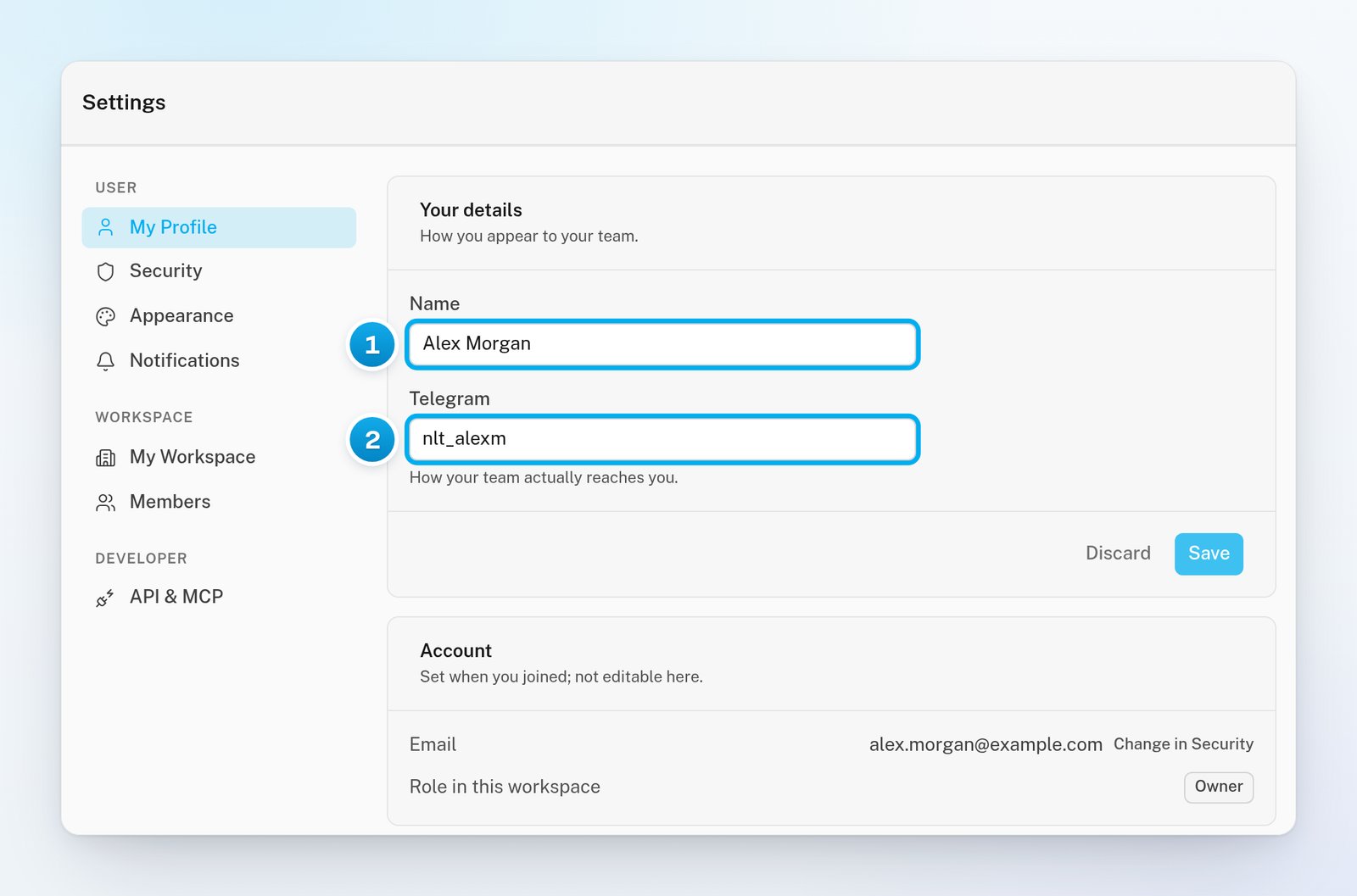
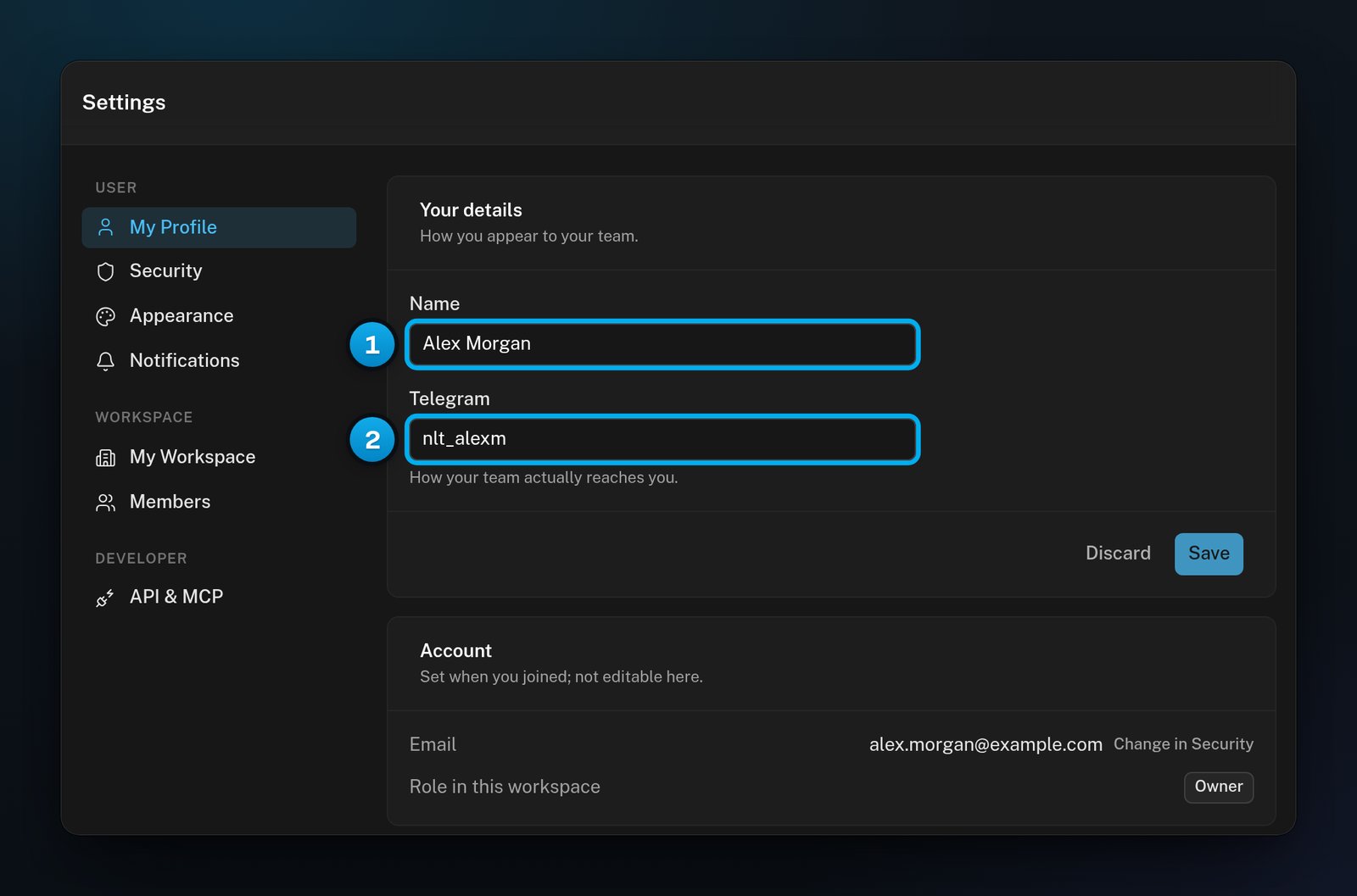
In the Your details card, change Name, Telegram or both.Your name shows in your account menu and on the Members list. It can have up to 120 characters. If you leave it empty, OnlyX shows your email address instead.Telegram is a contact handle for your team, like @username. It does not connect the notifications bot: that is in Settings > Notifications.
1 Name · 2 Your Telegram username, for your team
3
Save your changes
Click Save. OnlyX shows “Profile saved”.To undo changes you have not saved, click Discard. Both buttons work only after you change something.
The Account card shows your Email and your Role in this workspace. You cannot change them here. An owner or admin changes roles in Members.You cannot change the email address you sign in with in the app. The Change in Security link opens the Security tab, but that tab has no way to change it either. To change your email, write to OnlyX support at support@onlyx.ai.
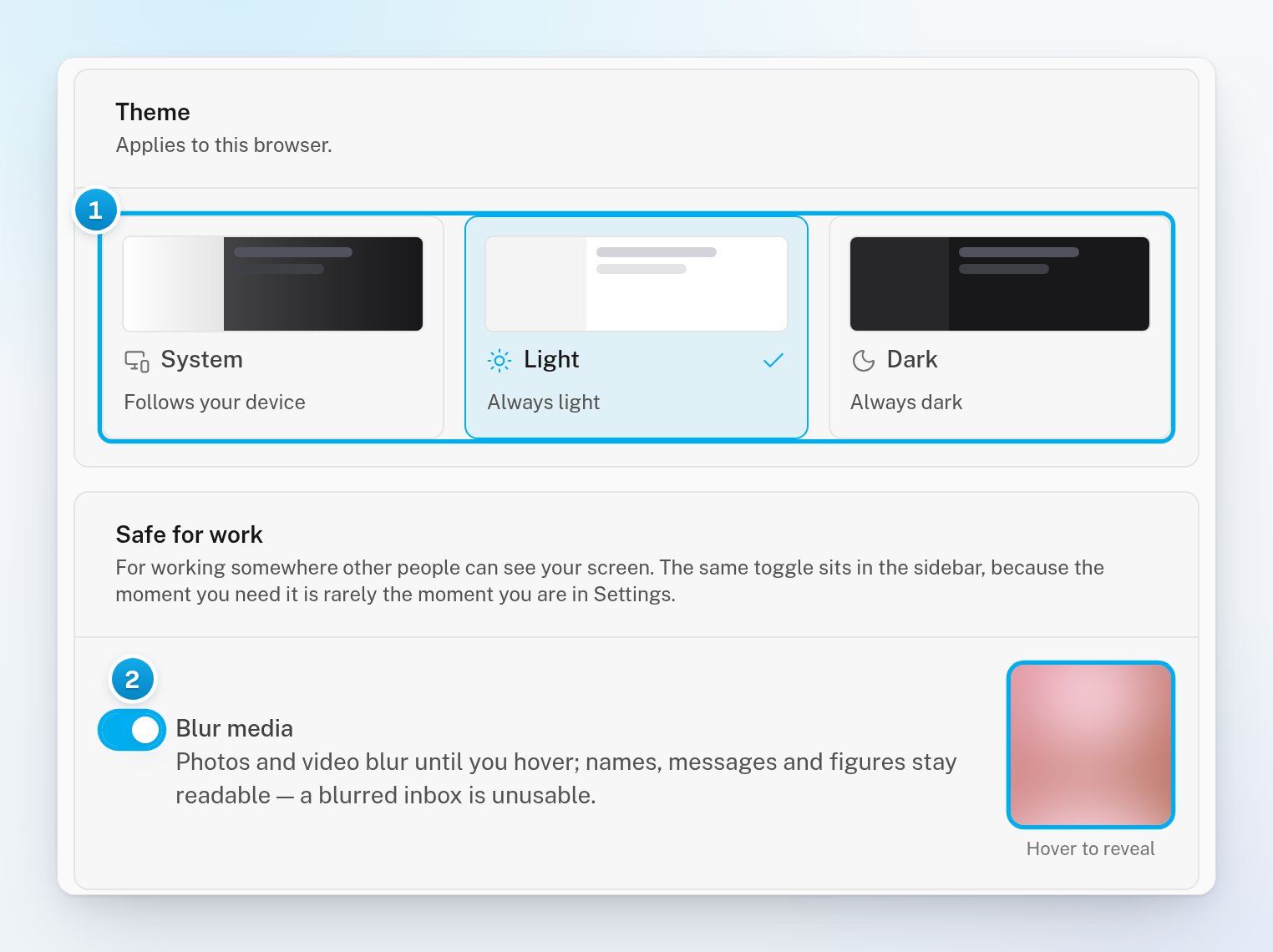
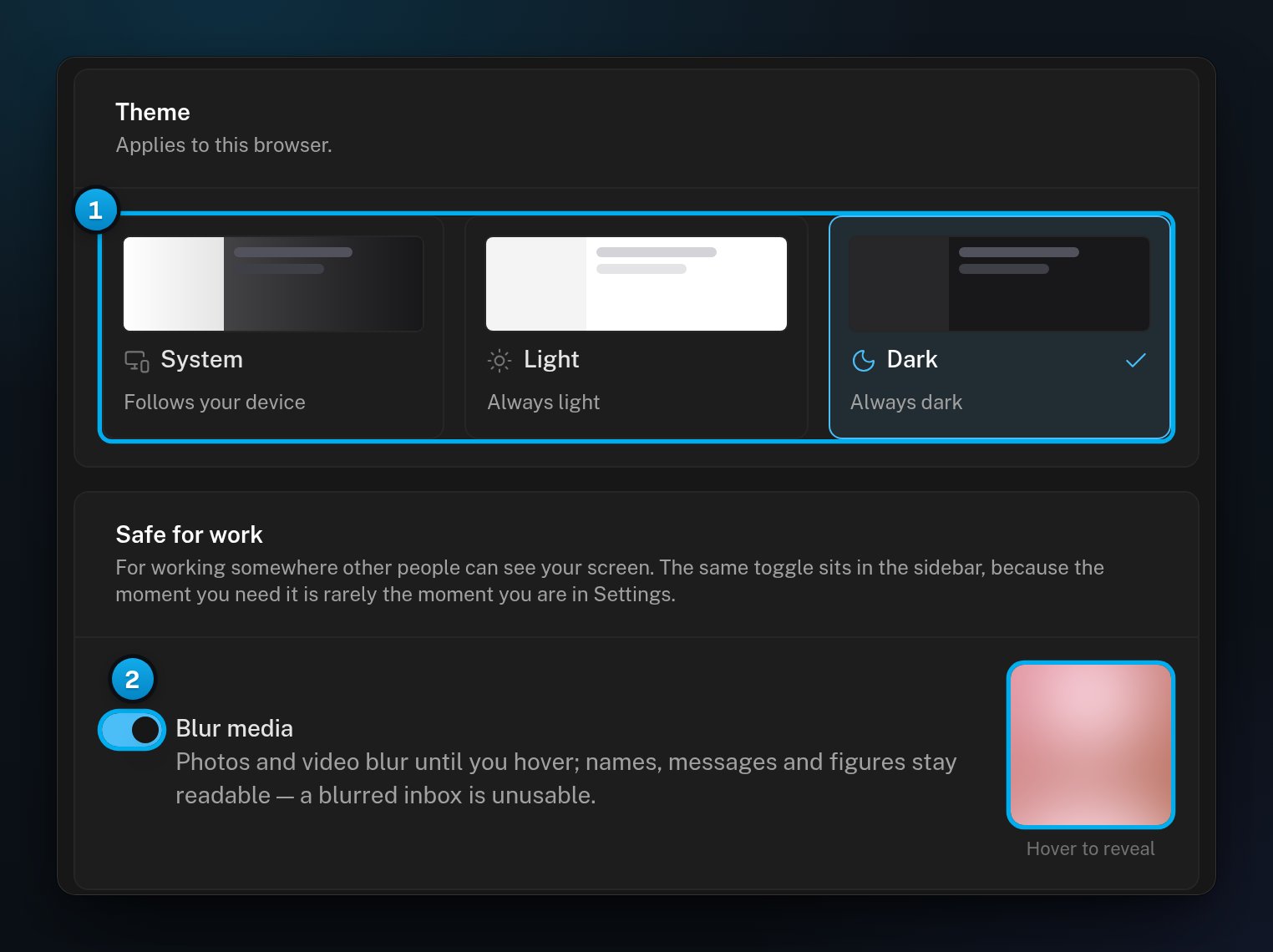
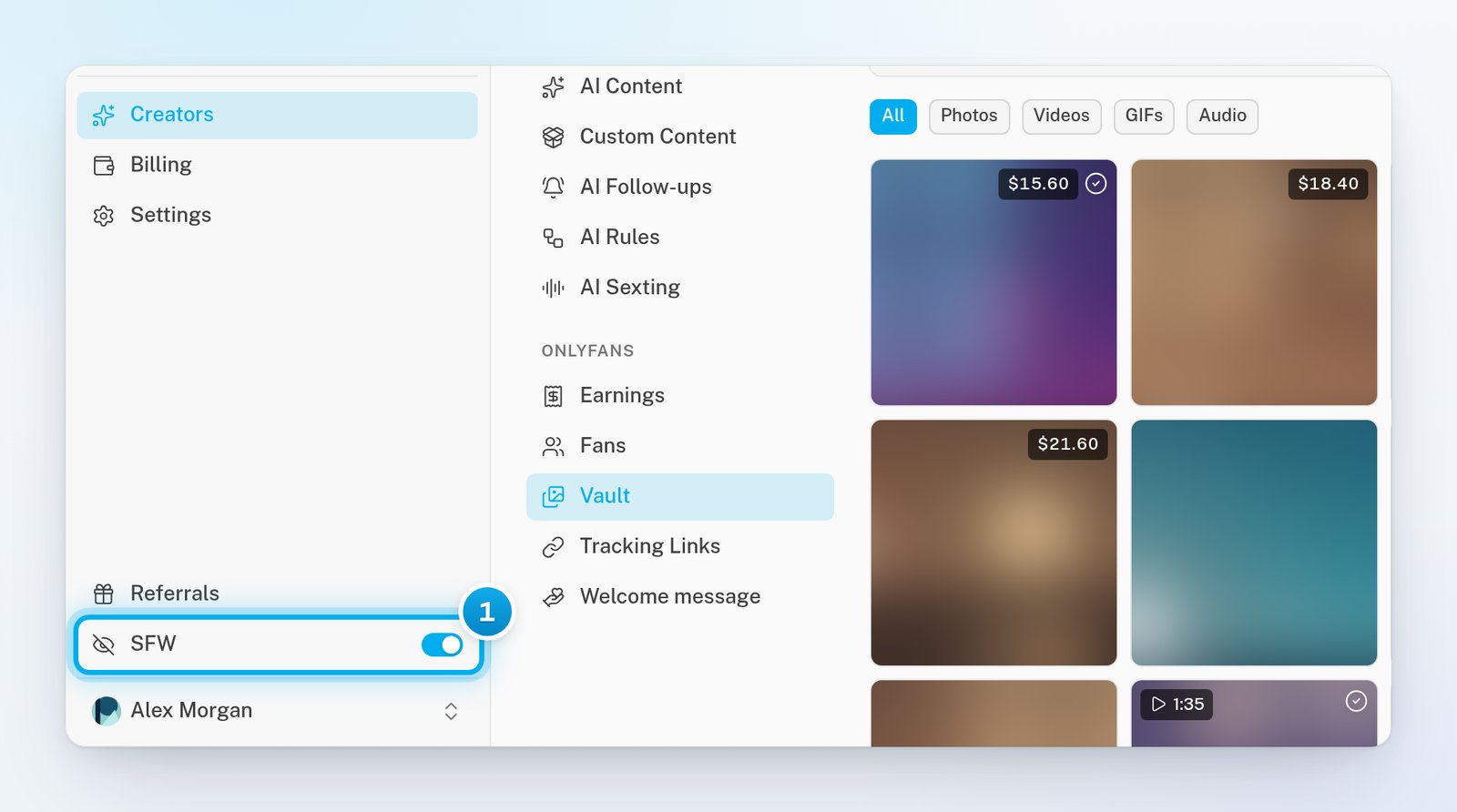
Turn on blur when people around you can see your screen. Photos and videos blur until you point at them. Names, messages, numbers and profile pictures stay readable.The same switch is in two places:
On a computer, click SFW at the foot of the sidebar. Click it again to turn blur off.
In Settings > Appearance, turn on Blur media in the Safe for work card.
On a phone, open More, then use the SFW row.
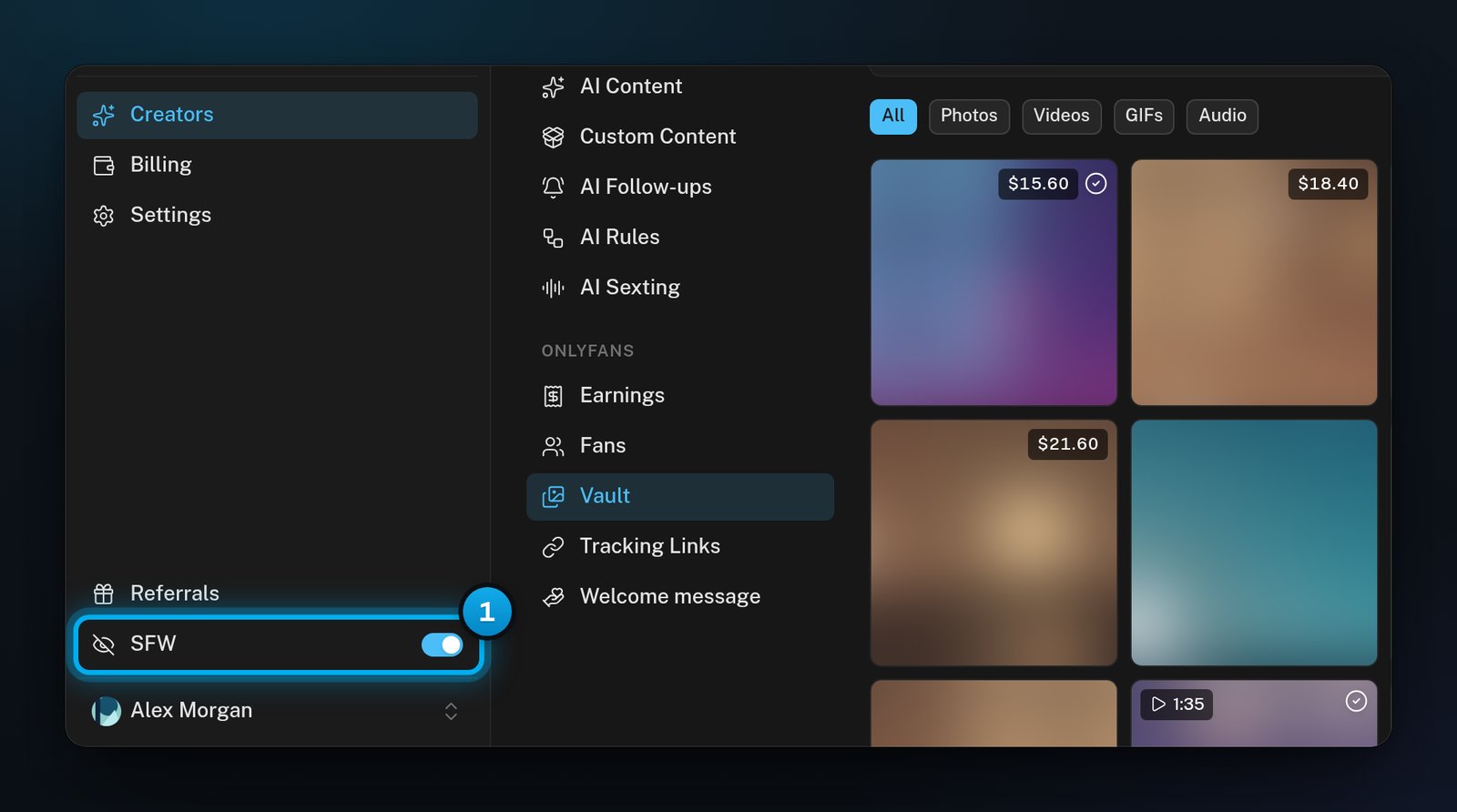
1 SFW, one click from every page. With it on, photos stay blurred until you point at them.
Blur covers photos and videos in conversations, in the Vault, in AI Content and in the other media screens. This browser remembers your choice for a year.
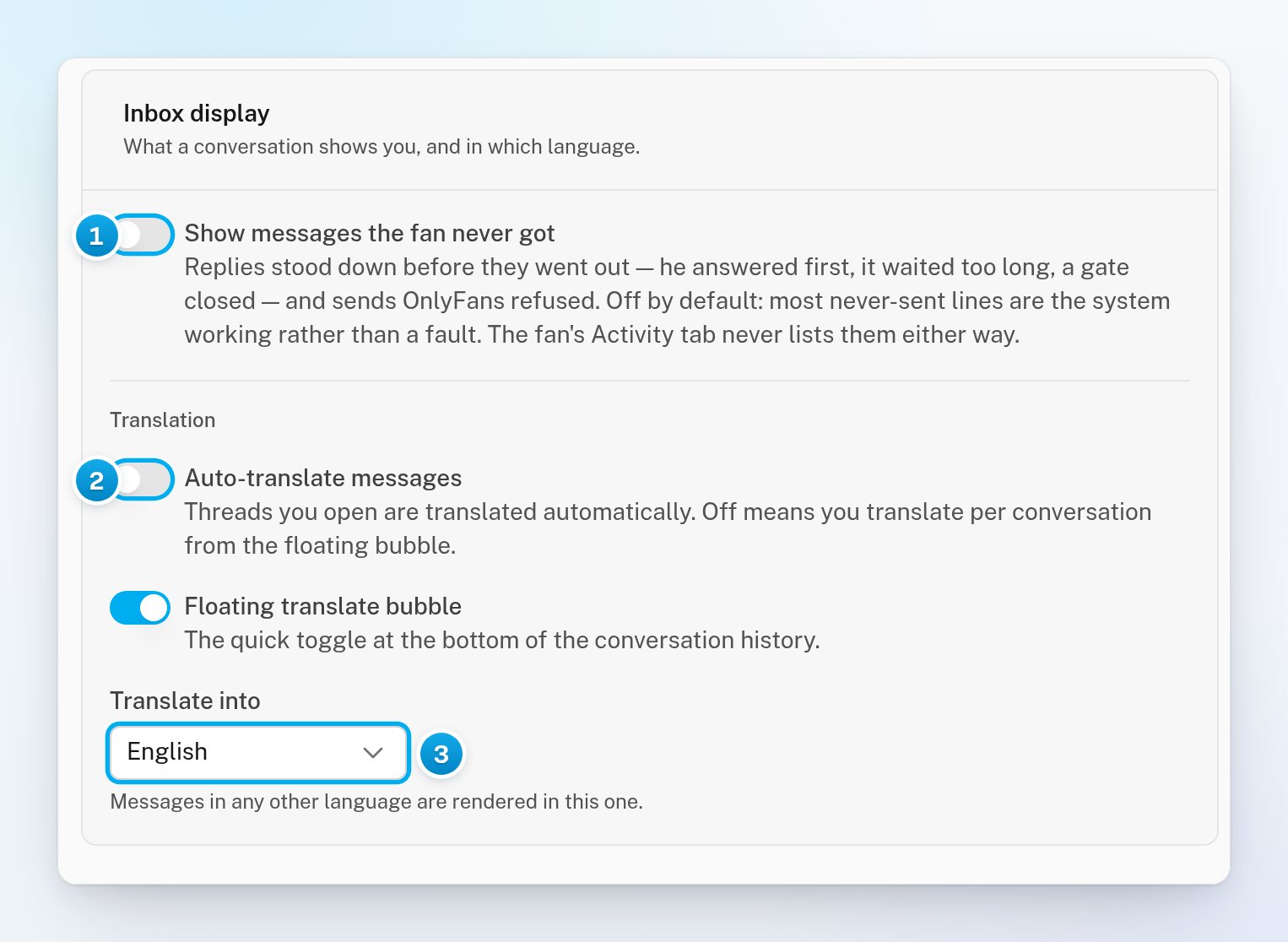
The Inbox display card is on Appearance for owners, admins and chatters. Content VAs do not have it, because they do not use the inbox. Each switch saves the moment you change it, and applies on every device you sign in to.
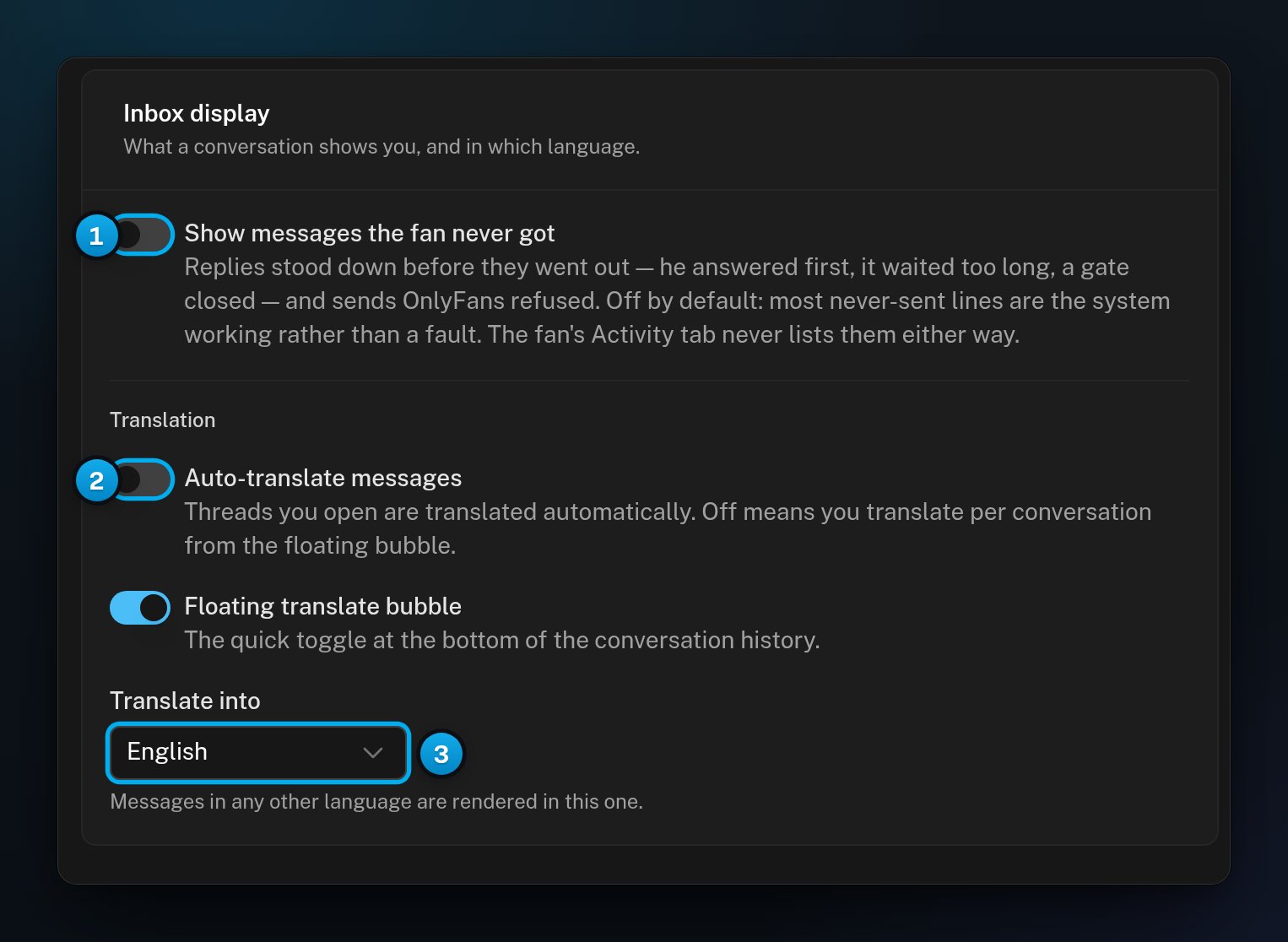
1 Show messages the fan never got · 2 Translate threads when you open them · 3 Your reading language
Show messages the fan never got is off by default. Turn it on to see replies that were stopped before they went out, and sends that OnlyFans refused. See Message delivery states: did the fan get it?
Auto-translate messages is off by default. Turn it on to translate every conversation when you open it. When it is off, you translate one conversation at a time.
Floating translate bubble is on by default. It is the quick translate switch at the foot of the conversation history.
Translate into is the language you read in: English, German, Spanish, French, Italian, Portuguese, Russian, Turkish or Ukrainian. Until you pick one, it is English.