

Ask OnlyX support for help
Email OnlyX support at support@onlyx.ai. To help support find the problem, include:- your workspace name;
- the creator and page where it happened;
- the fan’s name, if the problem is in one conversation;
- the exact error message;
- when it happened, including your time zone;
- what you tried, what you expected and what happened instead.
How a support session works
- Support opens the session with its own tools. It signs in as one member of your workspace and has that member’s role. So support sees what that member sees.
- A session lasts at most 30 minutes. Support cannot extend it. It ends sooner when support ends it.
- Support chooses read-only or able to make changes when it opens the session.
- The session runs only in the browser of the support person. Your own OnlyX shows nothing, and it does not appear in your Active sessions.
- OnlyX keeps a record of each session: the support person, the member, the mode and the time.
What support can see
Support sees the same pages as the member it signed in as. For example, it can read conversations, the fan panel, a creator’s AI Persona and AI Content. If that member is an owner or admin, support also sees Billing and API & MCP. It can see the keys and connected apps listed there, but cannot change them.What stays locked in both modes
Even when support can make changes, it cannot:- Send a message to a fan from OnlyX, or unsend one.
- Paste text into a creator’s OnlyFans browser, or take her OnlyFans sign-in to use it somewhere else.
- Create, switch or leave workspaces, or accept an invite for you.
- Withdraw or transfer your referral money.
- Connect or disconnect your Telegram bot, or change your notification choices.
- Turn two-factor authentication on or off, or sign out your devices.
- Create, rename or revoke keys in API & MCP, disconnect connected apps, or connect a new AI app.
Read-only or able to make changes
In read-only mode, OnlyX refuses every change. The message reads “This support session is read-only.”
When support can make changes, a change it makes stays, like a change the member made. It can also open a creator’s OnlyFans browser and use it, if the member it signed in as can.
What the support person’s screen shows
During a session, every page on the support person’s screen starts with a bar at the top. On a wide screen, it reads “OnlyX support is viewing your workspace” and shows the support person’s email address. It also shows the mode, “read-only — cannot change anything” or “can make changes on your behalf”, and the time left. The support person can fold the bar into a small Support pill in a corner of the screen. The pill still shows the time left. The support person can click End now to end the session early in that browser. When the time runs out, the session ends by itself. The bar shows only in the browser where the session runs. You see it if support shares its screen with you, for example on a call. It is a quick way to check the mode.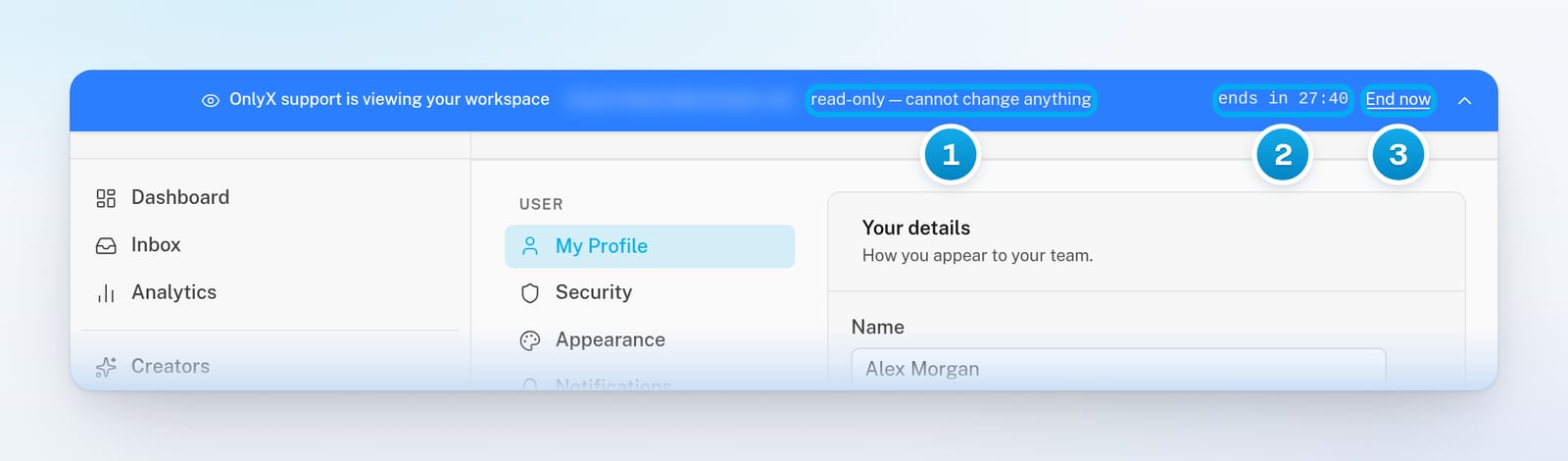
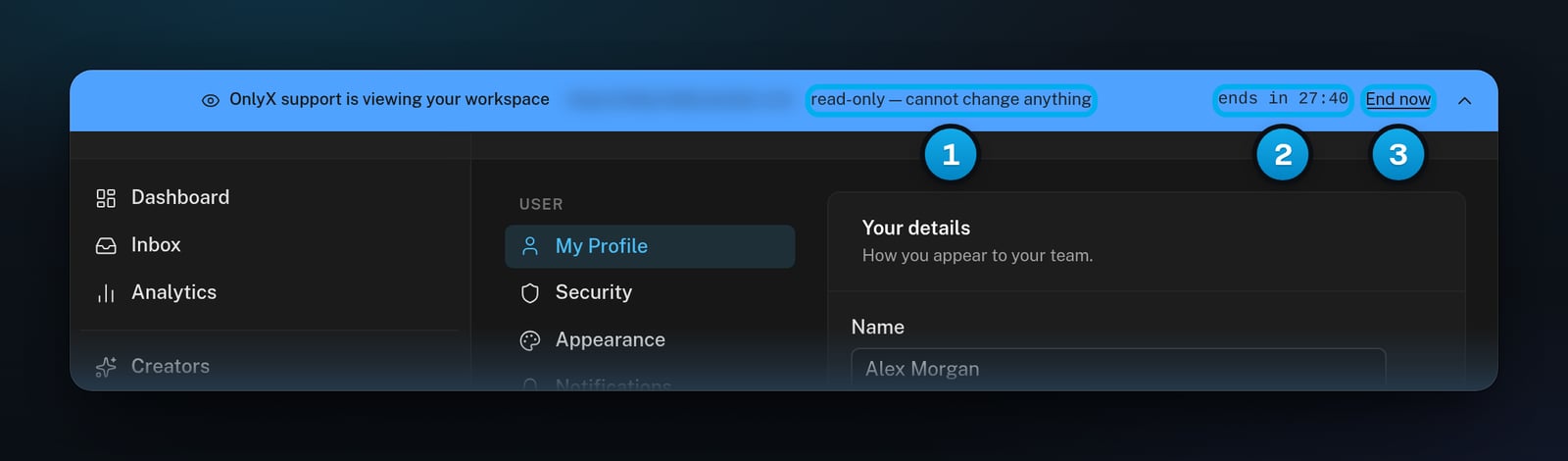
1 The mode: read-only · 2 The time left · 3 End now