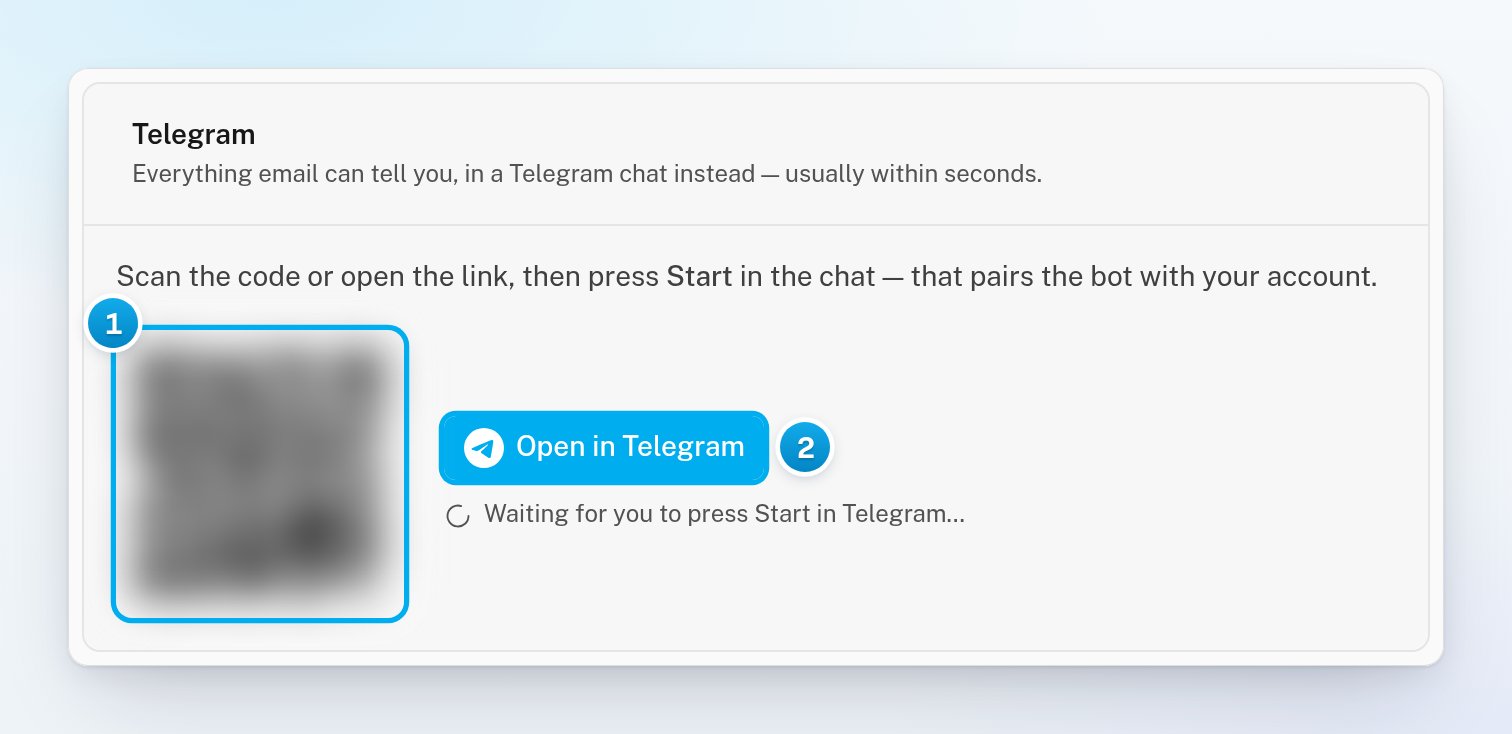
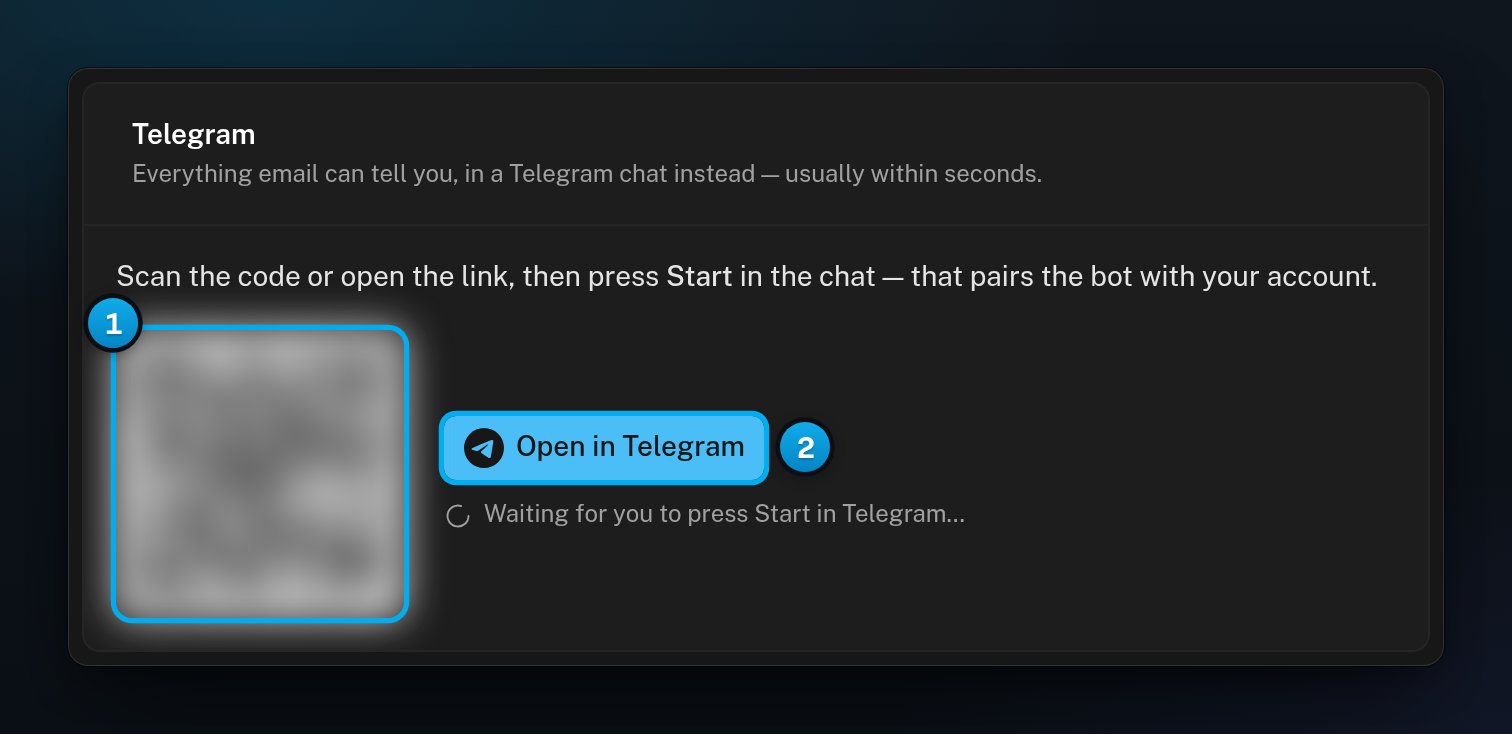
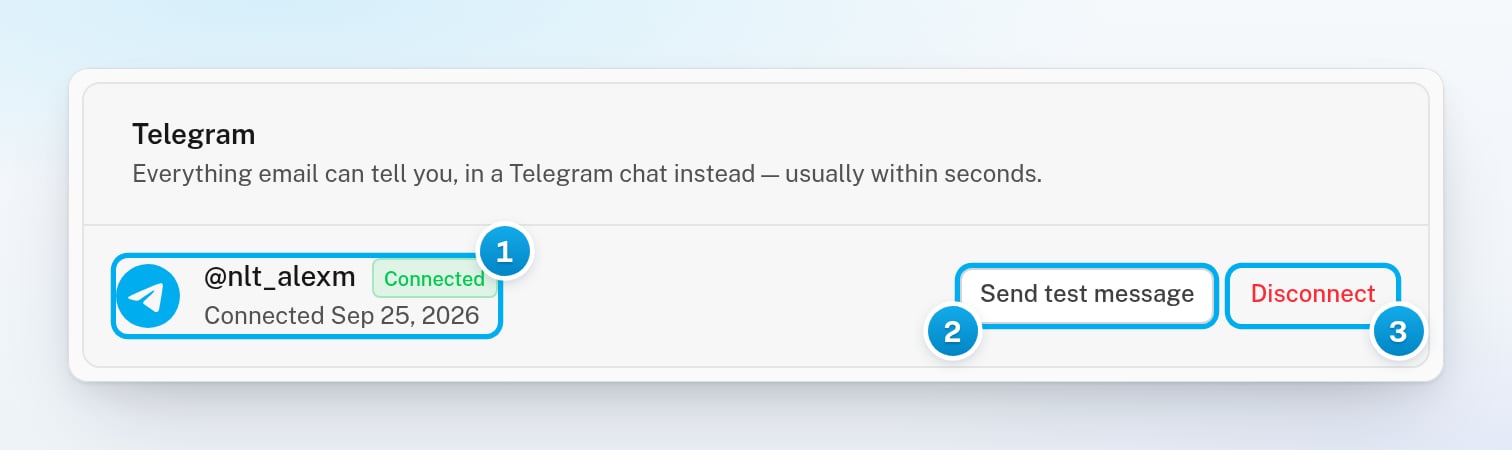
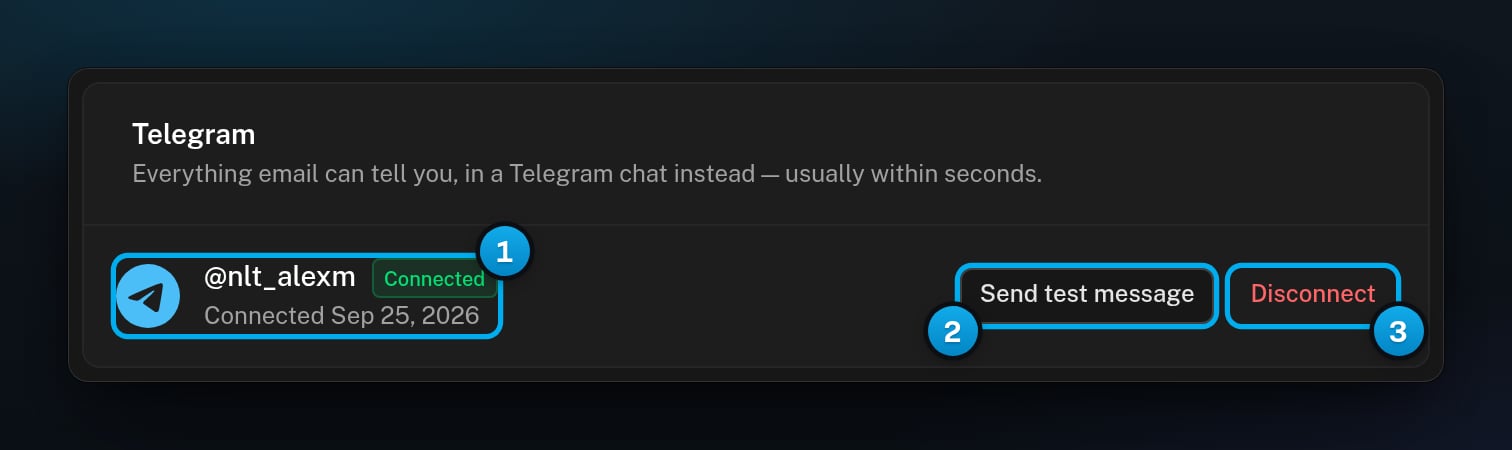
Pair the OnlyX bot @onlyx_aibot with your account to get OnlyX alerts in Telegram, send a test message, and disconnect when you want.
Owners and adminsPair the OnlyX notifications bot with your account. OnlyX then sends your alerts to a Telegram chat as well as by email, usually within seconds.
Only owners and admins receive notifications. A chatter or content VA can pair the bot, but gets only the test message and no alerts.
Every alert is on for Telegram by default. So alerts start to arrive as soon as you pair the bot. Before you pair it, the Telegram switches on the tab are greyed out.To turn alerts on or off, use the Telegram switches on the same tab. See Choose your notifications. Each workspace keeps its own switches, even though you pair only once.A Telegram alert says the same as the email: a title, a few lines, and a link that opens OnlyX.
In OnlyX, on the Telegram card, click Disconnect. OnlyX does not ask you to confirm. A new QR code shows at once, in case you want to pair again.
In Telegram, send /stop to the bot. The bot answers “Disconnected. OnlyX will not message you here again — reconnect any time from Settings → Notifications.”
/stop disconnects every OnlyX account that is paired with that chat. If you block the bot in Telegram, OnlyX also disconnects it the next time it tries to message you.To use another Telegram account, click Disconnect, then scan the new code with the other account. The new chat replaces the old one.
A pairing link and its QR code work once, for 15 minutes. When they expire, the page shows fresh ones by itself.
The bot only delivers alerts. If you send it anything else, it answers “This bot only delivers OnlyX notifications. Manage them in Settings → Notifications.”
The Telegram field on My Profile is only a contact handle for your team. It does not pair the bot.
The bot answers "That link has expired — get a fresh one in Settings → Notifications."
You used an old pairing link or QR code, or one that was already used. Open Settings > Notifications and scan the QR code that shows now.
The card still shows the QR code after I pressed Start
The page checks for your pairing every 3 seconds, so wait a few seconds. If the card shows Get a pairing link, click it. Then scan the new code and press Start again.
"Telegram reports the bot is blocked — reconnect to pair again."
You blocked the bot in Telegram, so OnlyX disconnected it. Unblock the bot in Telegram. Then reload the page: the Telegram card shows a new QR code. Pair the bot again from there.
"Telegram did not accept the message. Try again in a moment."
Telegram refused the test message this time. Wait a moment, then click Send test message again.
A chatter paired the bot but gets no alerts
Only owners and admins receive notifications. For anyone else, the bot sends only the test message.
"Could not disconnect Telegram"
The disconnect did not go through. Click Disconnect again. You can also send /stop to the bot.