Owners and admins A managed account is a Telegram account that OnlyX has ready and already signed in. When you pick one for a creator, she is connected at once: nobody types a phone number or a code.

Before you start

  • You need an owner or admin account.
  • The account comes with its own Telegram name and @username. Fans see those, not the name you give her in OnlyX. You can change them after you connect.

Add a creator with a managed account

1

Open the Add creator account window

In OnlyX, click Creators. Then click Add creator.The Add creator account window opens.
2

Name her and pick Telegram

In the Display name field, enter the name your team knows her by. Under Platform, click Telegram.The Account field appears. Use a managed account is already picked.
3

Add her

Click Connect.OnlyX adds her and opens her page. The Connect Telegram window opens on top of it. It shows “Finding available accounts…”, then a list of accounts.
4

Pick an account

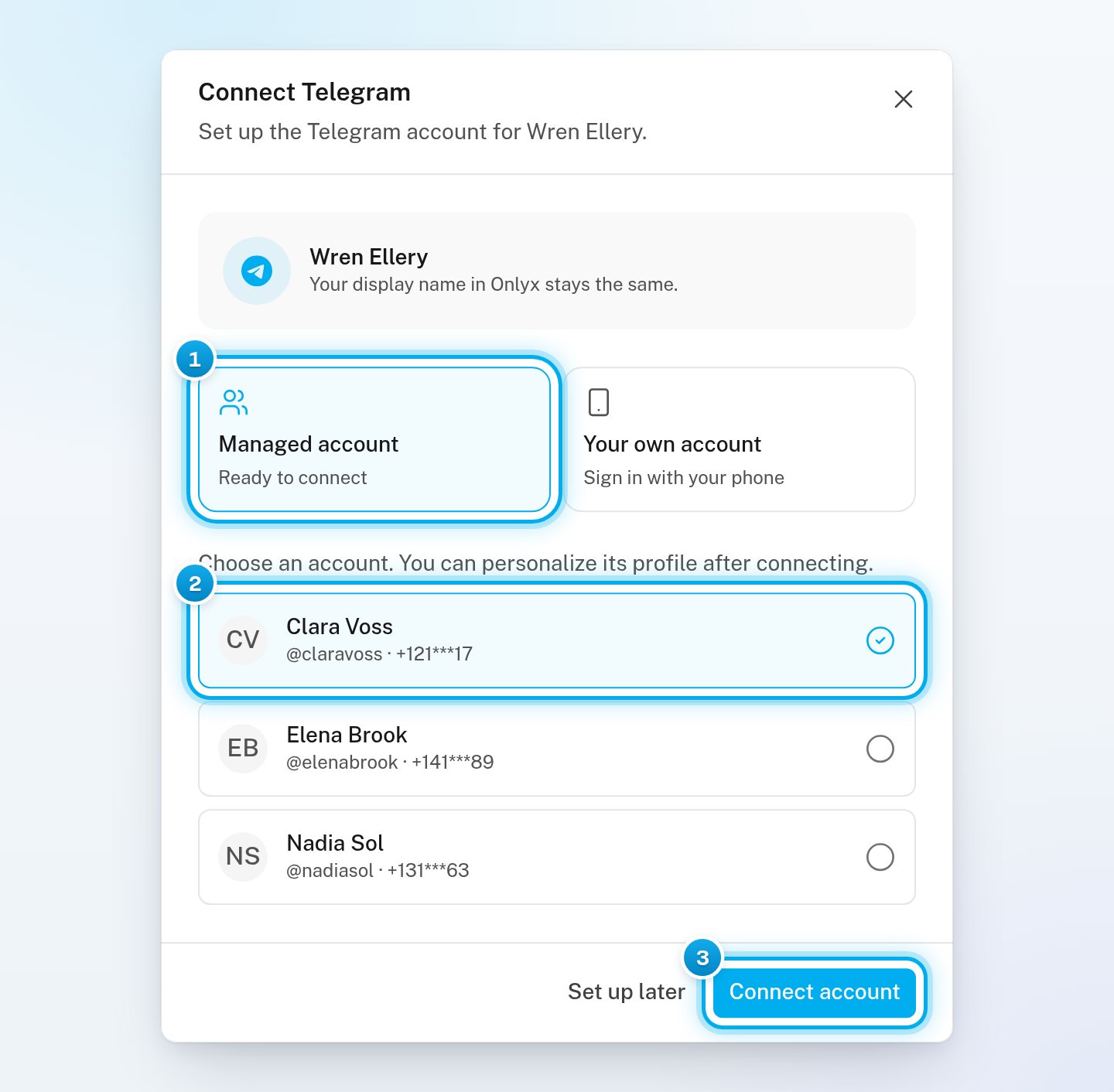
Click one of the accounts in the list. Each row shows the account’s name, its @username and part of its phone number. A tick marks the account you picked.
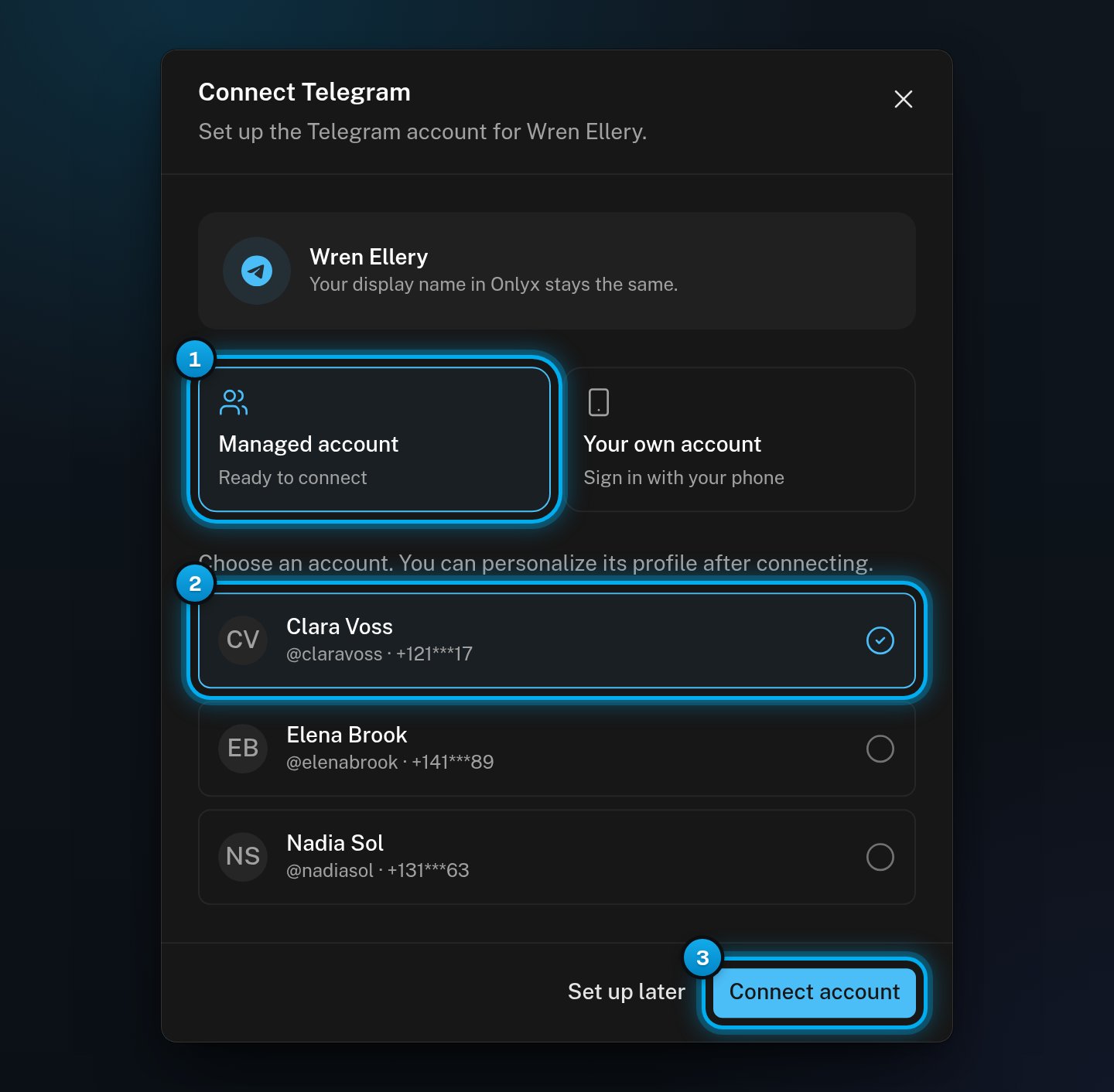
The Connect Telegram window with Managed account picked, one account ticked in the list, and the Connect account buttonThe Connect Telegram window with Managed account picked, one account ticked in the list, and the Connect account button

1 Managed account is picked · 2 The account you chose · 3 Connect account

5

Connect the account

Click Connect account.The window title changes to Telegram connected. It shows the account’s Telegram name and @username.
6

Choose how fans see her

To change the name, @username, bio and photo that fans see, click Edit profile. See Edit a Telegram creator’s profile. To do it later, click Done.
7

Check her page

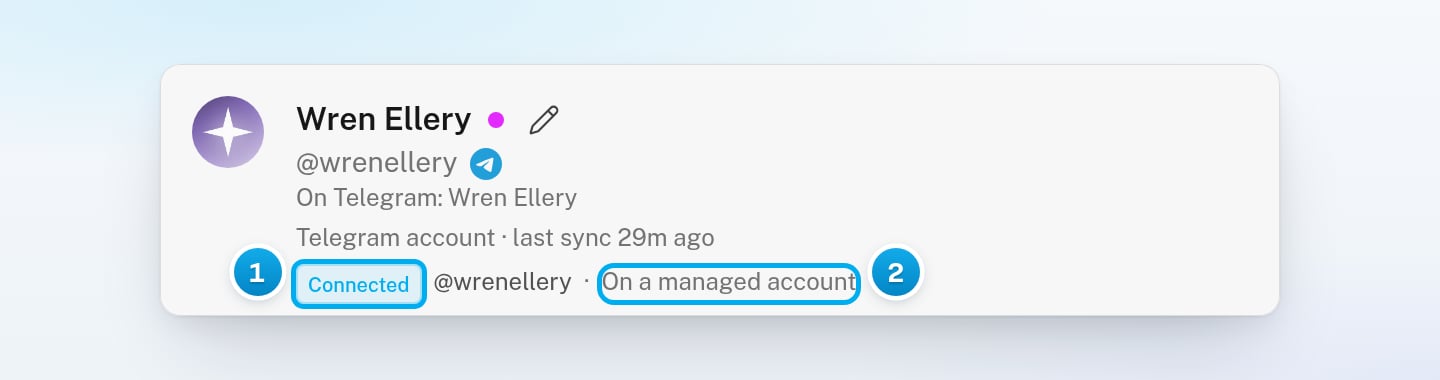
On her Overview, her profile card shows Connected, the account’s @username and On a managed account. The first setup step, Connect the account, is done.
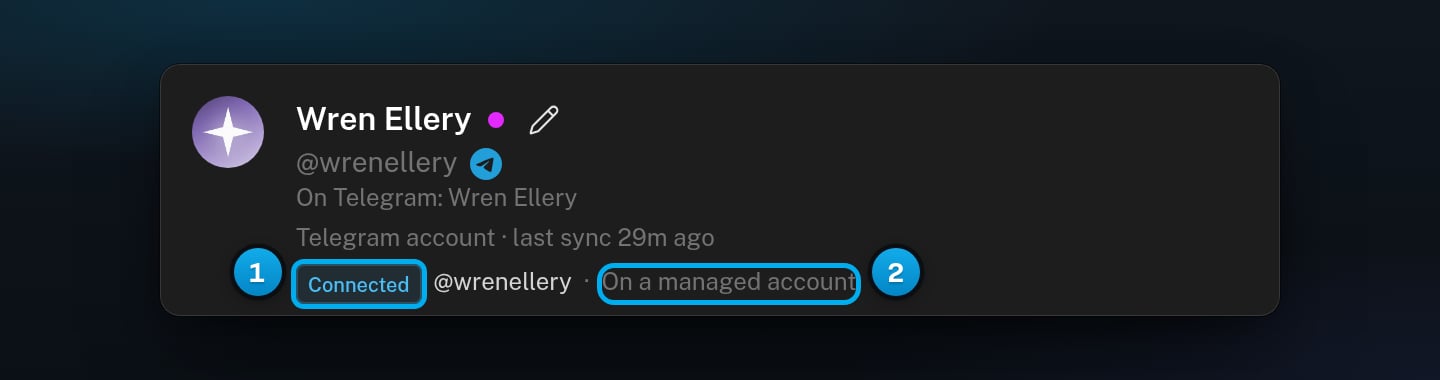
A Telegram creator's profile card showing Connected, the account's @username and On a managed accountA Telegram creator's profile card showing Connected, the account's @username and On a managed account

1 The account is connected · 2 It is a managed account

Connecting does not change the Display name you gave her. OnlyX shows the account’s Telegram name on her profile card, after “On Telegram:”.

Connect a creator who is already in OnlyX

If a Telegram creator has no account yet, her Overview shows a Connect Telegram card with the text “Choose a managed account or sign in with your phone.”
1

Open the Connect Telegram window

In OnlyX, click Creators. Then click the creator. On her Overview, click Connect Telegram.You can also click Connect Telegram on the first step of her setup.
2

Choose Managed account

At the top of the window, click Managed account.The list of accounts appears. Then follow steps 4 to 7 of Add a creator with a managed account.

After you connect

Her fans arrive in the Master Inbox as they message her on Telegram. To get her ready to sell, also connect her Stripe account and upload her photos and videos. See Telegram creators: how they differ. A creator keeps her managed account. There is no button to swap it for another one. If you delete the creator, the account goes back to the pool.

If something goes wrong

No free account is ready at the moment. Click Refresh accounts to look again. You can also click Your own account and sign in with her own number. See Connect her own Telegram account.If the list stays empty, email support@onlyx.ai.
Someone connected the same account to another creator a moment before you. The message can also read “Another creator is already using that account.” Pick a different account, then click Connect account again.
The account is not active on Telegram right now, so OnlyX refused it. Pick a different account.
The account is now hers, but Telegram has not said that it is online yet. Close the window. Then look at the status on her profile card. If it does not show Connected after a few minutes, email support@onlyx.ai.
OnlyX could not read the list of managed accounts. Close the window and try again in a few minutes. If the error comes back, email support@onlyx.ai and include the message you see.
OnlyX could not read her account. Click Try again on the card.
Chatters and content VAs cannot connect an account. Ask an owner or admin. If her profile card already shows On a managed account or On her own account, she already has an account.
The account stopped working on Telegram. A line under the status can say why.Reconnect sends a code to the account’s phone number. If you do not have that phone, email support@onlyx.ai and include her name. For the steps, see Connect her own Telegram account.

What’s next

Edit a Telegram creator's profile

Connect Stripe payments

Upload media for a Telegram creator