Connect Claude, ChatGPT, Cursor, VS Code or Claude Code to your workspace, then approve it on the OnlyX page and choose the creators it may use.
Owners and adminsConnect an AI assistant to your workspace. You can then ask it, in plain words, to read conversations, look up fans or pull your numbers.The assistant connects through the OnlyX server. You sign in with your OnlyX account and approve what it may do. You do not need an .
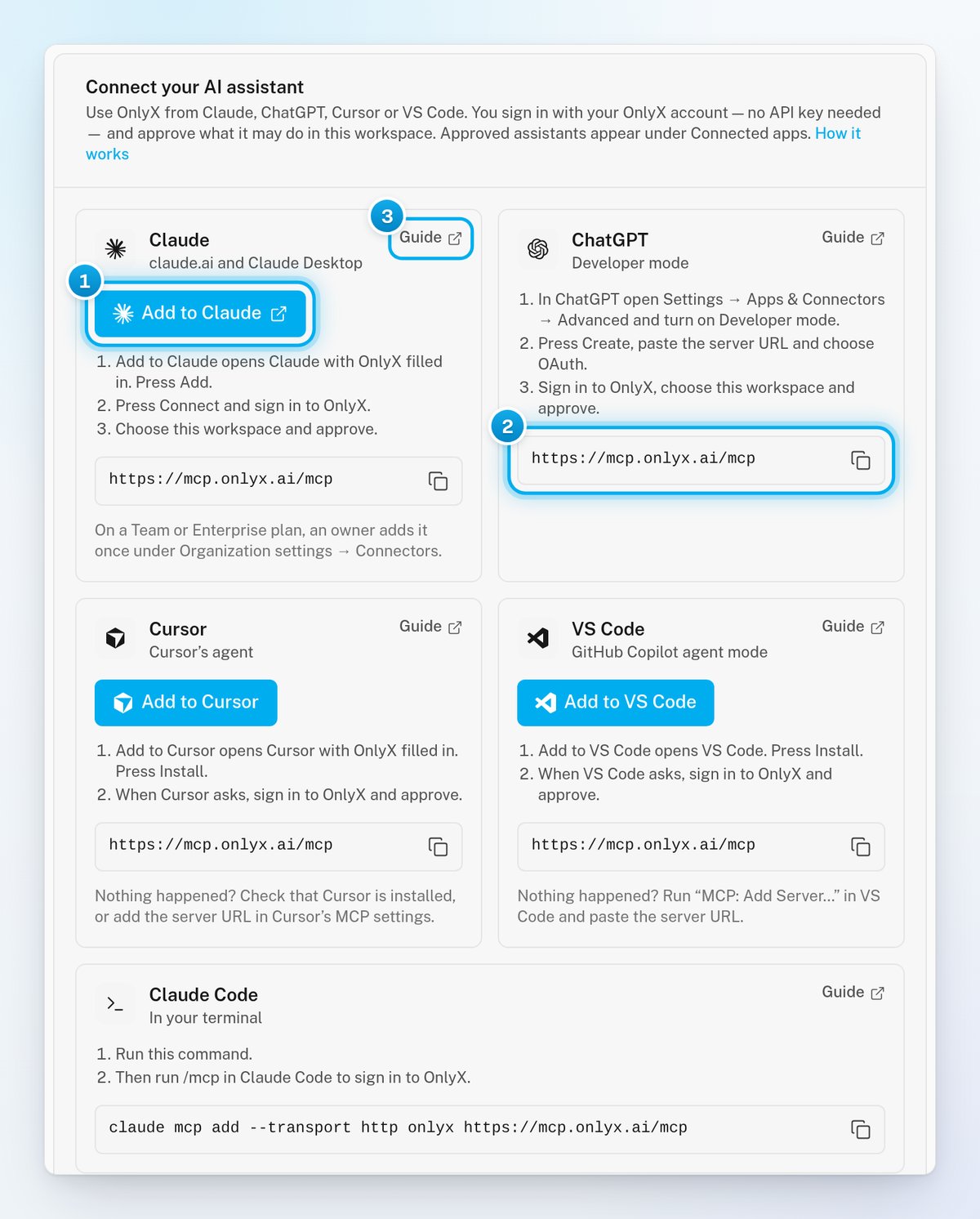
In OnlyX, click Settings. Then click API & MCP, in the Developer part of the menu. On a phone, tap More, then Settings, then API & MCP.The Connect your AI assistant card shows one card for each assistant. Each card has its own short steps and a Guide link to the full instructions.
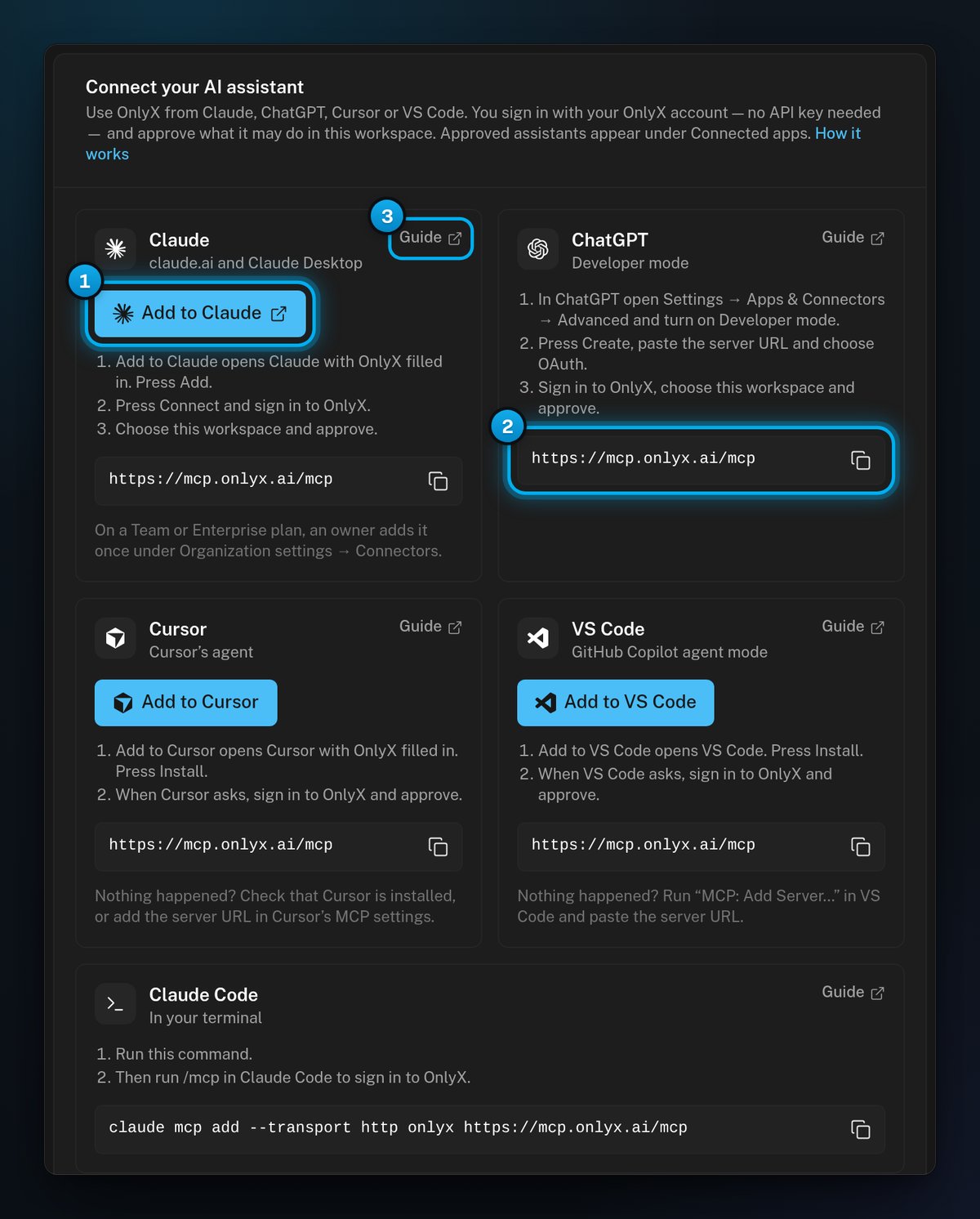
1 One click for Claude · 2 The address to copy for ChatGPT · 3 The full guide for each assistant
Every card connects to the same address, https://mcp.onlyx.ai/mcp. Pick your assistant:
Claude
ChatGPT
Cursor
VS Code
Claude Code
1
Add OnlyX to Claude
On the Claude card, click Add to Claude. Claude opens in a new tab, with OnlyX filled in. In Claude, click the Add button.
2
Connect and sign in
In Claude, click the Connect button. Sign in to OnlyX if you are asked.The OnlyX Connect an app page opens. Go to Approve the connection.
On a Claude Team or Enterprise plan, an owner of your Claude organization adds OnlyX once. They do it in Organization settings, under Connectors. Full guide: Claude.
1
Copy the server address
On the ChatGPT card, click the copy button next to the address. “Copied.” shows.
2
Turn on Developer mode in ChatGPT
In ChatGPT, open Settings, then Apps & Connectors, then Advanced. Turn on the Developer mode switch.
3
Create the connector
Click the Create button. Paste the address, and choose as the sign-in.
4
Sign in to OnlyX
Sign in when ChatGPT asks. The OnlyX Connect an app page opens. Go to Approve the connection.
The Other clients card has ready settings for Windsurf, Gemini CLI and Codex. These tools use an API key instead of this sign-in. They skip the approval page, and the key’s own access applies. Full guide: Other clients.
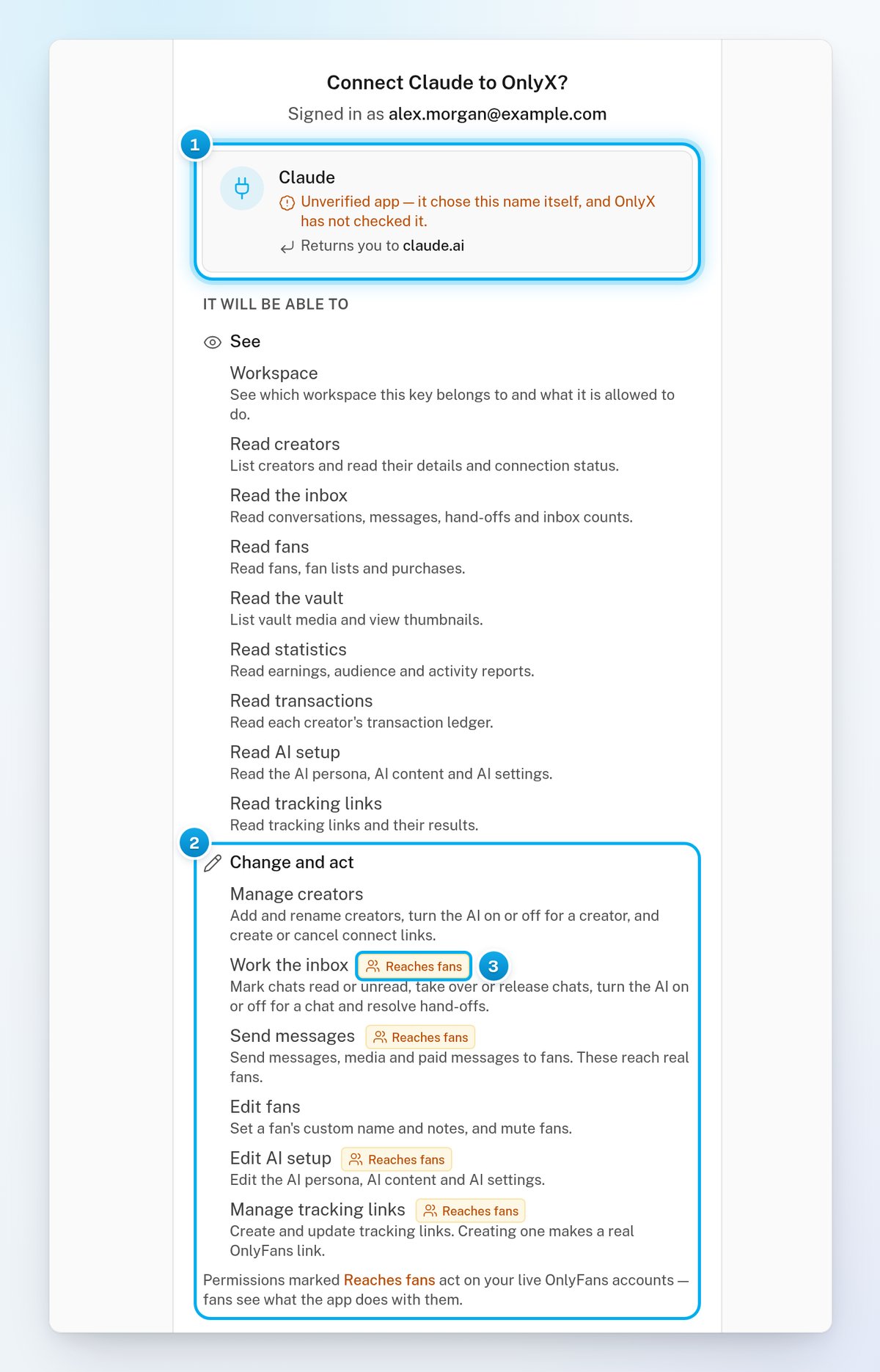
The Connect an app page asks, for example, “Connect Claude to OnlyX?”. It also shows “Signed in as” and your email.
1
Check which app is asking
Under the question, read the app’s name. It is marked “Unverified app”: the app chose that name itself.Then check Returns you to. It shows where the page sends you back, for example claude.ai. If the app returns to a local address on your computer, such as localhost, it adds ”— an app on this computer”.
2
Read what the app may do
Under It will be able to, See lists what the app may read. Change and act lists what it may change. An app that does not name the permissions it wants gets all of them.Permissions marked Reaches fans act on your creators’ live OnlyFans accounts, and fans see the result. There are four: Send messages, Work the inbox, Edit AI setup and Manage tracking links.
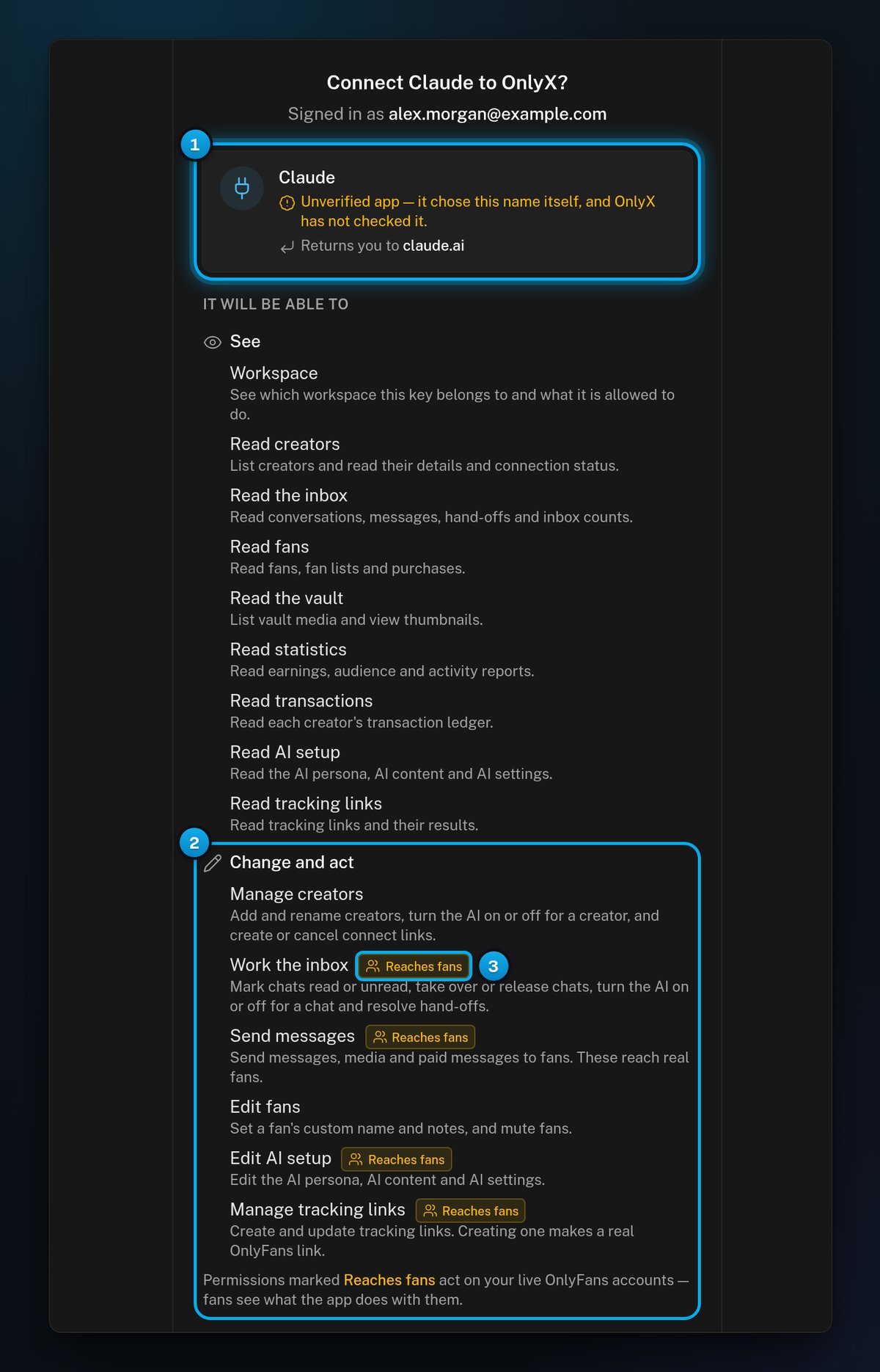
1 The app, and where it sends you back · 2 What it may change · 3 What reaches fans
3
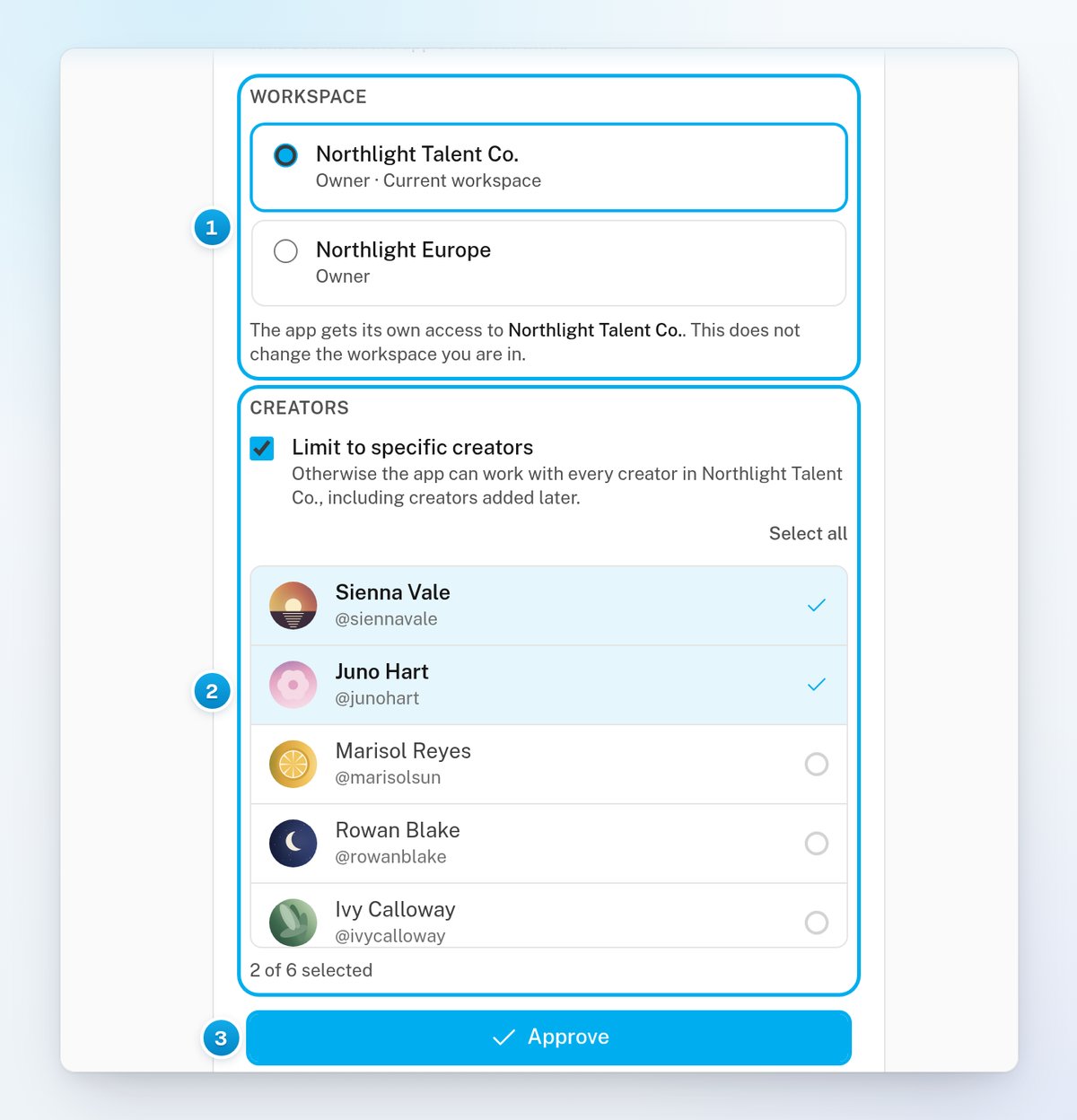
Choose the workspace
Under Workspace, select the workspace that the app may work in. You can select only a workspace where you are an owner or admin. If you are an owner or admin of your current workspace, it is selected for you.The page confirms that the app gets its own access to that workspace. It does not change the workspace you are in.
4
Optional: Limit the app to some creators
Under Creators, tick Limit to specific creators. Then click each creator that the app may work with. The page counts how many you selected.If you leave it unticked, the app can work with every creator in the workspace. That includes creators you add later.
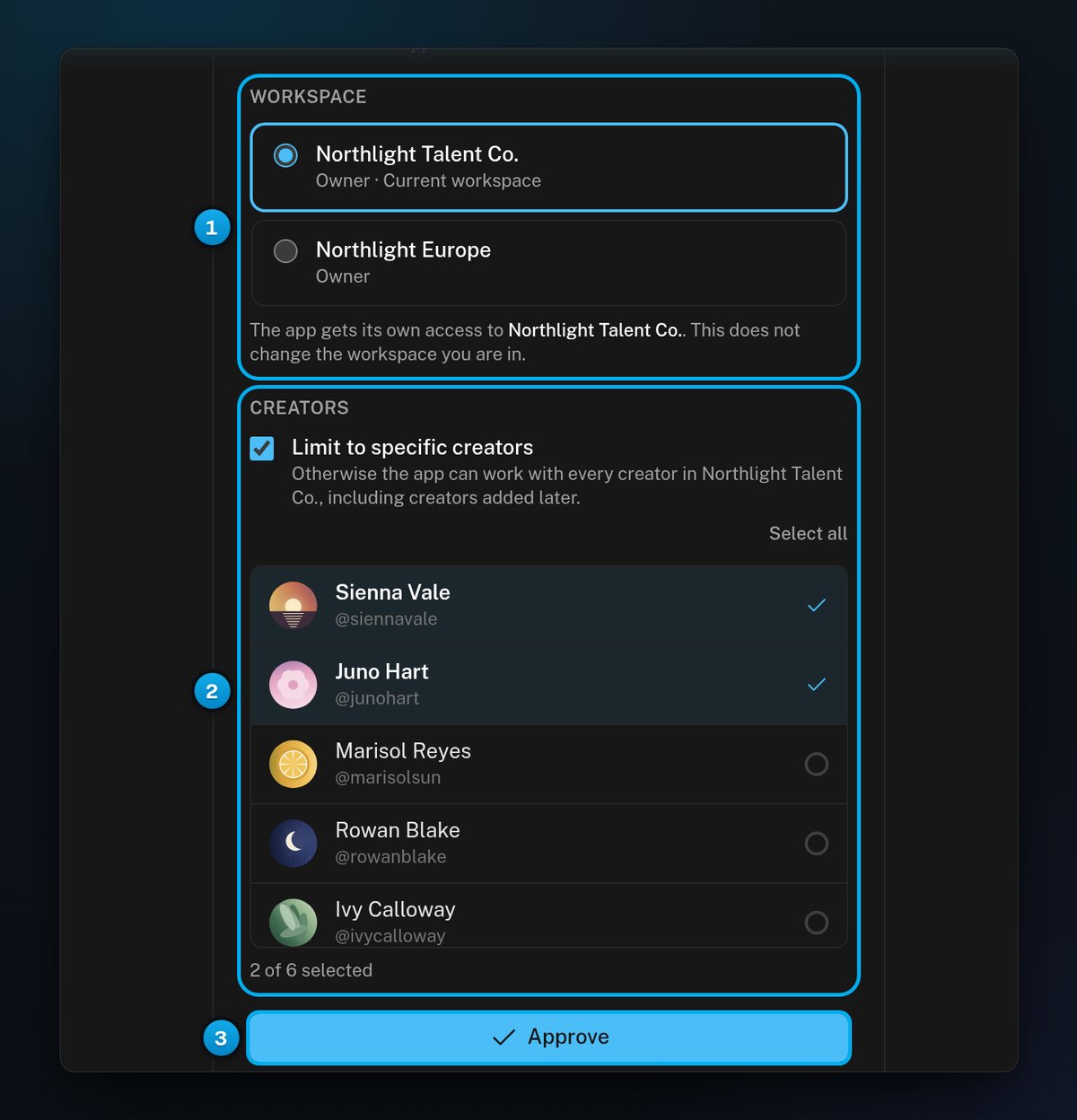
1 The workspace the app works in · 2 Only the creators you picked · 3 Approve
5
Approve the app
An app with Reaches fans permissions can message real fans and change what Hugo says to them. Approve it only if you started the connection yourself, a moment ago.
Click Approve. The page shows Connected and the workspace that the app can now use.Go back to your assistant. It finishes connecting there. You can close the OnlyX tab.
To refuse, click Deny. The page shows Not connected, and the app gets no access.
The assistant shows under Connected apps, on the same API & MCP tab. Any owner or admin can disconnect it there: See and disconnect connected apps.
The approval is tied to you. If you stop being an owner or admin of the workspace, the assistant stops working. Someone who is still an owner or admin must then connect it again.
To limit creators in another workspace, first switch to that workspace in OnlyX. Then start again from your assistant.
A connection request works once and ends after ten minutes. Start again from your assistant.
"Link incomplete"
The link that opened the page was cut short. Start again from your assistant.
"Could not load the request"
OnlyX could not open the request. Click Try again. If it still fails, start again from your assistant.
A workspace is greyed out with "Only owners and admins can connect apps"
Your role in that workspace is not owner or admin, so you cannot connect apps there. Ask an owner or admin of that workspace to connect the assistant.
"You are not an owner or admin of any of your workspaces"
You cannot approve apps anywhere, so the page has no Approve button. Ask an owner or admin to connect the assistant.
Approve is greyed out
Select a workspace under Workspace. If you ticked Limit to specific creators, click at least one creator. The page says “Pick at least one creator.” until you do.
The page says Connected, but the assistant is still waiting
Switch back to the assistant yourself. It finishes connecting there. The OnlyX page says the same: “Nothing happened? Switch back to the app yourself”.
"We did not send you back"
The app asked OnlyX to open an address that OnlyX does not open, so nothing was sent to it. Start again from your assistant. If the app now shows under Connected apps, disconnect it there.
I do not see API & MCP in Settings
Only owners and admins see API & MCP. Ask an owner or admin of your workspace.