Owners and admins An lets your own scripts and tools, such as a Zapier automation, use your OnlyX workspace. You choose what each key may do.

Before you start

  • You need an owner or admin account.
  • For Claude, ChatGPT, Cursor, VS Code or Claude Code, you do not need a key. Connect them as shown in Use OnlyX from Claude, ChatGPT, Cursor or VS Code.
  • Keys belong to the workspace, not to the person who creates them. Every owner and admin can see and revoke every key.
  • A workspace can have 25 active keys. Revoked keys and expired keys do not count.
  • Give each tool its own key, with only the access it needs.

Create a key

1

Open the API keys card

In OnlyX, click Settings. Then click API & MCP. On a phone, tap More, then Settings, then API & MCP.The API keys card lists the keys of this workspace.
2

Open the create window

On the API keys card, click Create API key. The Create API key window opens.
3

Name the key

In Name, enter what will use the key, for example “Zapier” or “Weekly report script”. You see this name in the list later.
4

Choose what the key may do

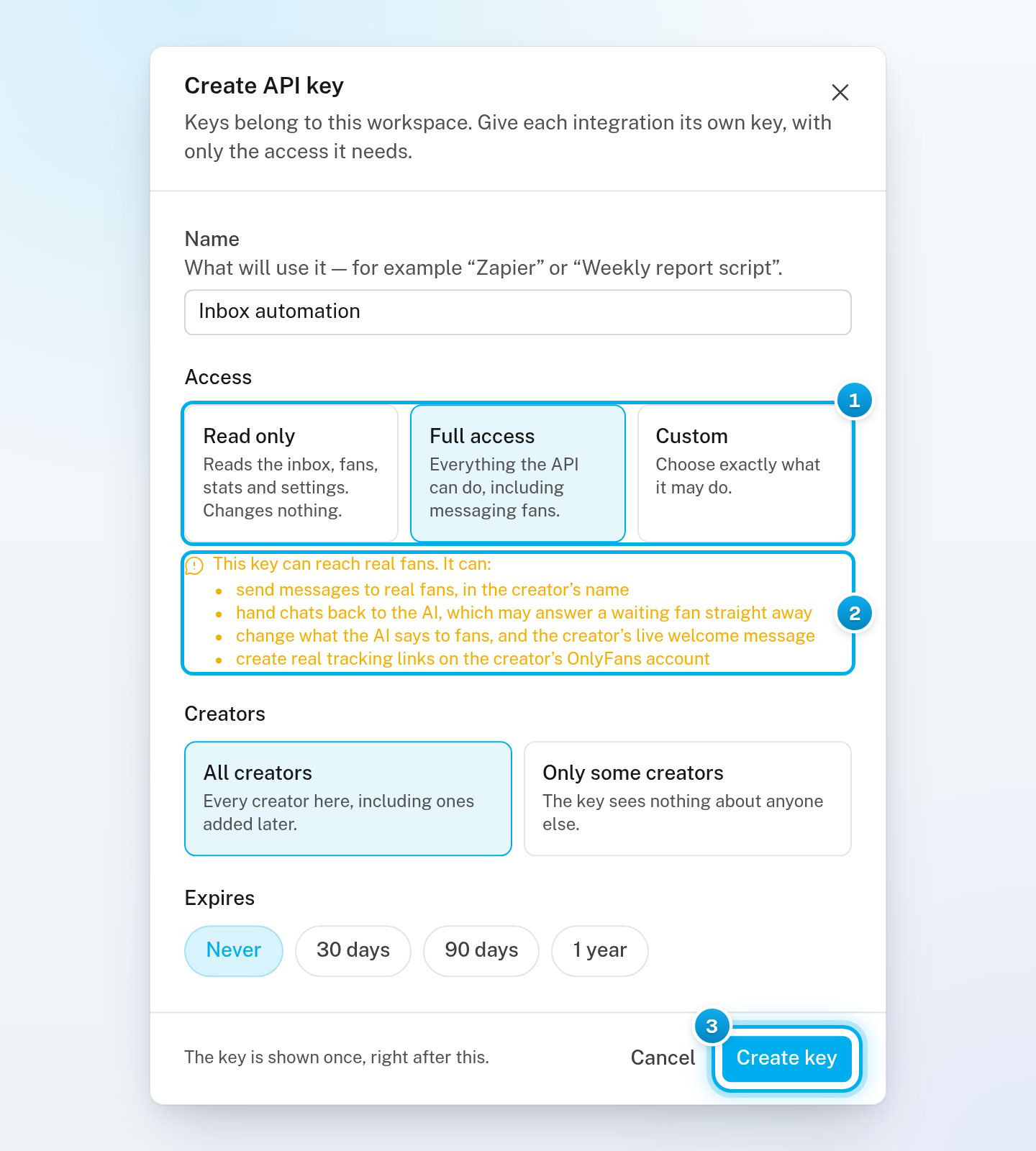
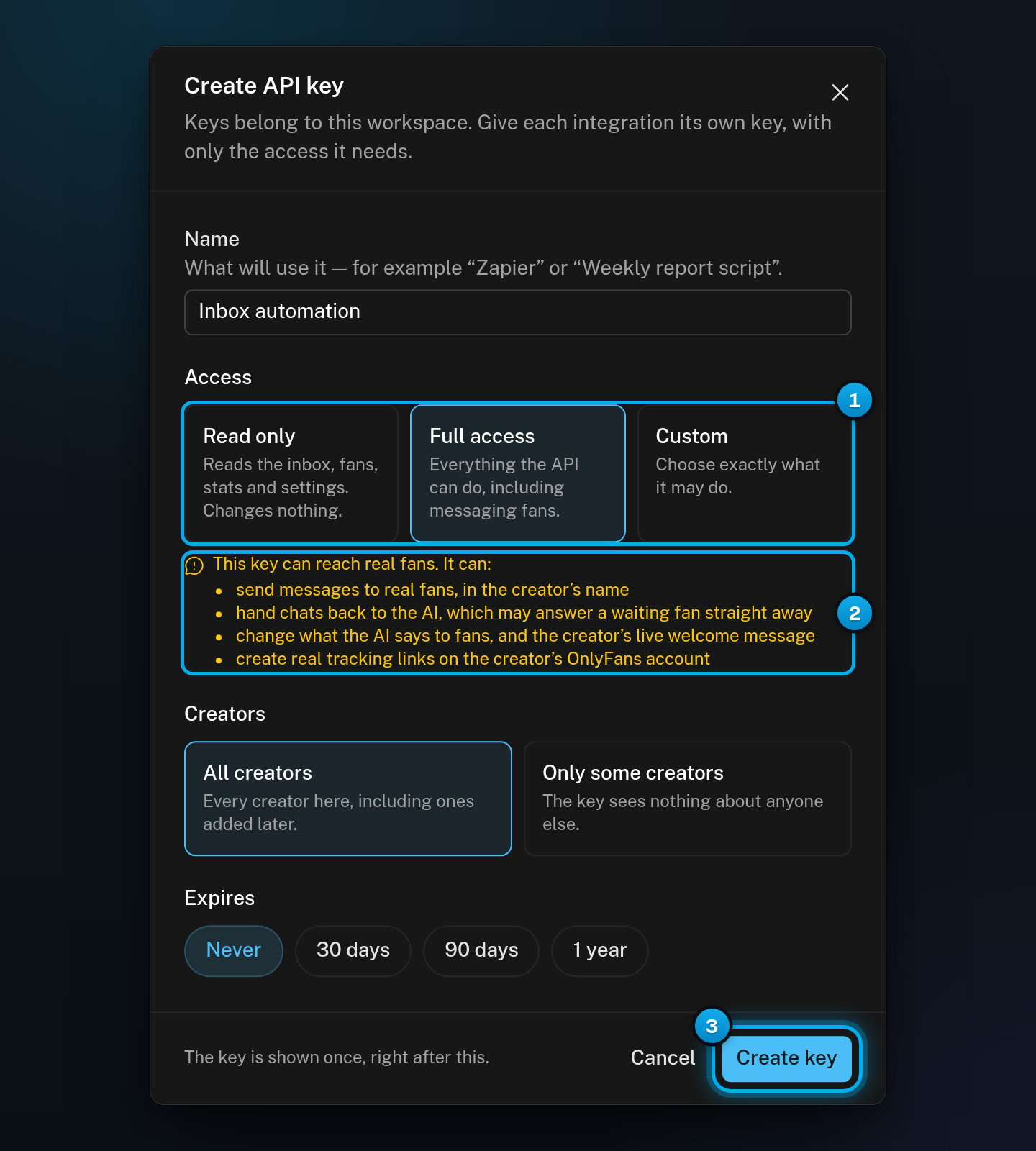
Under Access, keep Read only unless the tool must change something. Read only reads the inbox, fans, stats and settings, and changes nothing.Full access allows everything, including messaging fans. Custom lets you tick each permission yourself. It starts from the choice you had before.
Some permissions reach real fans. If you pick one, the window says “This key can reach real fans. It can:”. Then it lists what the key can do.
The Create API key window with Full access selected, the warning that this key can reach real fans, and the Create key buttonThe Create API key window with Full access selected, the warning that this key can reach real fans, and the Create key button

1 How much the key may do · 2 The warning for permissions that reach fans · 3 Create key

5

Choose the creators

Under Creators, keep All creators: every creator in the workspace, including ones you add later.Or click Only some creators, then click each creator the key may see. The key sees nothing about the others.
6

Choose when the key expires

Under Expires, click Never, 30 days, 90 days or 1 year. An expired key stops working.
7

Create the key

Click Create key. The window changes to Save your API key.

Save the key

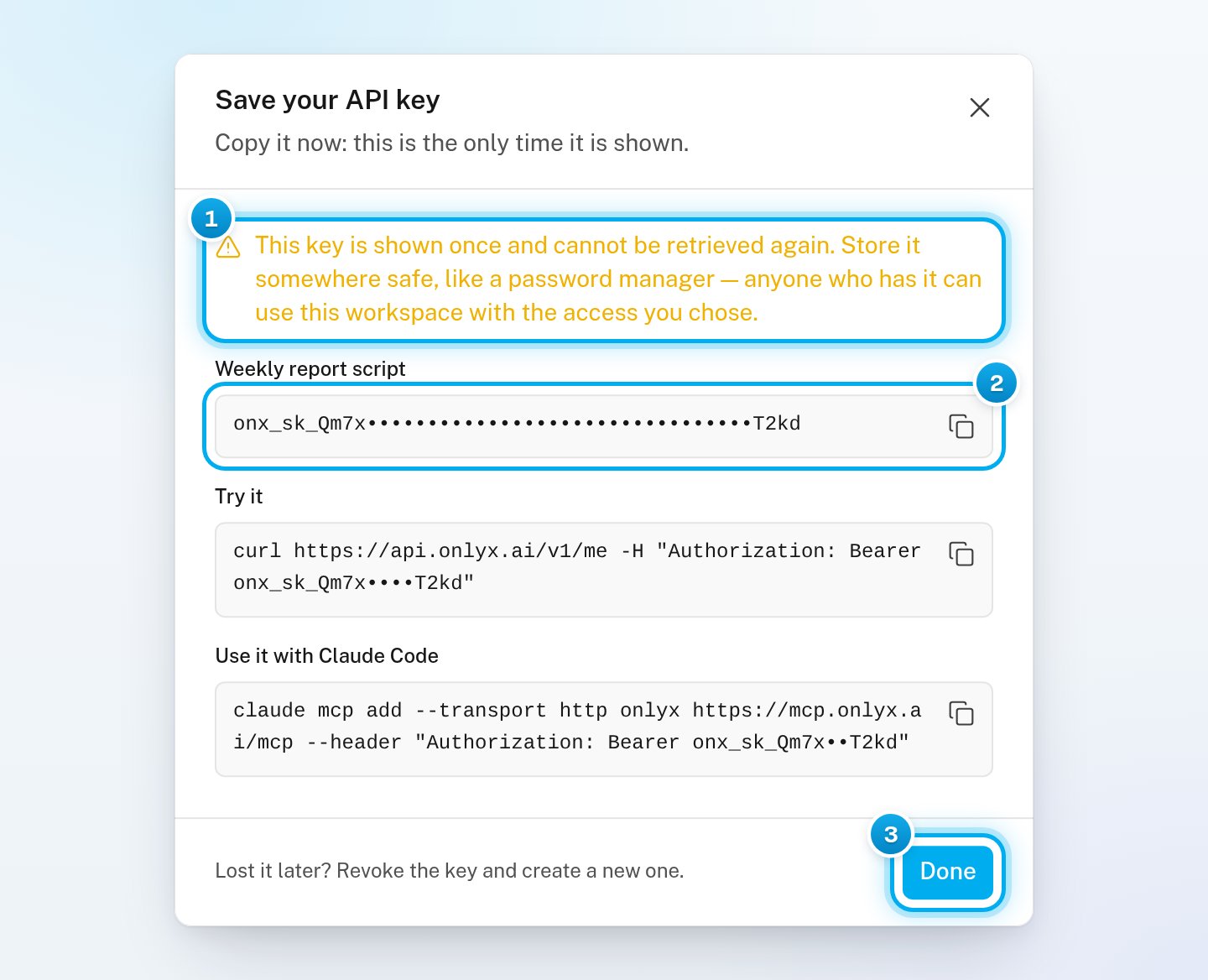
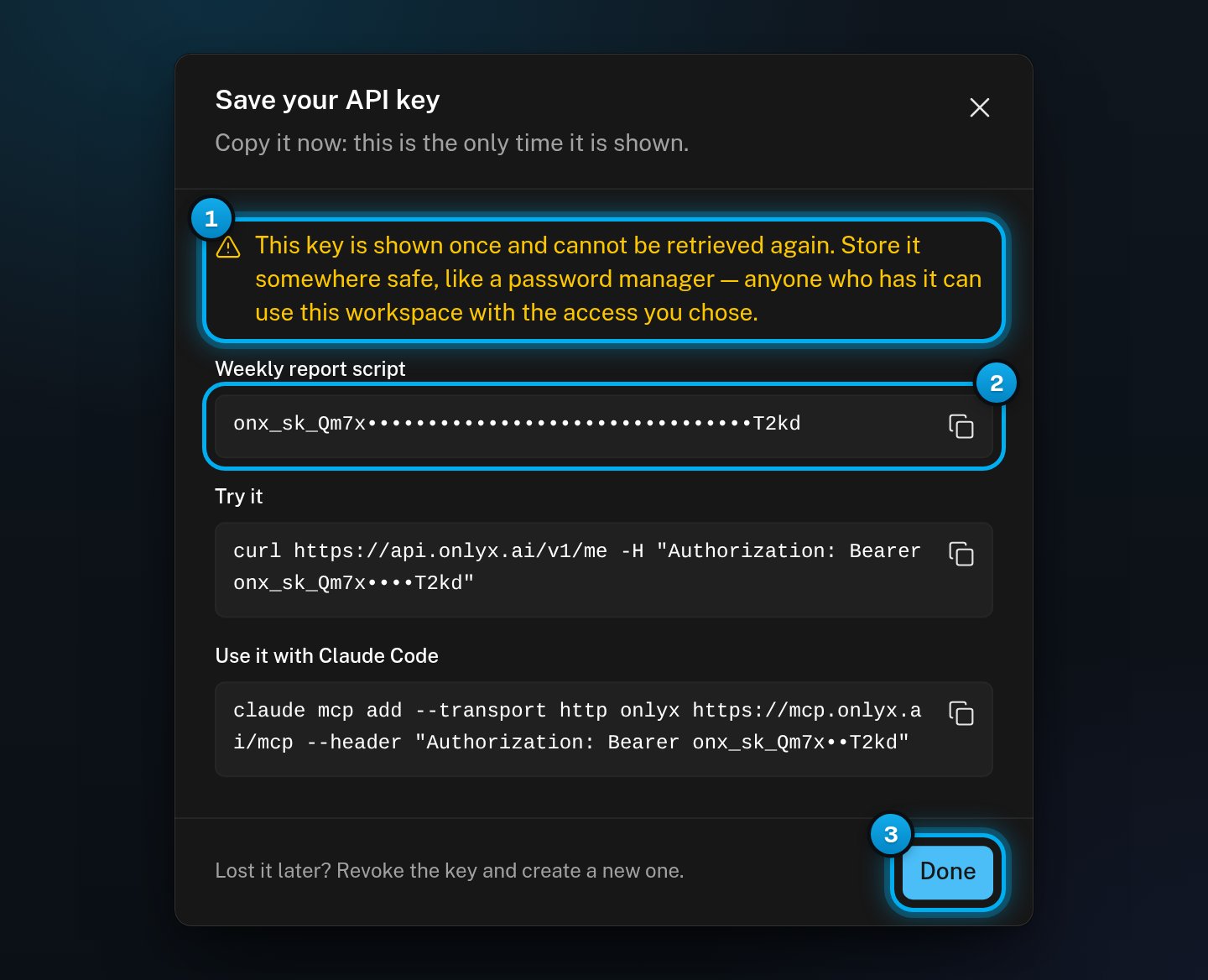
OnlyX shows the key once, right after you create it. It never shows the key again.
1

Copy the key

Click the copy button next to the key. “Copied.” shows.
The Save your API key window with the shown-once warning, the key (hidden here) with its copy button, and the Done buttonThe Save your API key window with the shown-once warning, the key (hidden here) with its copy button, and the Done button

1 The key is shown only now · 2 The key and its copy button · 3 Done

2

Paste the key somewhere safe

Paste the key into a password manager, or into the tool that needs it.Anyone who has the key can use your workspace with the access you chose. Do not send it in a chat or an email.
3

Close the window

Click Done. The key shows in the list.
Try it and Use it with Claude Code hold ready-made commands with your key in them, for a developer. To learn how to call the OnlyX API, see Quickstart and Authentication.

Read the list of keys

Each row on the API keys card shows:
  • The key’s name, and the first and last characters of the key. The rest of the key is never shown.
  • When it was created, and by whom.
  • What it may do: Full access, Read only, or the names of its permissions.
  • Which creators it sees: All creators, or the creators’ names.
  • When it was last used, or “Never used”.
  • When it expires, or “Never expires”.
Two badges need your attention:
  • Expired: the key has stopped working. It stays in the list until you revoke it.
  • Left the workspace: the person who created the key has left your team. The key still works. If they should no longer have access, revoke it and create a new one.
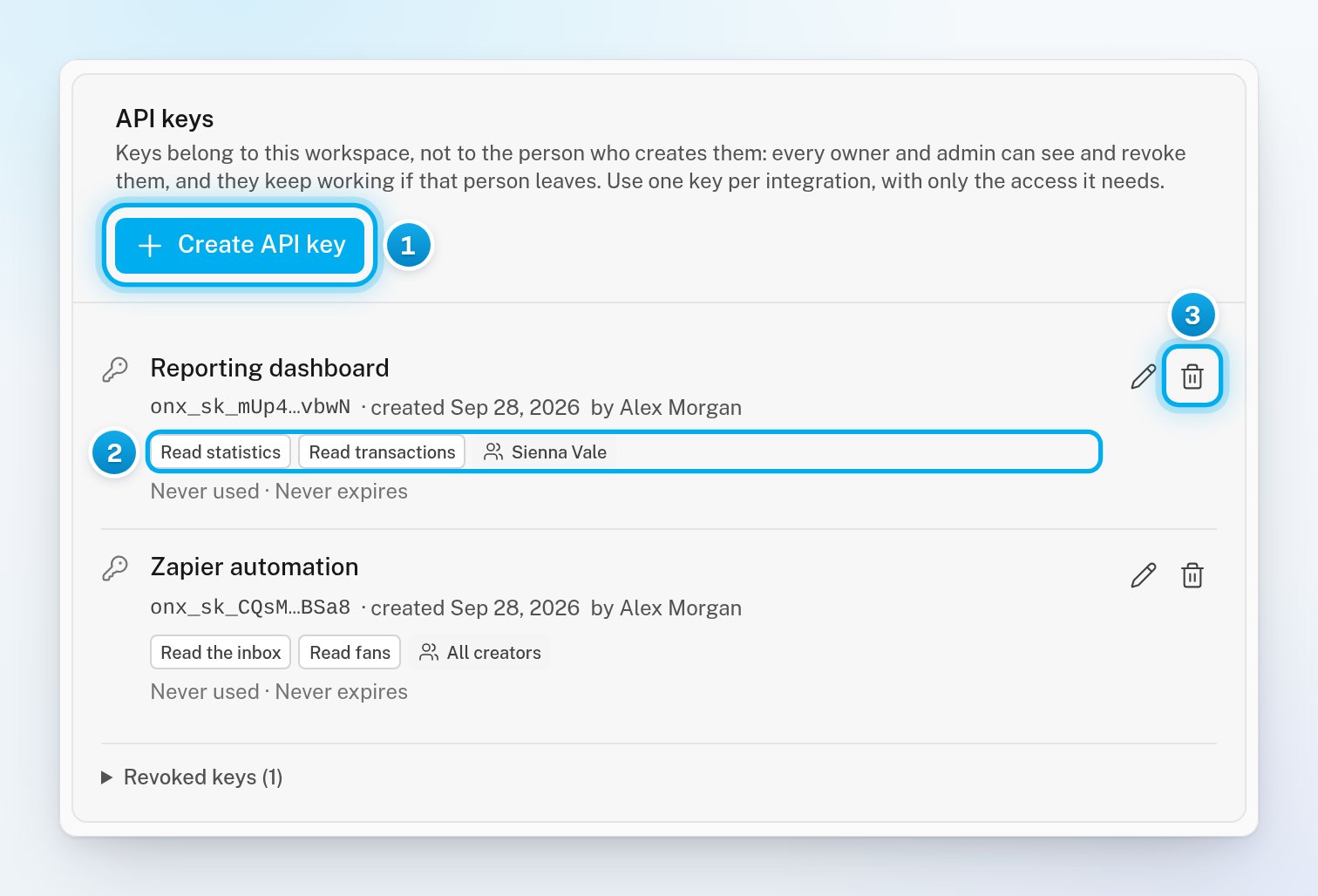
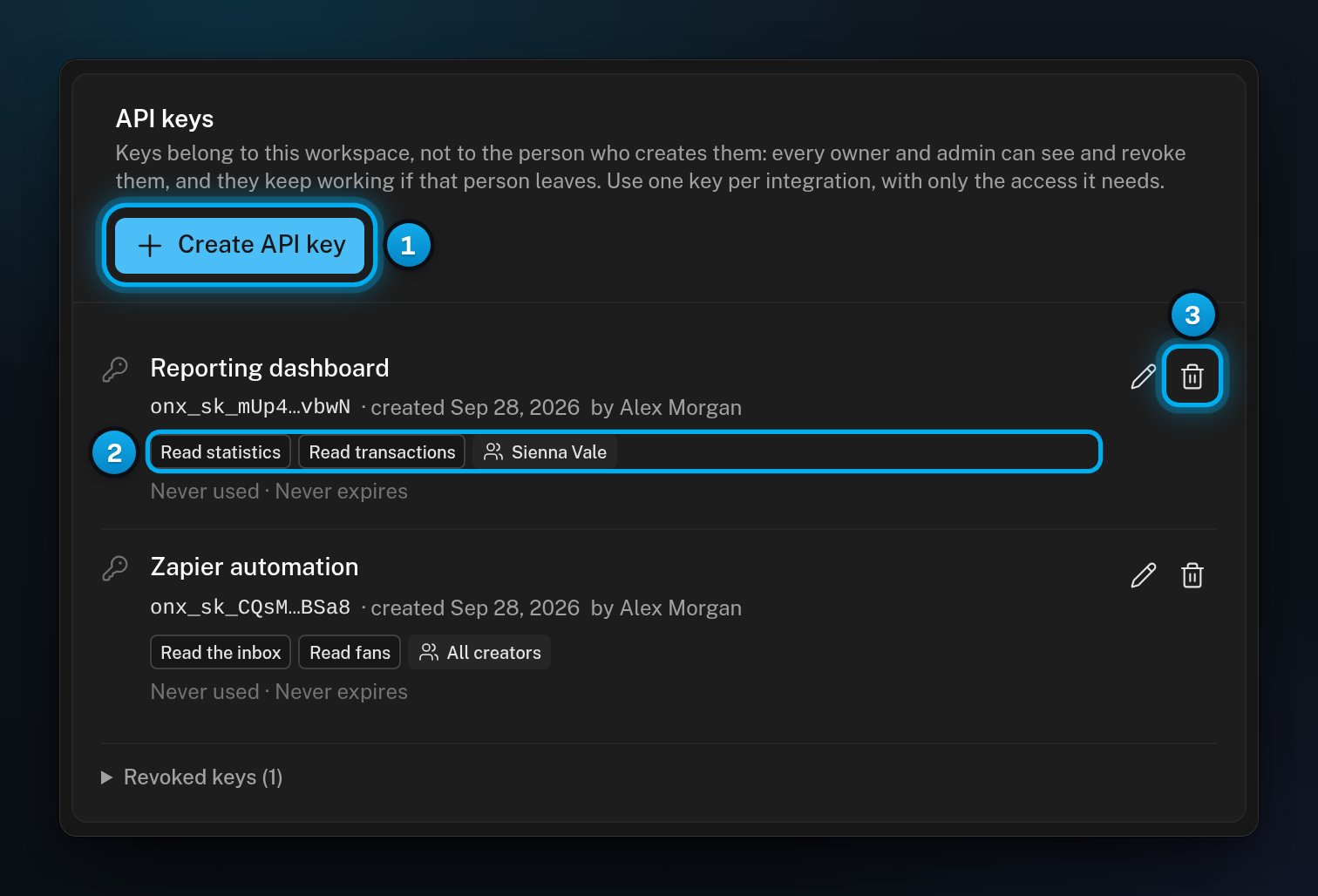
The API keys card with two keys, each with its access and creators, and the pencil and bin buttonsThe API keys card with two keys, each with its access and creators, and the pencil and bin buttons

1 Create API key · 2 What the key may do, and which creators it sees · 3 Revoke

Rename a key

1

Open the rename window

On the key’s row, click the pencil. The Rename API key window opens.
2

Change the name

In Name, enter the new name. Then click Save. The message “Key renamed” shows.
Only the label changes. Everything that uses the key keeps working.

Revoke a key

1

Open the revoke window

On the key’s row, click the bin. The Revoke this API key? window opens.
2

Revoke the key

Click Revoke key. A message confirms that the key was revoked.
Everything that uses the key stops working at once: scripts, tools, and any AI assistant connected with it. You cannot undo this. If you need access again, create a new key. Revoked keys move to Revoked keys, at the end of the card. It shows the last 20. When OnlyX support helps you in your workspace, they can see your keys. They cannot create, rename or revoke them.

If something goes wrong

The workspace has reached its limit of 25 active keys. Revoke a key that nothing uses any more, then create the new one. Expired keys do not count toward the limit.
Something is missing. Enter a name first. Then the line next to the buttons says what else is missing, for example “Choose at least one creator.”
OnlyX cannot show it again. Revoke the key, then create a new one and save it right away.
The window closed before the key could show. For example, you switched to another Settings tab while the key was being created. Nothing can use that key, but it still counts toward the limit. Revoke it, then create another key.
You left Settings while the key was being created. Find the key by its name in the list and revoke it. Then create another key.
Look for the key in the list. If it shows Expired, it ran out: create a new key. If it is under Revoked keys, someone revoked it. Create a new key and give it to the tool.
OnlyX could not load the list. Click Try again.
Only owners and admins see API & MCP. Ask an owner or admin of your workspace.

What’s next

Use OnlyX from Claude, ChatGPT, Cursor or VS Code

See and disconnect connected apps

Authentication