Owners, admins and content VAs The Vault tab shows an OnlyFans creator’s media library as OnlyX last read it. Use it to find a file, see how it sold and label it.

Before you start

  • The creator is an OnlyFans creator, and her account is connected. A Telegram creator has a Media tab instead.
  • To sync the vault or change tags, you need an owner, admin or content VA account. A content VA works only on the creators assigned to them.
  • Chatters can open the Vault tab and look at the files. They cannot sync the vault, change tags or upload.

Open the vault

1

Open the creator

In OnlyX, click Creators. Then click the creator’s card.The creator’s page opens.
2

Open the Vault tab

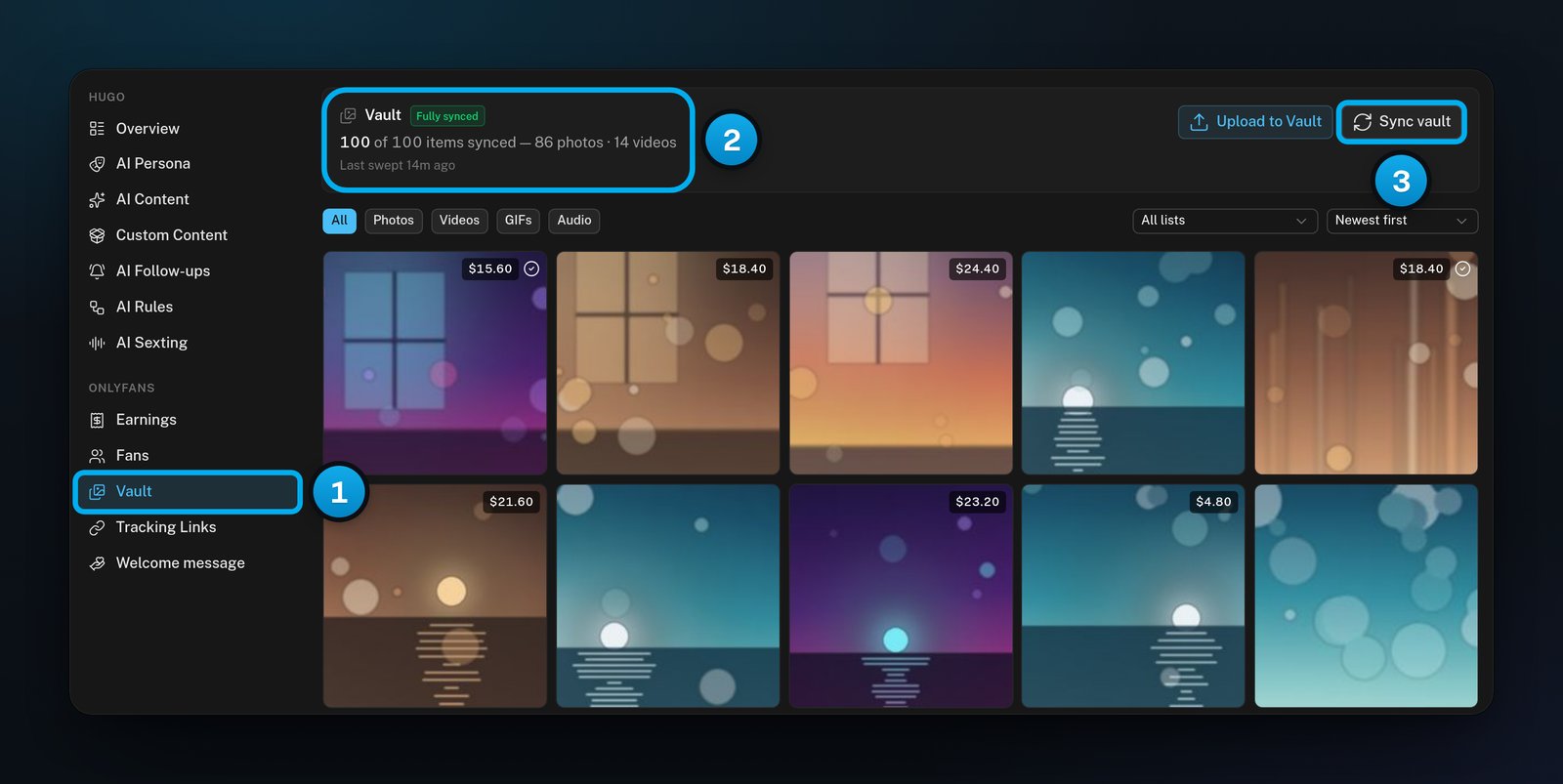
In the creator’s menu, under OnlyFans, click Vault.A card named Vault opens at the top of the tab, with the grid of her files under it.
3

Check how much OnlyX holds

Read the Vault card:
  • A green Fully synced badge means the last read reached the end of her library. A yellow Partial sync badge means it did not.
  • The line under the title, for example “96 of 100 items synced”, compares the files OnlyX holds with the total that OnlyFans reports. A breakdown by type follows, such as “86 photos · 14 videos”.
  • Last swept says when OnlyX last read her library. Before the first read, it says Never swept.
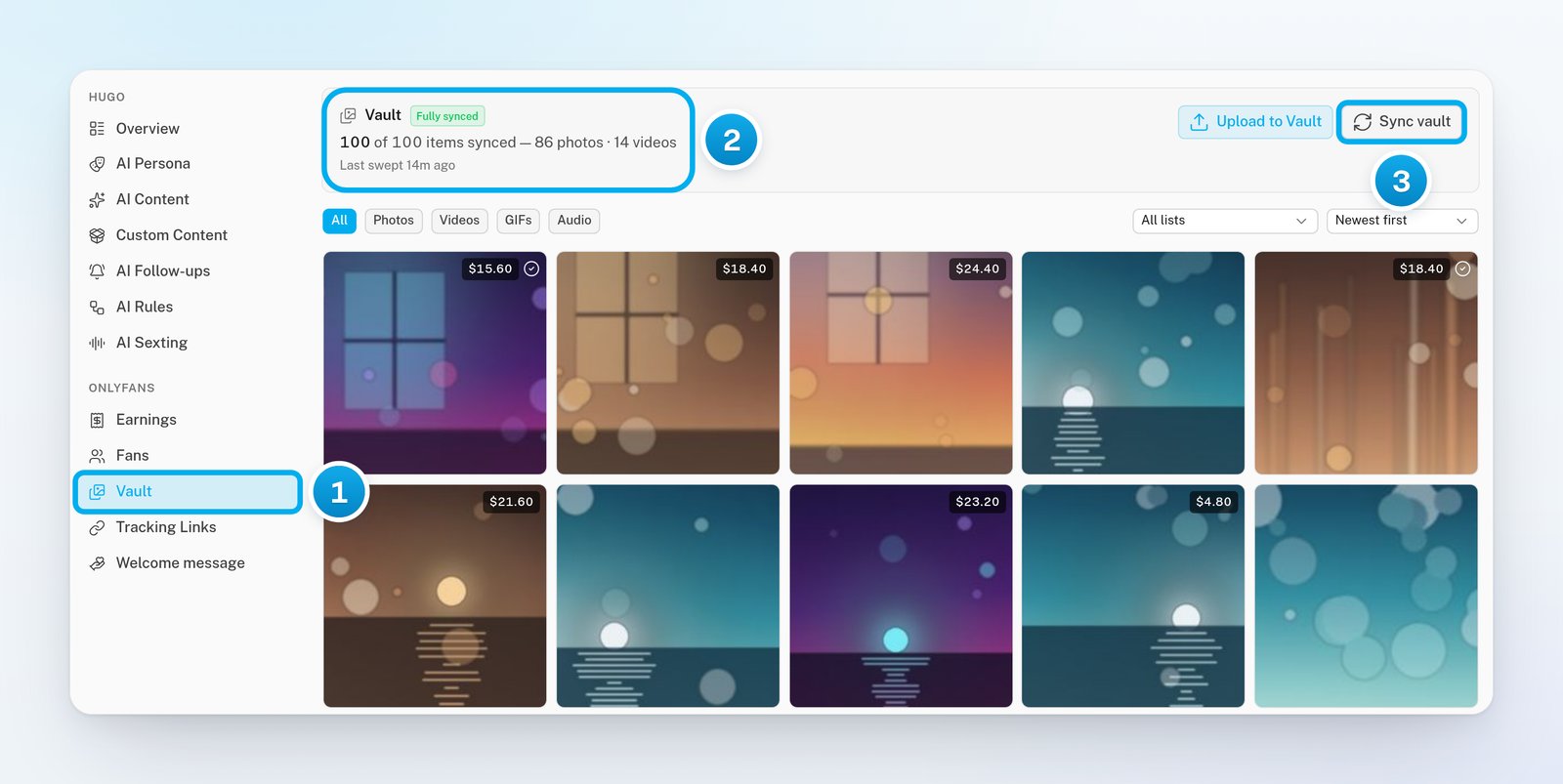
A creator's Vault tab: Vault selected in her menu, a Fully synced card that counts the files OnlyX holds, and the Sync vault buttonA creator's Vault tab: Vault selected in her menu, a Fully synced card that counts the files OnlyX holds, and the Sync vault button

1 Vault, in the creator's menu · 2 How much of her library OnlyX holds · 3 Sync vault

Bring the vault up to date

OnlyX reads the vault when the creator connects. When she adds files on OnlyFans, ask for a fresh read.
1

Ask for a fresh read

On the Vault card, click Sync vault.The message “Vault sync queued” appears. OnlyX spaces out its reads to keep her account safe. The new read lands in a minute or two.
2

Reload the page

After a minute or two, reload the page in your browser, or change a filter.The new files show in the grid, and the counts and Last swept change.

Find a file

1

Pick a type

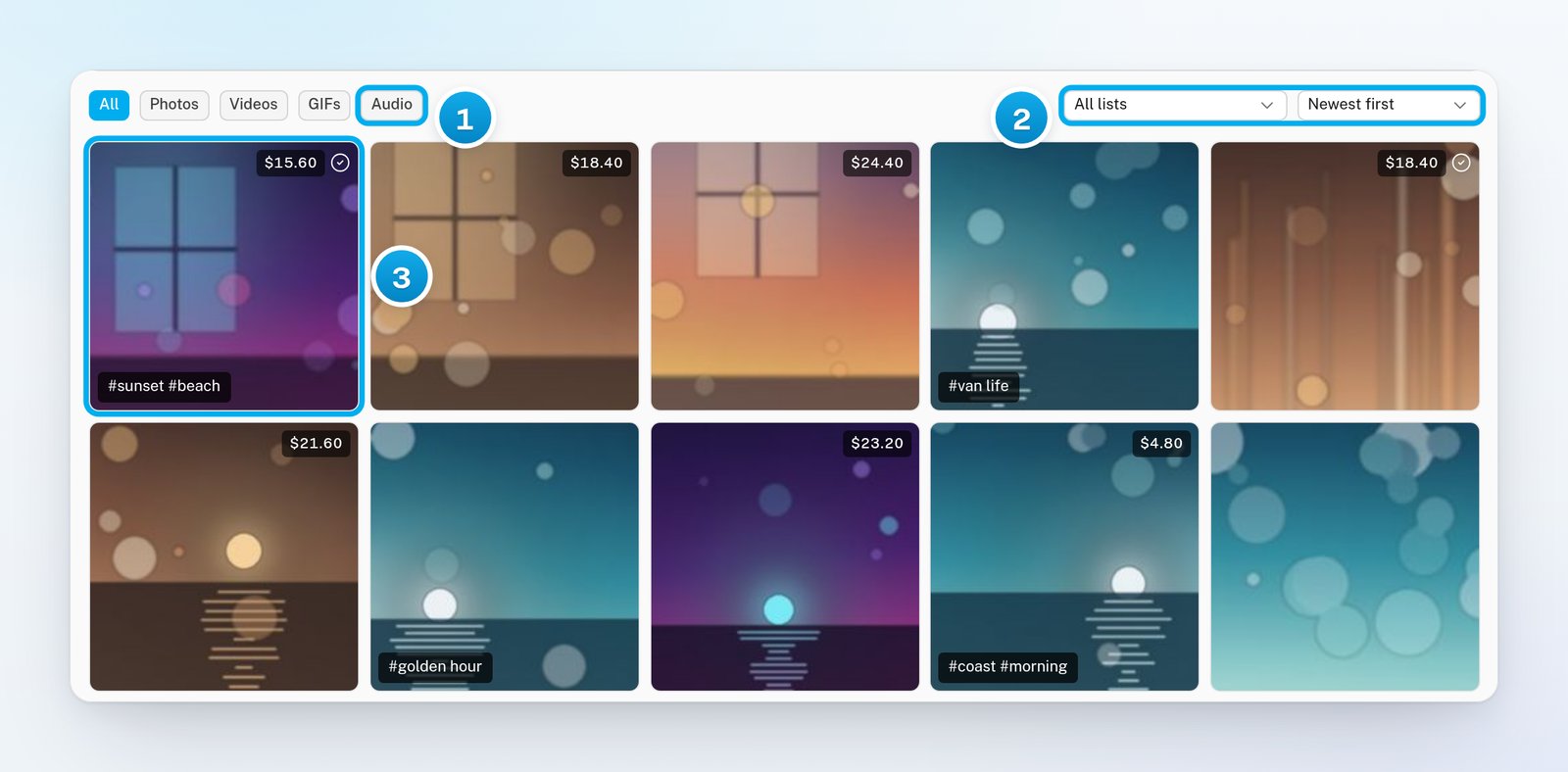
In the row of filters, click Photos, Videos, GIFs or Audio. To see every type again, click All.
2

Optional: Pick one of her lists

If the creator has vault lists on OnlyFans, a list menu shows All lists. Select one of her lists.Each list shows how many of its files OnlyX holds, for example “Golden hour (38)”.
3

Choose the order

In the sort menu, select Newest first, Oldest first or Top earning.Newest first is the order the tab opens in.
The vault's type filters, list menu and sort menu, over a grid of files, some of them showing OnlyX tagsThe vault's type filters, list menu and sort menu, over a grid of files, some of them showing OnlyX tags

1 The type filters · 2 Pick a list or change the order · 3 A file with your OnlyX tags

4

Load more files

The grid shows 60 files at a time. At the end of the grid, click Load more to see the next 60.
Each tile in the grid can show:
  • the length of a video;
  • the money the file earned, when it is more than $0;
  • a check mark when she already posted the file on OnlyFans;
  • your OnlyX tags, each with a #, such as “#sunset”.

Look at one file

1

Open the file

Click a tile.The file opens in a larger view. A video or an audio file has a player.
2

Check its badges

At the top of the view, Already published means she has already posted the file on OnlyFans. OnlyFans reports an error means OnlyFans has a problem with the file.
3

Close the view

At the top of the view, click the close button, marked with an X.

Label files with your own tags

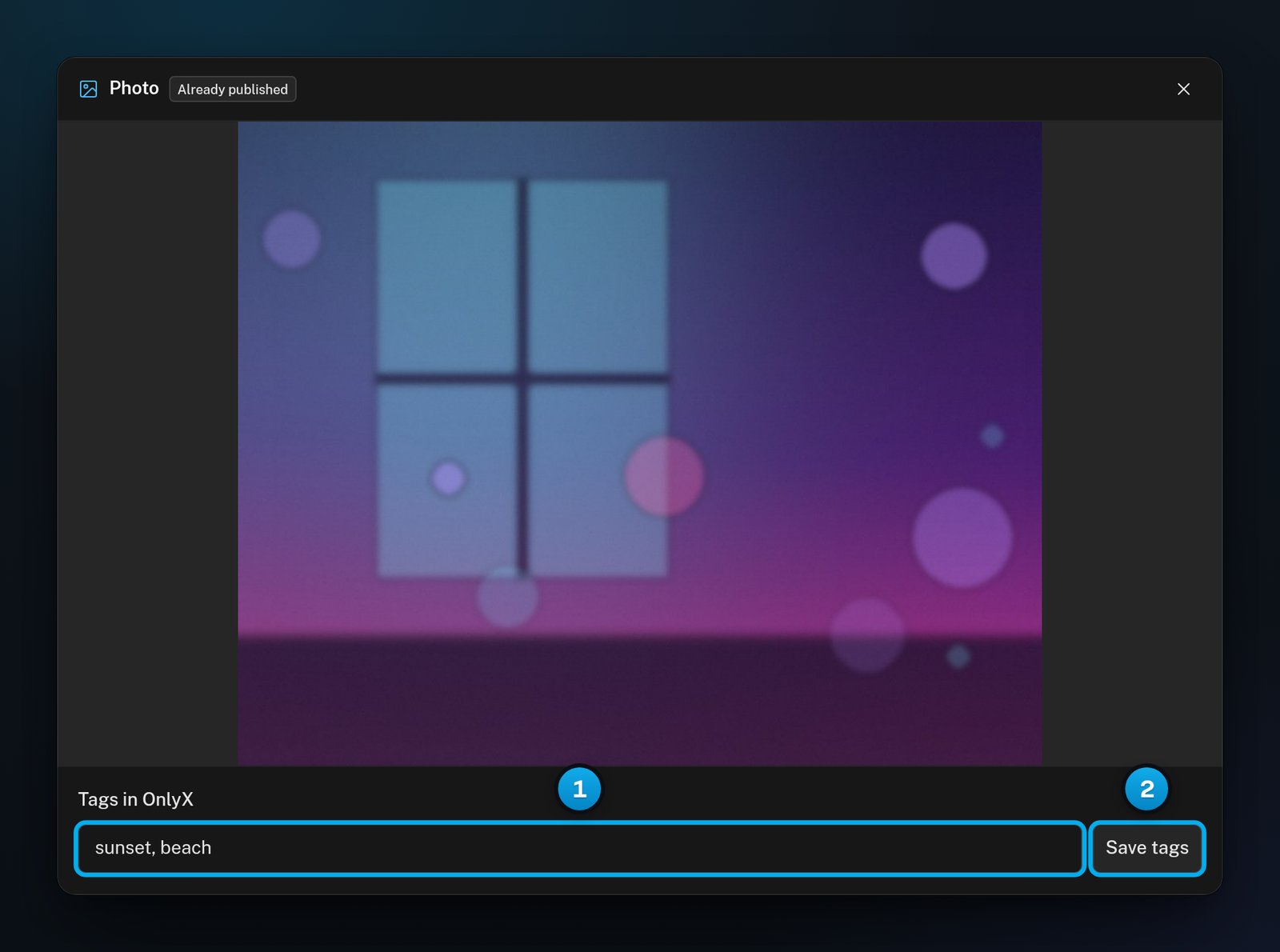
Tags show on each file’s tile, so your team can spot files at a glance. There is no search or filter by tag. Only owners, admins and content VAs see the tag field.
1

Open the file

In the grid, click the file’s tile. The file opens in a larger view.
2

Type the tags

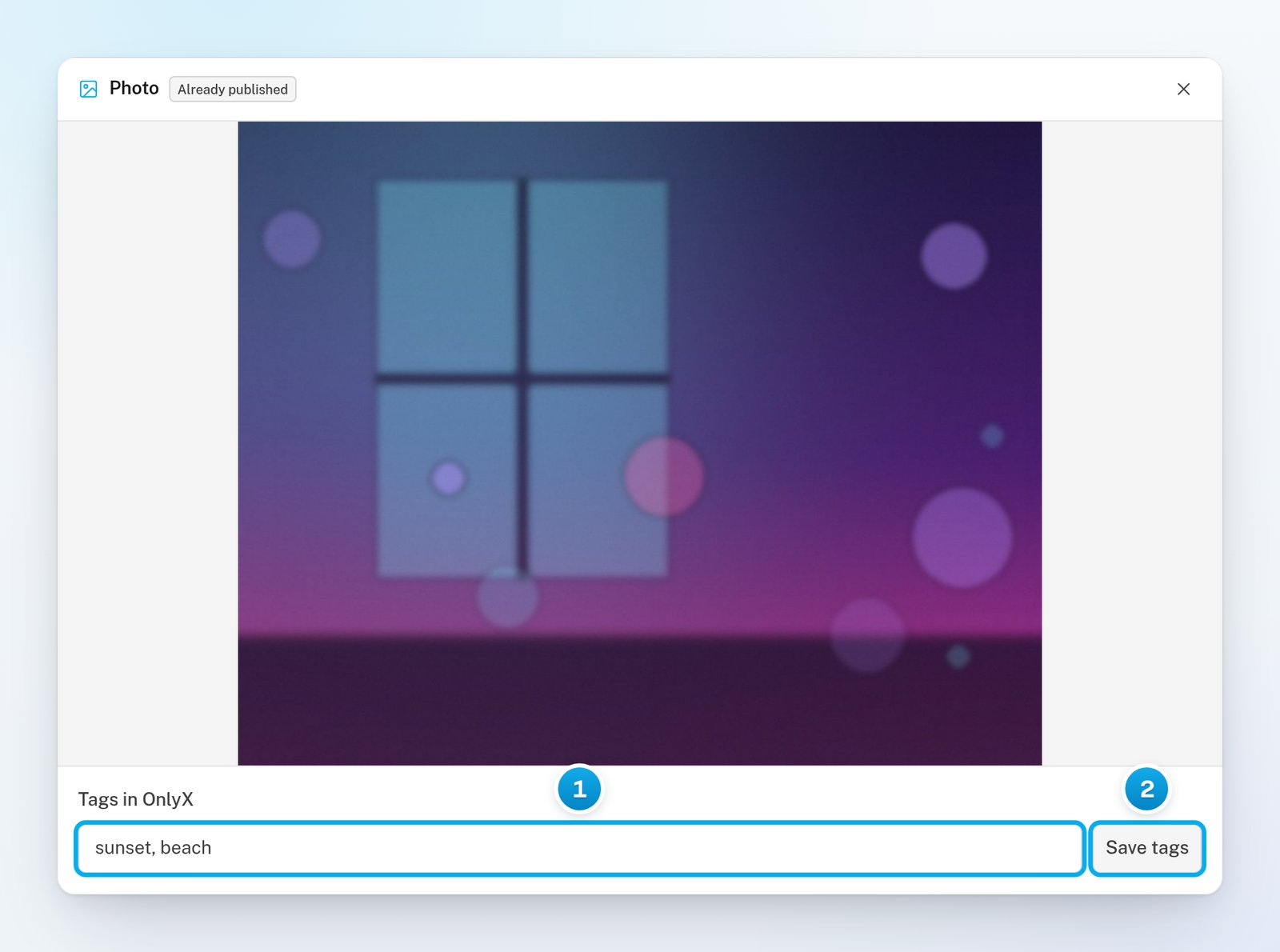
In Tags in OnlyX, type your tags, separated by commas, such as “sunset, beach, van”.A file can have up to 20 tags of up to 40 characters each. OnlyX drops a # at the start of a tag and removes repeated tags.
3

Save the tags

Click Save tags.“Tags saved” appears under the field. Close the view: the tags now show on the file’s tile.
One vault photo in a larger view, with the Tags in OnlyX field filled in and the Save tags buttonOne vault photo in a larger view, with the Tags in OnlyX field filled in and the Save tags button

1 Your tags, separated by commas · 2 Save tags

OnlyX tags stay in OnlyX: they are never sent to OnlyFans. To put a file in one of her OnlyFans categories, choose the category when you upload it. See Upload to the Vault.
The AI Content tab uses this same library. When you place files on a level, you pick them from these files. See Build your first collection.

If something goes wrong

The read waits its turn, so it takes a minute or two. Reload the page after that.If nothing changes after a few minutes, check the creator’s connection. A creator who shows Signed out must sign in again first. See Reconnect a signed-out creator.
Only owners, admins and content VAs can sync a vault. A chatter sees Sync vault, but OnlyX refuses the click with this message.If you have one of these roles, check that the creator is connected. Then click Sync vault again.
OnlyX knows the file, but never downloaded the picture. The links that OnlyFans gives out stop working about a day after a read.Click Sync vault to get fresh links. The Vault card also counts these files, for example “3 without downloaded media”.
The link to the video expired. OnlyFans’ links stop working about a day after a read. Click Sync vault, then open the file again after a minute or two.
The last read did not reach the end of her library, so some files are not in OnlyX yet. Click Sync vault. Then check the card again after a few minutes.
These are new uploads that OnlyFans is still preparing. They appear in the grid after OnlyFans has finished with them and OnlyX reads the vault again. If they are still missing later, click Sync vault.
The creator has no OnlyFans account in OnlyX. Connect her account first. Her library then syncs by itself. See Add your first creator.
OnlyX could not save the tags. Click Save tags again. If the message is “Use up to 20 tags, with 40 characters per tag.”, remove some tags or shorten them first.

What’s next

Upload to the Vault

Build your first collection

Send a PPV or free media from the vault