

Before you start
- The link from your agency. It works for 24 hours, and only for one recording.
- Your phone, in any browser. A computer with a microphone also works. You do not need an app or an OnlyX account.
- A quiet room, and about a minute.
- Your normal speaking voice. Follow the small hint on each line, but do not read in a flat voice to get it over with. A flat reading makes a voice that sounds like a robot.
Record your voice
Open your link
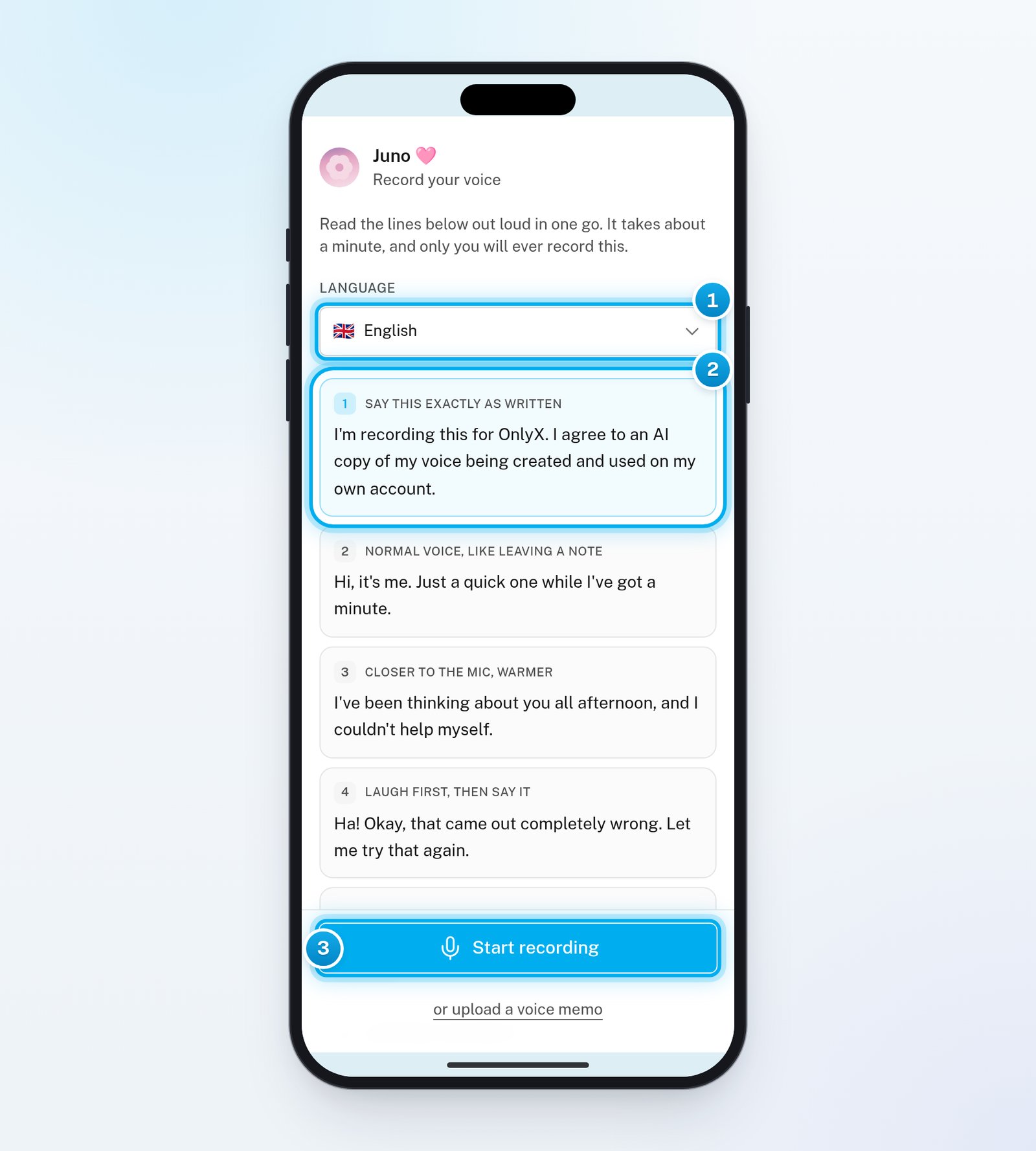
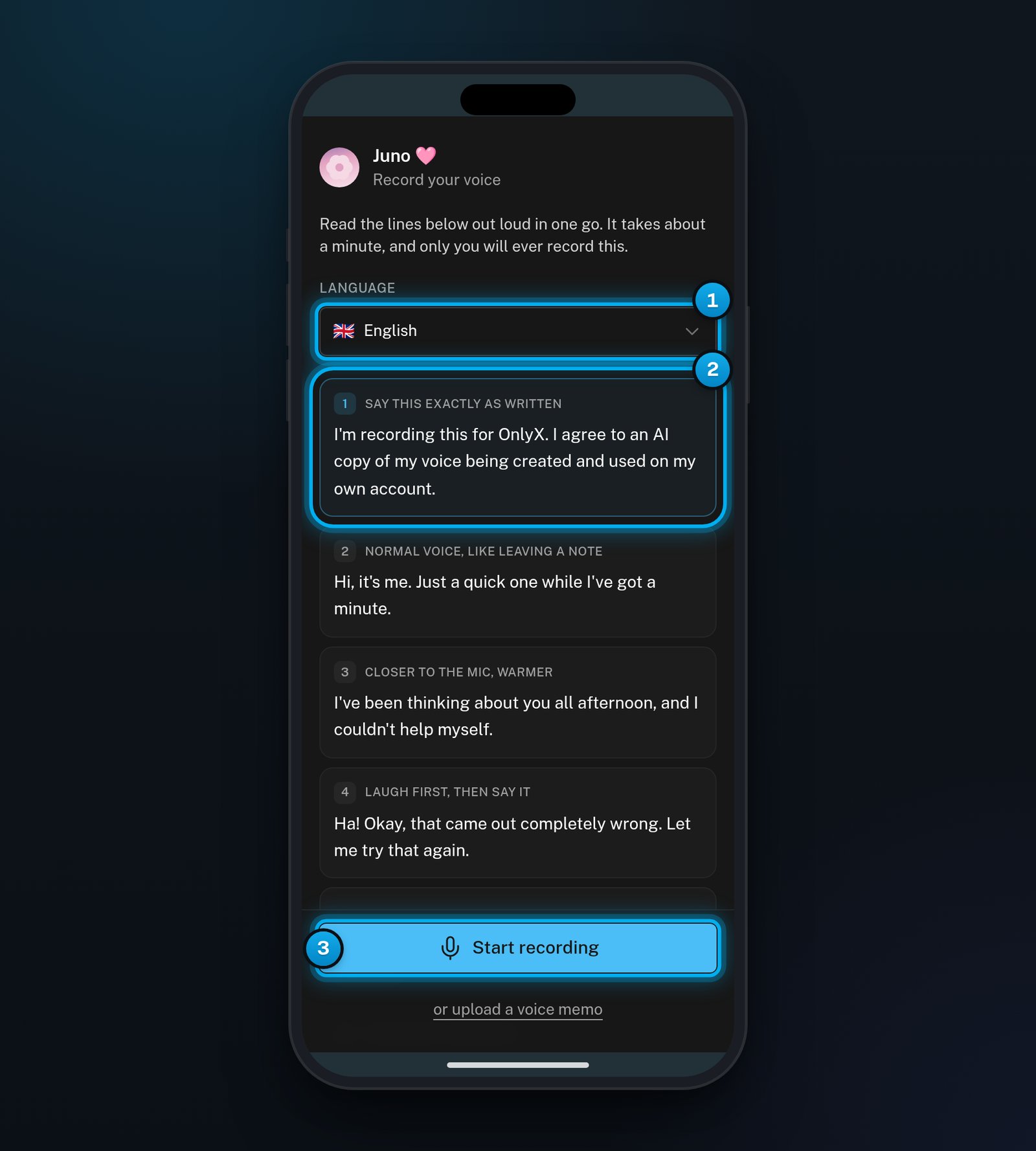
1 The language you read in. 2 Line 1, your consent. 3 Start recording.
Pick your language
Start recording
Read all seven lines
Stop recording
Listen to your recording
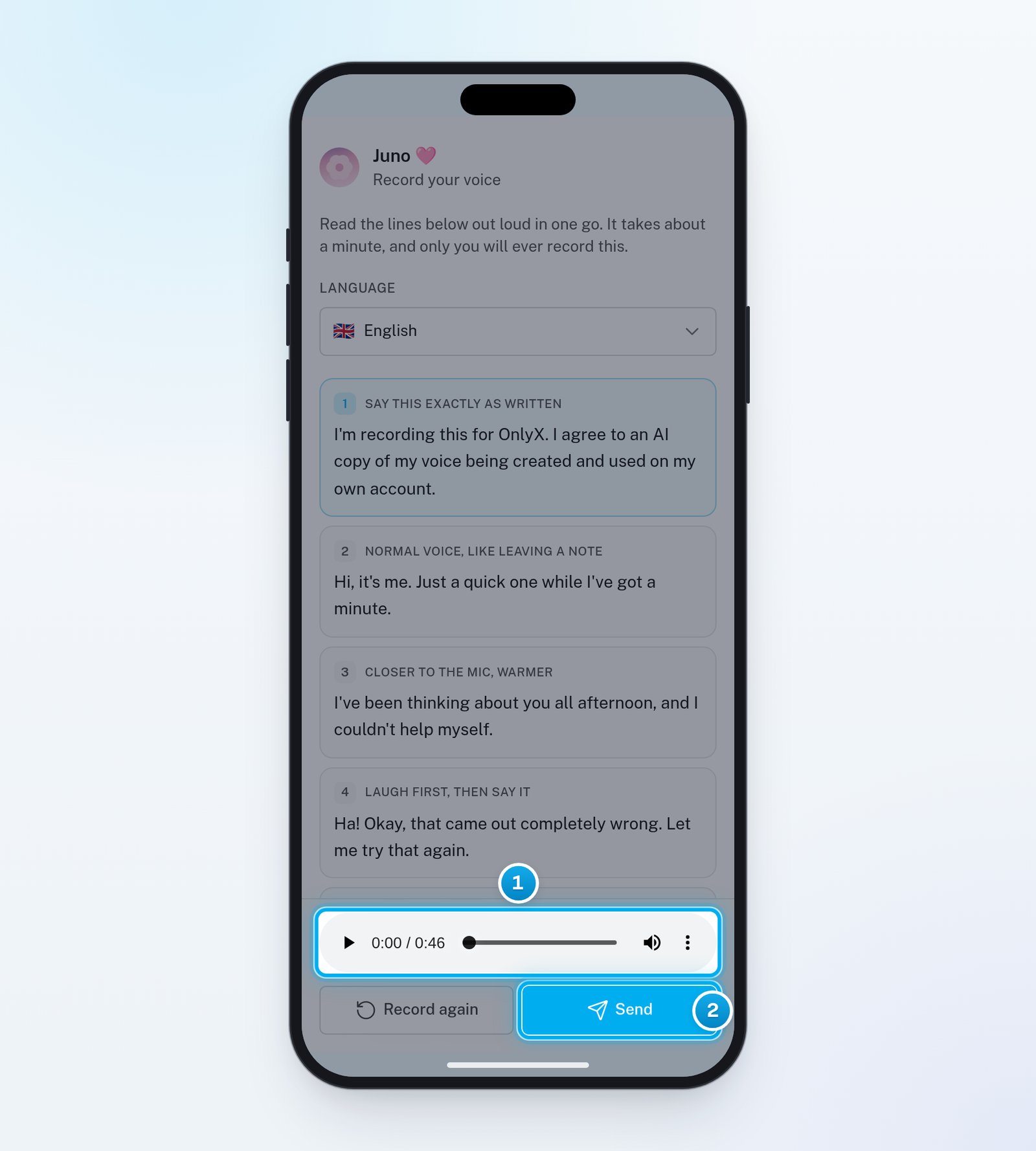
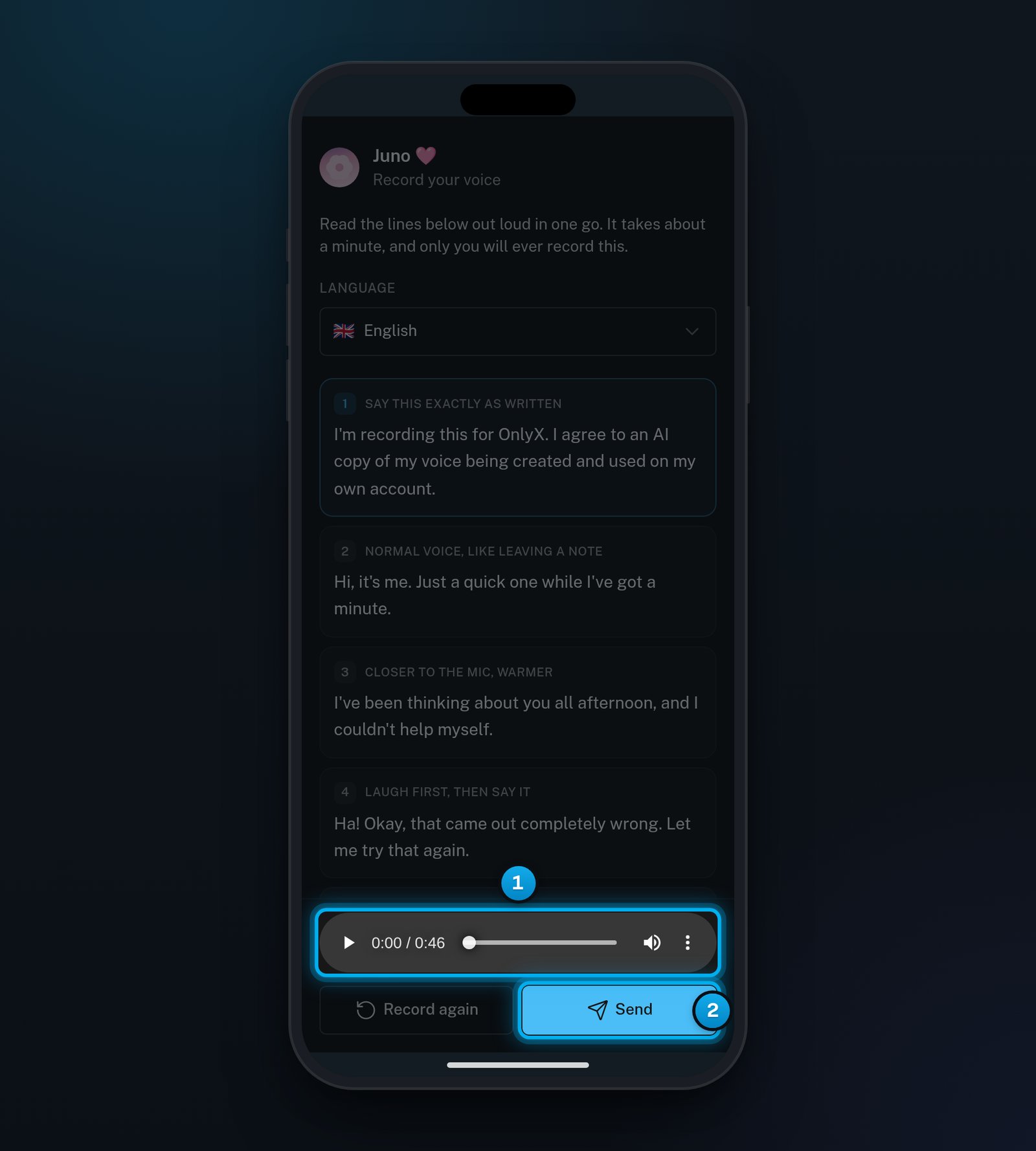
1 Listen to your recording. 2 Send it, or tap Record again first if you are not happy.
Send it
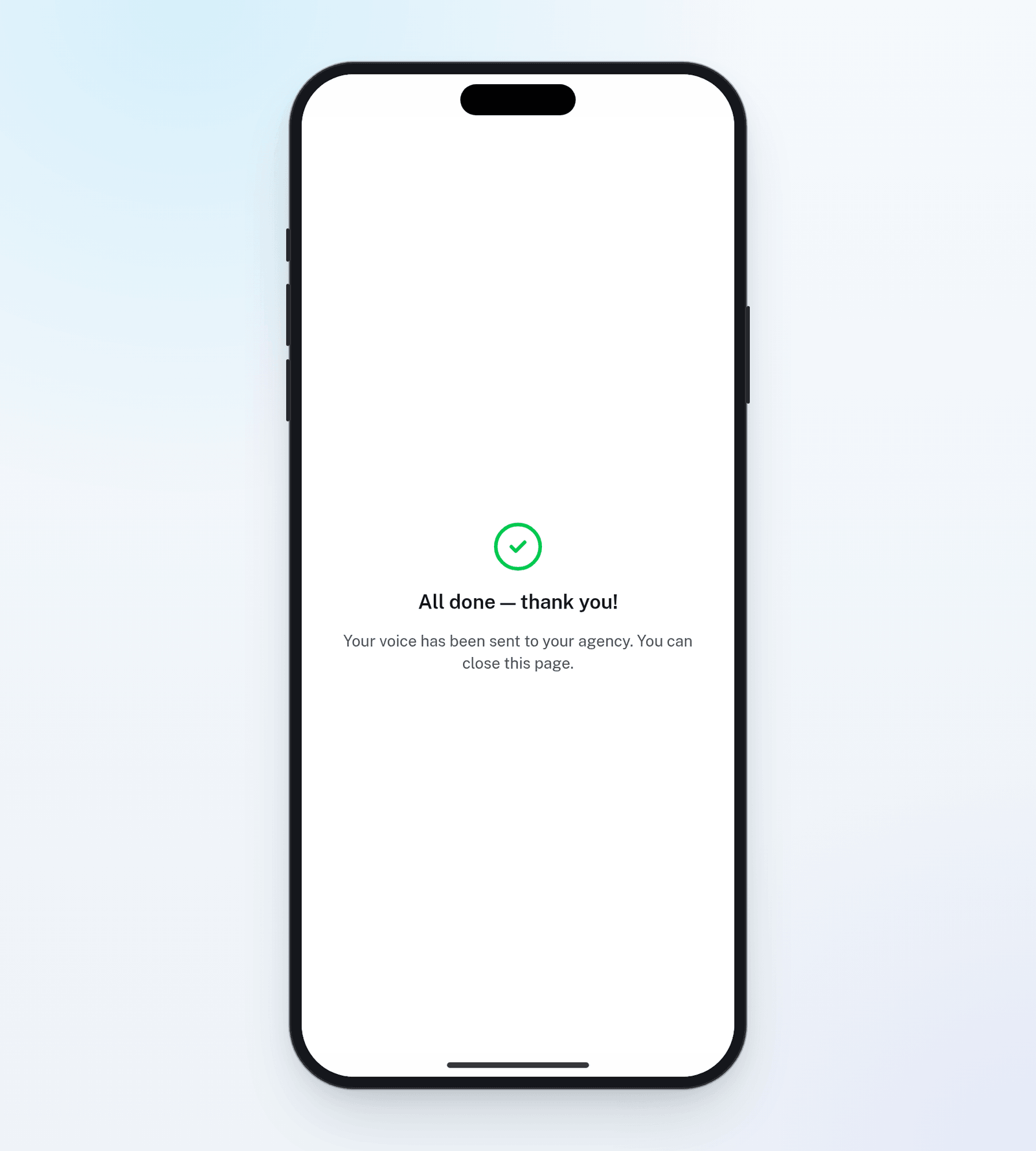
Your recording is with your agency. You can close the page.
What you agree to
Line 1 is your consent, and you say it in your own voice. It is not a box to tick. In English, it says: “I’m recording this for OnlyX. I agree to an AI copy of my voice being created and used on my own account.”- OnlyX keeps a record of your consent: the sentence you read, its language and the date.
- The page says: “only you will ever record this”. Nobody else records your voice on this link.
- A new voice starts paused. Your agency can listen to it first. Then they turn on voice notes.
- If you record again later, the new recording replaces your old voice completely.
If your phone will not record
You can record the lines in another app, and upload the file instead.Record a voice memo
Upload the file
Listen, then send
If something goes wrong
The page says "We could not reach your microphone"
The page says "We could not reach your microphone"
The page says "That is 0:08 — read the whole script, at least 10 seconds."
The page says "That is 0:08 — read the whole script, at least 10 seconds."
The page says "That recording is too long. Keep it under three minutes."
The page says "That recording is too long. Keep it under three minutes."
The page says "That did not go through. Please try again."
The page says "That did not go through. Please try again."
The page says "We could not read that recording"
The page says "We could not read that recording"
The lines are in English, but I want another language
The lines are in English, but I want another language
The page says "We could not use that recording"
The page says "We could not use that recording"
The page says "Your voice has already been recorded"
The page says "Your voice has already been recorded"
The page says "This link has expired" or "This link was cancelled"
The page says "This link has expired" or "This link was cancelled"
The page says "This link is not valid"
The page says "This link is not valid"
I left the page before I tapped Send
I left the page before I tapped Send