Do the OnlyFans face check on the right device, fix the messages OnlyX Login shows, and learn what OnlyX can and cannot see.
For creatorsSometimes OnlyFans asks the person who signs in to prove who she is, with a selfie or a video check. Only you can do this check, so your agency sends you a link for it.
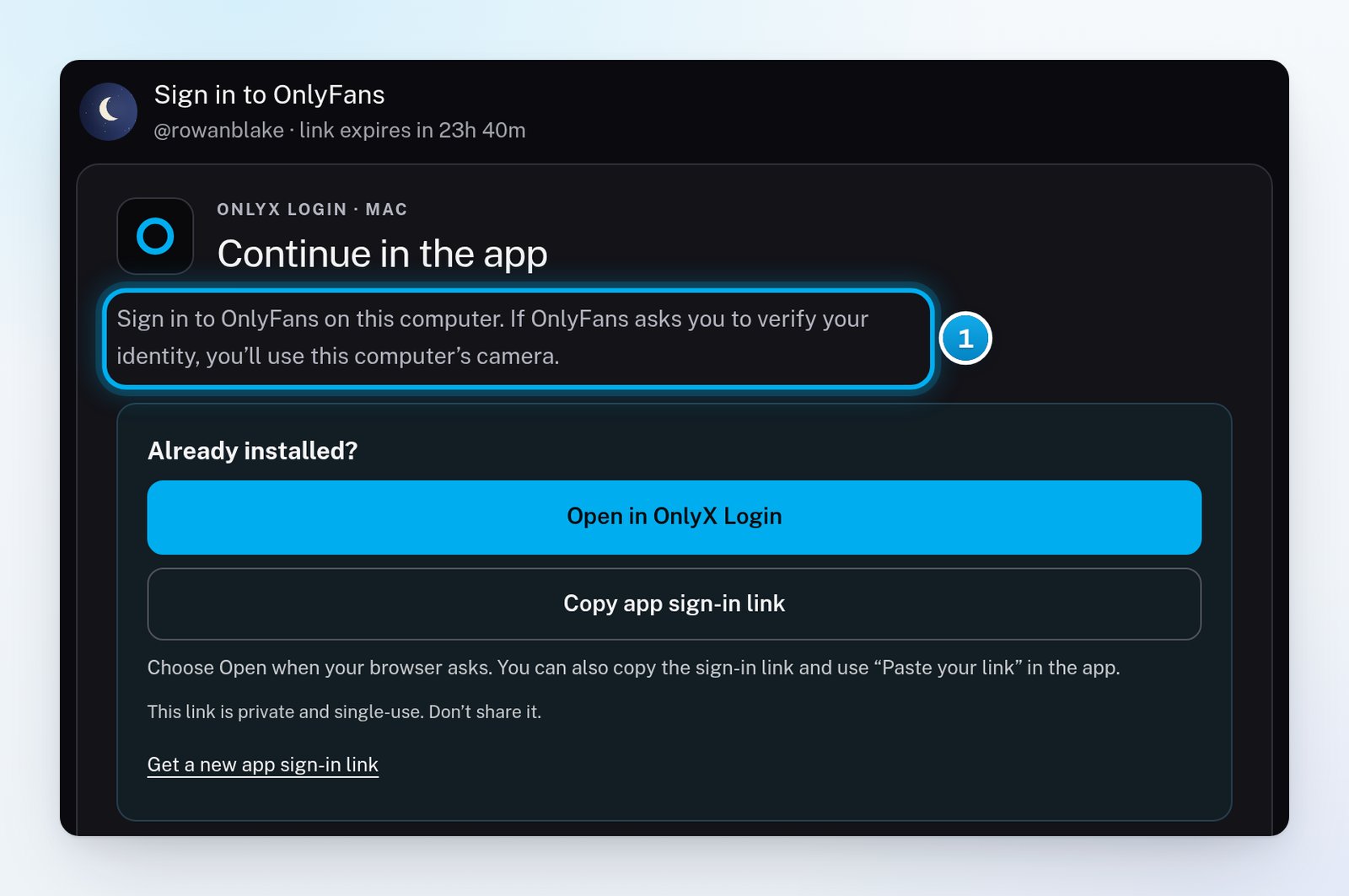
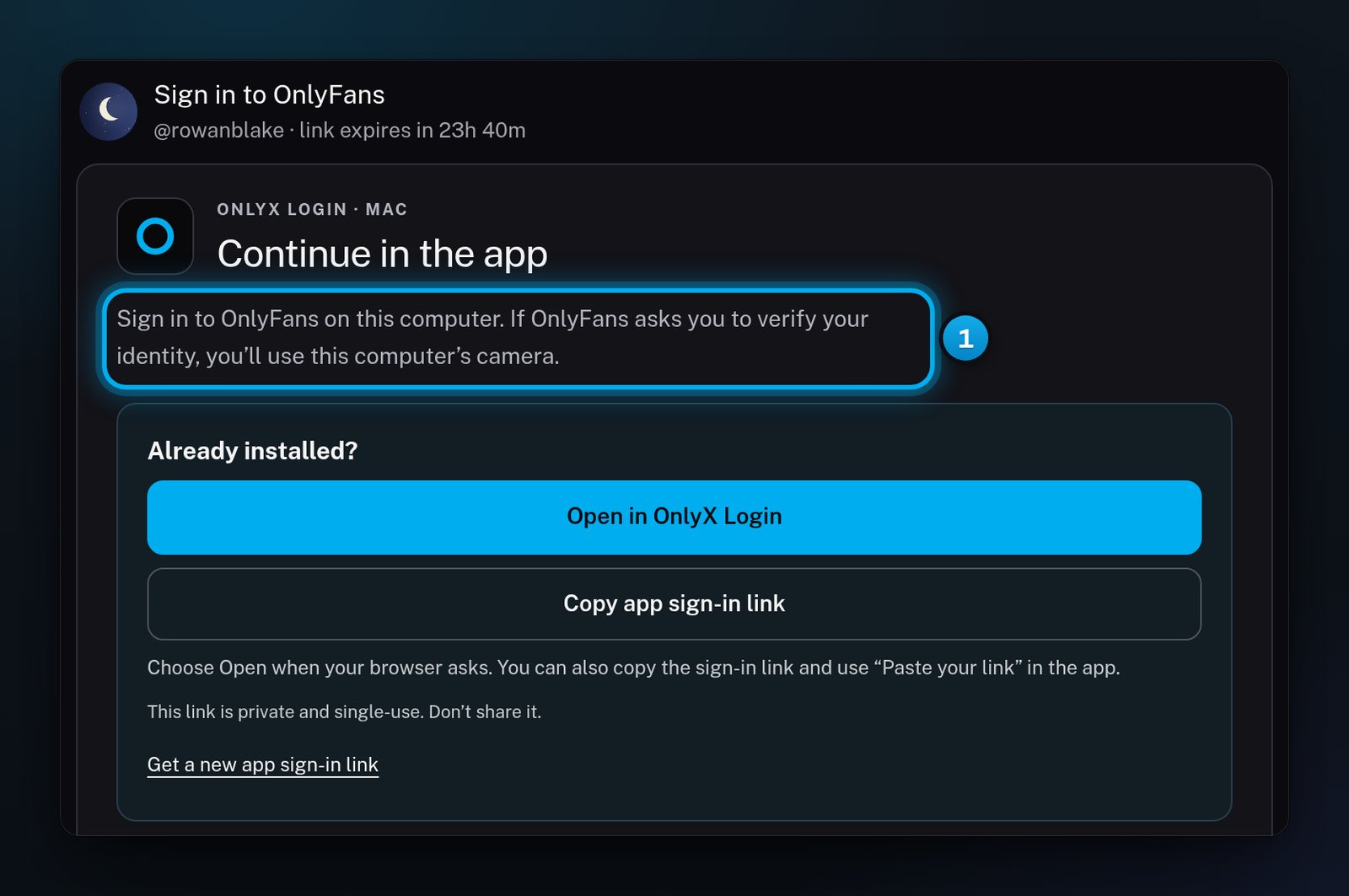
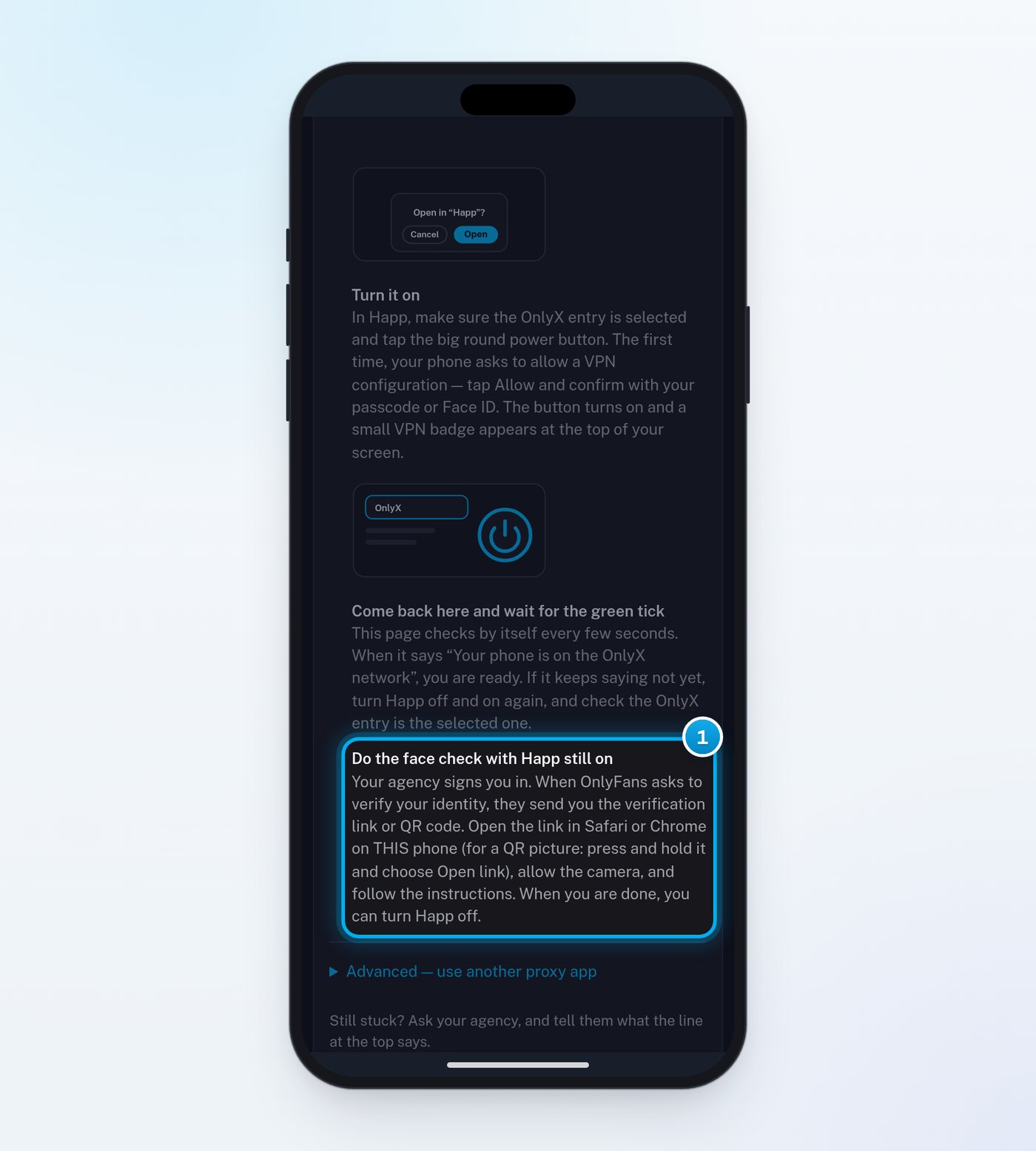
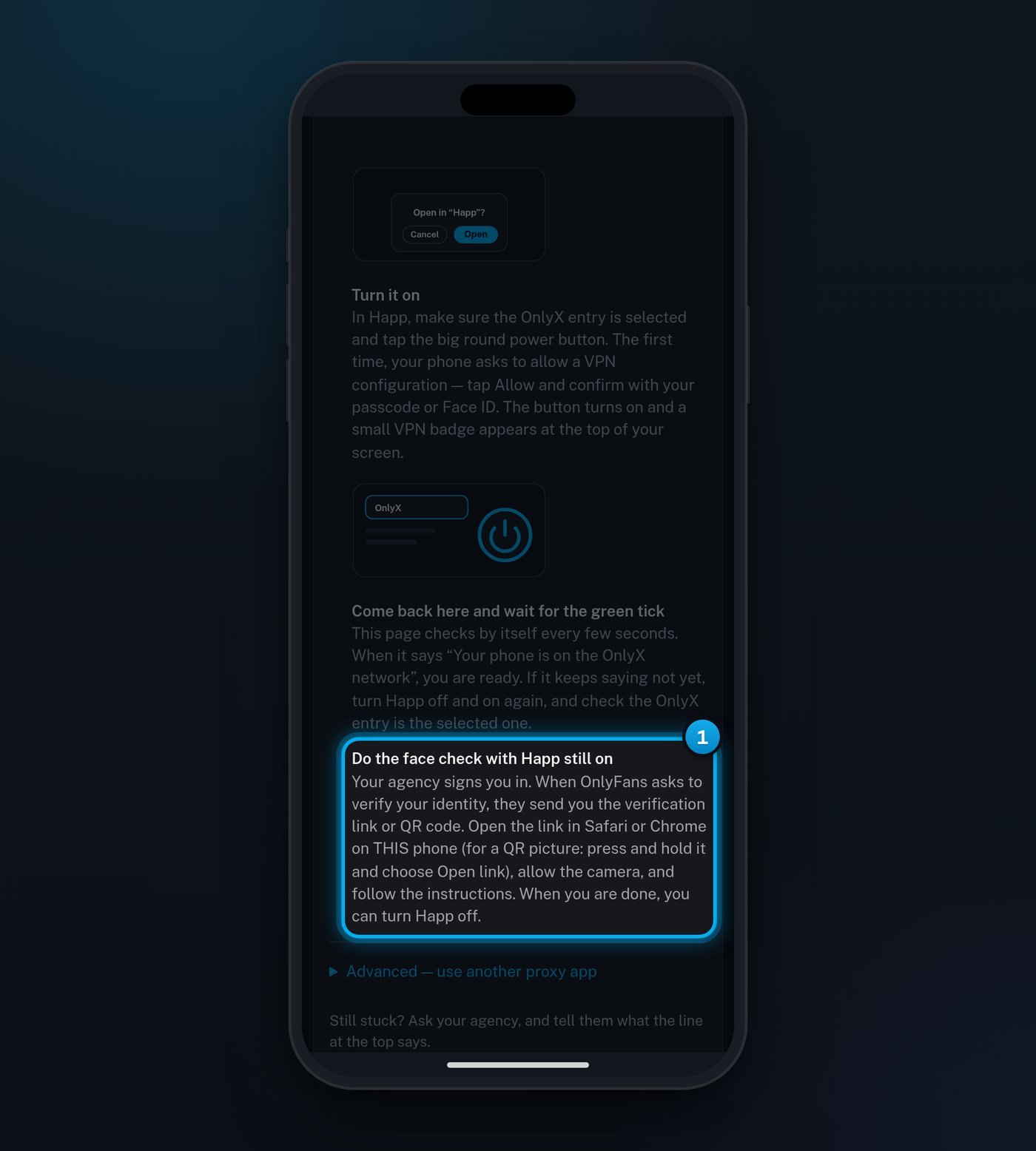
With OnlyX Login, do the check on the device that you sign in on. With Happ, do it on the phone that has Happ on.
1 On the Happ page, the last step is the face check, with Happ still on.
2
Allow the camera
When your computer or phone asks to use the camera, allow it.
3
Follow the instructions from OnlyFans
Hold your face up to the camera, as OnlyFans tells you. Follow the steps on the screen.
4
Wait until you are connected
With OnlyX Login, keep the window open while the app says “Connecting your account…”. When it says “Connected”, you are done.With Happ, tell your agency when the check is done. Then you can turn Happ off.
If the app says “That is a different OnlyFans account”, sign out in the sign-in window. Then sign in with the account that your agency expects. You do not need a new link.
On a computer, the bar at the top of the OnlyX Login window shows how long your link stays open. If the time runs out, the app says “This link has expired”.
The face check is between you and OnlyFans. The help in OnlyX Login says: “Nothing is recorded by OnlyX.”
The page from your agency does not use your camera at all.
In OnlyX Login, you type your password into the OnlyFans sign-in page. When you are signed in, the app sends OnlyX your signed-in session, not your password.
The app does not save the sign-in window. When the window closes, what was in it is gone.
Once you are connected, OnlyX keeps your OnlyFans account signed in for your agency. Your agency’s team reads and answers your messages, and sees your fans, sales and vault through it.
With Happ, the page sees the internet address that your phone uses. It needs this to check that you are on the OnlyX network, and it shows the address after “seen from”.
Happ changes only your phone’s network. Nothing else on your phone changes, and you can turn Happ off after the check.
OnlyX Login shows these messages on a computer and on an iPhone. The app calls your agency “your manager”.
"This link has expired"
The app sign-in link works once, and for 15 minutes. Or your sign-in took longer than the link allowed. Go back to the page from your agency, and use Get a new app sign-in link. Then open your sign-in again.
"The sign-in did not complete"
OnlyFans did not finish signing you in. Sign out, and sign in once more in the same window.
"That is a different OnlyFans account"
You signed in to another account than the one that the link is for. Sign out in the window. Then sign in with the right account.
"That OnlyFans account is already connected elsewhere"
Tell your agency which OnlyFans account you signed in with.
"This account cannot be connected right now"
Your agency needs to check the account in OnlyX before you sign in. Tell them about the message.
"OnlyX is not ready for this account yet"
Try your link again in a minute. If the message comes back, tell your agency.
"Cannot reach OnlyX" or "OnlyX is not answering"
Check your internet connection. Then open your link again.
"You are already signed in"
This link was used to sign in already. If your agency still sees your account as not connected, ask them for a new link.
OnlyFans does not accept my face check
Tell your agency what OnlyFans shows on the screen. They can sign you in another way.